MCP Server Troubleshooting: Fix Errors & Connection Issues (2026)
MCP server not working? This 2026 troubleshooting guide covers the 10 most common MCP errors — from error -32000 to connection timeouts — with step-by-step fixes. Includes the MCP Inspector tool walkthrough.

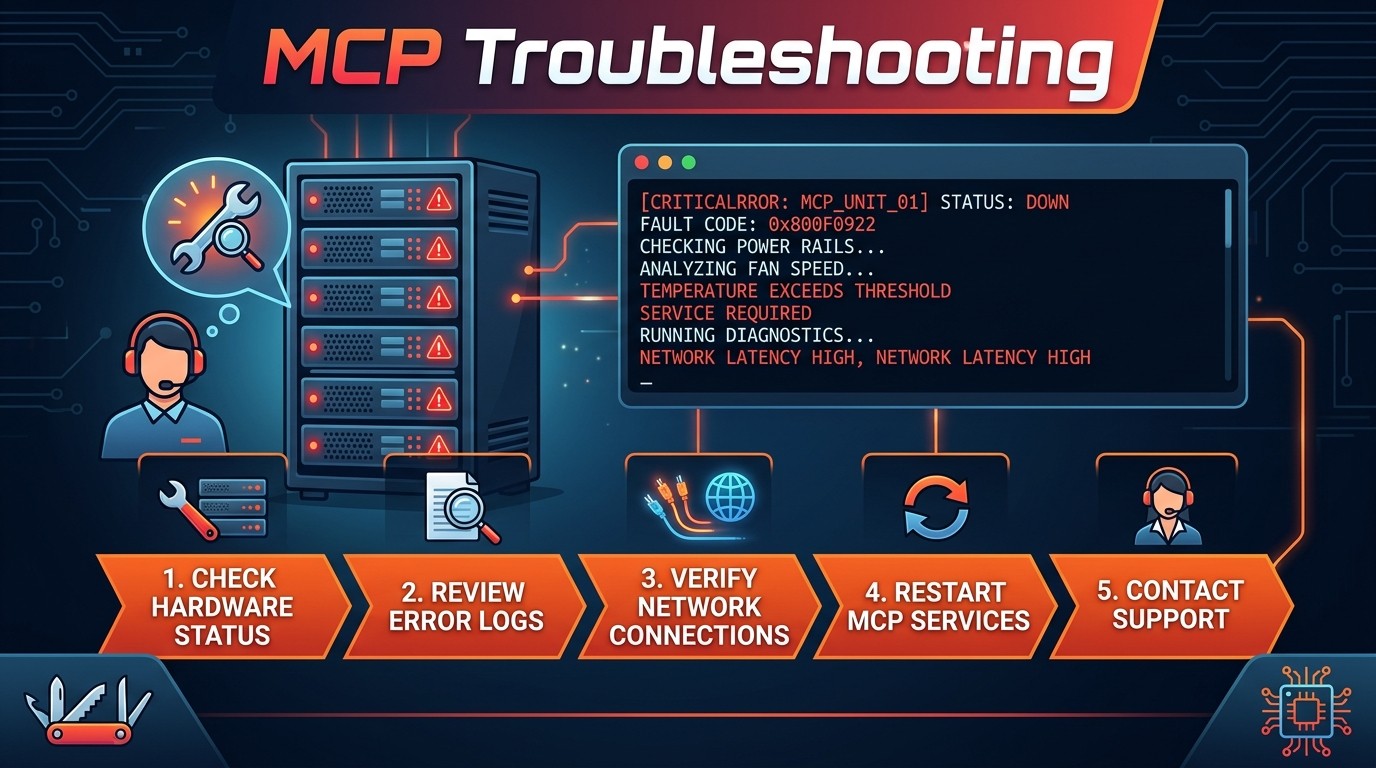
MCP Server Troubleshooting: Fix Every Common Error (2026 Guide)
 When MCP servers break, the error messages rarely tell the full story. This guide does.
Most MCP server failures come down to one of these five issues:
1. Wrong path to the server binary — Double-check
command in your config. Use absolute paths. Run the command manually in a terminal first.2. stdout/stderr corruption — The server is printing logs or debug output to stdout, which corrupts the JSON-RPC message stream. Redirect all non-protocol output to stderr.
3. Missing environment variables — API keys, tokens, and database URLs defined in the
env block of the MCP config must match what the server expects. One typo breaks everything.4. Node.js/Python version mismatch — The server requires a runtime version that is not the system default. Use
npx for Node servers or explicit Python paths for Python servers.5. Stale process from a previous session — A zombie MCP server process is holding a port or lock file. Kill it with
pkill -f "server-name" or restart the MCP client.If none of these apply, use the MCP Inspector to isolate the problem.
Table of Contents
- Error -32000: Server Crash
- "MCP Server Not Found"
- Connection Timeout
- stdout/stderr Corruption
- CORS Headers Missing (HTTP Transport)
- Authentication Failures
- Permission Denied
- Server Starts but Tools Don't Appear
- Slow Responses and Memory Leaks
- "Transport Closed" / Disconnection
- The MCP Inspector Tool
- Claude Desktop vs. Claude Code — Config Differences
- Prevention Best Practices
- Frequently Asked Questions
- Related Articles
Why MCP Servers Break
The Model Context Protocol connects AI assistants to external tools through a client-server architecture. In theory, this is straightforward: the client sends JSON-RPC requests over a transport layer, the server processes them, and returns structured responses. In practice, at least a dozen things can go wrong between "add server to config" and "tool call succeeds."
MCP servers fail for reasons that fall into four categories:
Configuration errors. The server binary path is wrong, environment variables are missing or misspelled, arguments are in the wrong order, or the config file has a JSON syntax error. Configuration problems account for roughly half of all MCP failures reported in developer forums and GitHub issues throughout 2026. They are the most common category and, fortunately, the easiest to fix.
Runtime environment issues. The server expects Node.js 20 but the system runs Node.js 18. Python servers fail because the wrong virtual environment is activated. Docker-based servers cannot find the Docker socket. The runtime is correct but a dependency failed to install. These issues are invisible until the server actually tries to start.
Transport layer problems. For stdio-based servers, the most insidious failure mode is stdout corruption — the server (or one of its dependencies) writes non-JSON-RPC output to stdout, breaking the message stream. For HTTP/SSE-based servers, CORS headers, TLS certificates, proxy configurations, and port conflicts all introduce failure points that do not exist in the stdio world.
Protocol-level errors. The server starts and connects but returns malformed responses, fails to implement required MCP protocol methods, or crashes when the client sends a request the server does not handle. These are typically bugs in the server code itself rather than configuration problems.
The stdout/stderr Problem
This deserves special attention because it is the single most confusing failure mode in the MCP ecosystem.
MCP's stdio transport uses stdout for JSON-RPC messages between client and server. The protocol expects only valid JSON-RPC on stdout — nothing else. But many programs and libraries write to stdout by default: console.log() in Node.js, print() in Python, logging libraries that default to stdout, and even some native modules that emit warnings to stdout during initialization.
When non-JSON-RPC content appears on stdout, the MCP client receives a byte stream that looks like this:
Starting server v2.1.0...
{"jsonrpc":"2.0","method":"initialize","id":1,...}
The client tries to parse Starting server v2.1.0... as JSON, fails, and either crashes the connection or enters an error state. The error message is usually unhelpful — something like "Parse error" or "Invalid JSON" — with no indication that the root cause is a rogue print statement three dependencies deep.
The fix is always the same: ensure the server and all of its dependencies write non-protocol output to stderr, not stdout. In Node.js, replace console.log() with console.error() for debug output. In Python, use print(..., file=sys.stderr) or configure logging to write to stderr. For third-party libraries, check their logging configuration or suppress their output entirely.
This problem is so common that the MCP specification explicitly warns about it, and the MCP Inspector tool (covered below) was partly built to diagnose it.
Visual Troubleshooting Flowchart
Use this decision tree to narrow down the problem before diving into specific error sections.
START: MCP server not working
│
├─ Does the server process start at all?
│  │
│  ├─ NO → Check: Is the command path correct?
│  │         ├─ Run the command manually in a terminal
│  │         ├─ Use absolute paths (not relative)
│  │         ├─ Check: Is the runtime installed? (node, python, npx)
│  │         └─ See: "MCP Server Not Found" section
│  │
│  └─ YES → Does the client detect the server?
│     │
│     ├─ NO → Check: Is stdout being corrupted?
│     │         ├─ Run with MCP Inspector to see raw output
│     │         ├─ Check for rogue console.log / print statements
│     │         └─ See: "stdout/stderr Corruption" section
│     │
│     └─ YES → Do tools appear in the client?
│        │
│        ├─ NO → Check: Does the server implement listTools?
│        │         ├─ Test with MCP Inspector → "List Tools"
│        │         ├─ Check server version compatibility
│        │         └─ See: "Server Starts but Tools Don't Appear" section
│        │
│        └─ YES → Do tool calls return results?
│           │
│           ├─ NO → Check: What error is returned?
│           │         ├─ Error -32000 → See: "Server Crash" section
│           │         ├─ Timeout → See: "Connection Timeout" section
│           │         ├─ Auth error → See: "Authentication Failures" section
│           │         ├─ Permission denied → See: "Permission Denied" section
│           │         └─ Transport closed → See: "Transport Closed" section
│           │
│           └─ YES, but slowly or intermittently
│                    ├─ See: "Slow Responses and Memory Leaks" section
│                    └─ See: "Transport Closed" section
Start at the top and follow the path that matches the observed behavior. Each endpoint maps to a detailed section below.
10 Common Errors with Solutions
Error -32000: Server Crash
What it looks like:
{
  "jsonrpc": "2.0",
  "error": {
    "code": -32000,
    "message": "Server error: process exited with code 1"
  },
  "id": 1
}
What it means:
Error -32000 is the JSON-RPC code for a generic server-side error. In the MCP context, it almost always means the server process crashed — either during initialization or while handling a specific tool call. The exit code (if included) provides a clue: code 1 is a general error, code 137 indicates the process was killed (often by an out-of-memory condition), and code 127 means the command was not found.
How to fix it:
- Check the server logs. If the server writes to stderr (which it should), the MCP client may capture this output. In Claude Desktop, check
~/Library/Logs/Claude/on macOS or%APPDATA%\Claude\logs\on Windows. In Claude Code, stderr output appears directly in the terminal.
- Run the server manually. Copy the exact
commandandargsfrom the MCP config and run them in a terminal:
# Example: running a Node.js MCP server manually
npx -y @modelcontextprotocol/server-filesystem /path/to/allowed/directory
Any crash, missing dependency, or error message will be visible in the terminal output.
- Check for missing dependencies. Node.js servers: run
npm installin the server directory. Python servers: verify the virtual environment is activated and runpip install -r requirements.txt.
- Verify runtime version. Some MCP servers require Node.js 20+ or Python 3.11+. Check with
node --versionorpython --version.
- Look for port conflicts. If the server uses HTTP transport, another process may be occupying the port. Use
lsof -i :PORT(macOS/Linux) ornetstat -ano | findstr :PORT(Windows) to check.
"MCP Server Not Found"
What it looks like:
Error: MCP server "my-server" not foundspawn npx ENOENTError: Command not found: python3What it means:
The MCP client cannot locate or execute the command specified in the server configuration. This is the most frequently reported MCP error in 2026, and it almost always comes down to a path resolution problem.
How to fix it:
- Use absolute paths. MCP clients do not always inherit the user's shell PATH. Instead of
python3, use/usr/bin/python3or the full path fromwhich python3. Instead ofnpx, use the full path fromwhich npx:
{
  "mcpServers": {
    "my-server": {
      "command": "/usr/local/bin/npx",
      "args": ["-y", "@company/mcp-server"]
    }
  }
}- Check the config file for JSON errors. A misplaced comma, missing bracket, or trailing comma after the last entry will silently break the entire configuration. Run the config file through a JSON validator:
cat ~/.claude/claude_desktop_config.json | python3 -m json.tool- Verify the package exists. For npm-based servers, confirm the package name is correct:
npm view @modelcontextprotocol/server-filesystemIf this returns "404 Not Found," the package name is wrong or the server has been deprecated.
- Check for global vs. local installation conflicts. If the server was installed globally (
npm install -g) butnpxis running a different version, force a fresh install:
npx -y --package=@company/mcp-server@latest mcp-server- Windows-specific: use
nodeinstead ofnpx. On Windows,npxsometimes fails to resolve correctly when called from MCP clients. Install the server globally and reference the script directly:
{
  "command": "node",
  "args": ["C:\\Users\\username\\AppData\\Roaming\\npm\\node_modules\\@company\\mcp-server\\dist\\index.js"]
}
Connection Timeout
What it looks like:
Error: MCP server connection timed out after 30000msError: Failed to connect to MCP server: timeoutWhat it means:
The MCP client started the server process (or attempted to connect to a remote server) but did not receive the expected initialize response within the timeout window. The server is either taking too long to start, hanging during initialization, or failing silently without crashing.
How to fix it:
- Check for slow startup. Some MCP servers download models, build caches, or authenticate with external services during initialization. Run the server manually and time how long it takes to become ready. If it legitimately needs more than 30 seconds, check whether the client supports a configurable timeout.
- Check for interactive prompts. Some servers prompt for input during first run (accepting licenses, entering credentials, confirming configuration). These prompts block on stdin and never complete when launched by an MCP client. Run the server manually first to complete any one-time setup.
- Check network connectivity. Remote HTTP/SSE servers may time out due to DNS resolution failures, firewall rules, VPN requirements, or proxy misconfigurations. Test the endpoint directly:
curl -v https://mcp-server.example.com/health- Increase the timeout. Some MCP clients support timeout configuration. In Claude Code, the server can specify a longer initialization timeout. Check the client documentation for the
timeoutorinitializationTimeoutsetting.
- Check for deadlocks. If the server spawns child processes or opens file locks during initialization, a deadlock can cause the process to hang indefinitely. Attach a debugger or check resource utilization with
top/htopto see if the process is alive but stuck.
stdout/stderr Corruption
What it looks like:
Error: Parse error: Unexpected token 'S' at position 0Error: Invalid JSON-RPC message receivedError: Expected '{' but got 'D'What it means:
Non-JSON-RPC content is being written to stdout, corrupting the transport stream. As explained in the "Why MCP Servers Break" section above, this is the most confusing MCP failure mode because the error message never says "something printed to stdout that shouldn't have." The client just sees invalid JSON and reports a parse error.
How to fix it:
- Identify the source. Run the server with the MCP Inspector (see below) to capture the raw stdout output. Alternatively, redirect stdout to a file and inspect it:
node server.js > /tmp/mcp-stdout.log 2>/tmp/mcp-stderr.logOpen /tmp/mcp-stdout.log and look for any content that is not a JSON-RPC message.
- Fix the server code. Replace all
console.log()calls withconsole.error()for debug/status output. In Python, replaceprint()withprint(..., file=sys.stderr):
// WRONG — corrupts MCP transport
console.log("Server starting...");

// CORRECT — goes to stderr, not stdout
console.error("Server starting...");
import sys
# WRONG
print("Server starting...")
# CORRECT
print("Server starting...", file=sys.stderr)- Suppress dependency output. Some libraries log to stdout by default. Common offenders:
- dotenv — prints "loaded .env file" to stdout in some configurations
- Python warnings module — may write to stdout depending on configuration
- Native Node.js addons — may emit deprecation warnings to stdout during
require()
Configure these libraries to use stderr or suppress their output entirely.
- Set environment variables. Some runtimes can be configured to redirect output:
{
  "env": {
    "NODE_NO_WARNINGS": "1",
    "PYTHONUNBUFFERED": "1"
  }
}- Wrap the server with a filter. As a last resort, pipe the server's stdout through a filter that strips non-JSON lines. This is fragile but can work temporarily while the underlying issue is fixed.
CORS Headers Missing (HTTP Transport)
What it looks like:
Access to fetch at 'http://localhost:3001/mcp' from origin 'http://localhost:3000'
has been blocked by CORS policy: No 'Access-Control-Allow-Origin' header is present
on the requested resource.
What it means:
The MCP server is using HTTP/SSE transport and a browser-based or web-hosted MCP client is trying to connect. The server is not returning the required CORS (Cross-Origin Resource Sharing) headers, so the browser blocks the request. This only affects HTTP transport — stdio servers are immune to CORS issues.
How to fix it:
- Add CORS headers to the server. If the server is custom-built, add the appropriate headers. For Express.js servers:
const cors = require('cors');
app.use(cors({
  origin: ['http://localhost:3000', 'https://your-client-domain.com'],
  methods: ['GET', 'POST', 'OPTIONS'],
  allowedHeaders: ['Content-Type', 'Authorization'],
}));- Handle preflight requests. Browsers send an OPTIONS request before the actual POST. The server must respond to OPTIONS with the correct headers and a 200 or 204 status code. A missing OPTIONS handler is the most common cause of CORS failures for MCP servers.
- Check the SSE endpoint. Server-Sent Events connections also require CORS headers. Ensure the
/sseor/eventsendpoint includesAccess-Control-Allow-Originin the response headers.
- Use a reverse proxy. If the server cannot be modified (e.g., it is a third-party binary), place it behind a reverse proxy (nginx, Caddy) that adds CORS headers:
location /mcp/ {
    proxy_pass http://localhost:3001/;
    add_header 'Access-Control-Allow-Origin' '*' always;
    add_header 'Access-Control-Allow-Methods' 'GET, POST, OPTIONS' always;
    add_header 'Access-Control-Allow-Headers' 'Content-Type, Authorization' always;
    if ($request_method = 'OPTIONS') {
        return 204;
    }
}- Switch to stdio. If the server supports both transports and the client is running locally, switch to stdio to avoid CORS entirely. Stdio is simpler, faster, and has fewer failure modes for local setups.
Authentication Failures
What it looks like:
Error: 401 UnauthorizedError: Invalid API key or tokenError: Authentication failed for MCP server "github"What it means:
The MCP server requires credentials (API keys, OAuth tokens, database passwords) and either did not receive them, received an expired or invalid credential, or is looking for them in a location different from where they were provided.
How to fix it:
- Check the
envblock in the config. MCP server credentials are typically passed as environment variables in the client configuration. Verify the variable names match exactly what the server expects:
{
  "mcpServers": {
    "github": {
      "command": "npx",
      "args": ["-y", "@modelcontextprotocol/server-github"],
      "env": {
        "GITHUB_PERSONAL_ACCESS_TOKEN": "ghp_xxxxxxxxxxxxxxxxxxxx"
      }
    }
  }
}
Common mistakes: using GITHUB_TOKEN instead of GITHUB_PERSONAL_ACCESS_TOKEN, including a trailing space or newline in the token value, or forgetting to regenerate an expired token.
- Check token permissions. A valid token with insufficient scopes will produce authentication errors on specific operations. GitHub personal access tokens need
repo,read:org, andgistscopes for full MCP server functionality. Database tokens need the correct read/write permissions.
- Check for token expiration. GitHub fine-grained PATs, OAuth tokens, and cloud platform credentials all have expiration dates. If the server worked last week but fails today, regenerate the credential.
- Test credentials independently. Before blaming the MCP server, verify the credential works outside of MCP:
curl -H "Authorization: Bearer ghp_xxxxxxxxxxxxxxxxxxxx" https://api.github.com/userIf this returns 401, the problem is the credential itself, not the MCP server.
- Check for credential inheritance issues. Some MCP clients do not pass the parent shell's environment variables to server processes by default. If the credential is set in
.bashrcor.zshrcbut not in the MCP config'senvblock, the server will not see it. Always explicitly set required credentials in the MCP configuration.
Permission Denied
What it looks like:
Error: EACCES: permission denied, open '/etc/config'Error: Permission denied (publickey)Error: PermissionError: [Errno 13] Permission denied: '/var/data'What it means:
The MCP server process does not have operating system-level permission to access the resource it needs — a file, directory, socket, port, or remote host. This is distinct from authentication failures (which are about credentials) and relates to OS file permissions, user account restrictions, or network access controls.
How to fix it:
- Check file and directory permissions. The MCP server process runs with the same user permissions as the MCP client. If the server needs to read
/var/data/, the user running Claude Desktop or Claude Code must have read access to that path:
ls -la /var/data/
# If permission denied:
chmod 755 /var/data/
# Or run the MCP client as a user with access- Check the configured allowed paths. The Filesystem MCP server, for example, accepts a list of allowed directories as arguments. The server will deny access to paths outside this list even if the OS permits it:
{
  "args": ["/home/user/projects", "/home/user/documents"]
}
If the server cannot access /home/user/data, add it to the arguments list.
- Check SSH key permissions. Git-related MCP servers that use SSH need the SSH key to be available to the server process. If the key requires a passphrase and no SSH agent is running, authentication will fail silently. Ensure
ssh-agentis running and the key is added:
eval "$(ssh-agent -s)"
ssh-add ~/.ssh/id_ed25519- Check port binding. If the server uses HTTP transport and tries to bind to a port below 1024, it needs root/administrator privileges on most operating systems. Either use a port above 1024 or grant the server the necessary capability.
- Docker socket access. Docker MCP servers need access to
/var/run/docker.sock. The user running the MCP client must be in thedockergroup:
sudo usermod -aG docker $USER
# Log out and back in for the change to take effect
Server Starts but Tools Don't Appear
What it looks like:
The MCP server starts without errors. The client shows it as "connected" or "running." But when the AI assistant tries to use a tool, the tool does not appear in the available tools list. The assistant cannot invoke any of the server's capabilities.
What it means:
The server initialized successfully but the tool discovery handshake failed. The MCP client sends a tools/list request during initialization, and the server either returned an empty list, returned a malformed response, or did not respond to the request at all.
How to fix it:
- Check server version compatibility. The MCP protocol has evolved through 2025 and 2026. A server built for an early protocol version may not implement
tools/listin the format the client expects. Check the server's README for minimum protocol version requirements and update the server to the latest version:
npx -y @company/mcp-server@latest- Test with MCP Inspector. Connect to the server using MCP Inspector and click "List Tools." This shows the raw response from the server, revealing whether the issue is the server returning no tools, returning tools in the wrong format, or not responding at all.
- Check for conditional tool registration. Some servers only register tools after successful authentication or configuration. If the server needs an API key to function and the key is missing, it may start without errors but register zero tools. Check the server logs (stderr) for warnings about missing configuration.
- Check for capability negotiation failures. MCP servers declare their capabilities during the
initializehandshake. If the server does not declaretoolsas a capability, the client will not send atools/listrequest. Review the server'sinitializeresponse (visible in MCP Inspector) to confirmtoolsis listed in the capabilities.
- Restart the client. Some MCP clients cache the tool list from the initial connection and do not re-query when the server updates. If tools were added to the server after the initial connection, restart the client (not just the server) to trigger a fresh tool discovery.
Slow Responses and Memory Leaks
What it looks like:
Tool calls take progressively longer over time. The server's memory usage grows steadily. Eventually, the server becomes unresponsive or is killed by the operating system's OOM (out of memory) killer.
What it means:
The server has a resource management problem — typically a memory leak, an unclosed connection pool, accumulating event listeners, or unbounded caching. These issues may not surface during short testing sessions but become critical during extended use.
How to fix it:
- Monitor the server process. Track memory and CPU usage over time:
# macOS/Linux: monitor the server process
top -pid $(pgrep -f "mcp-server-name")

# Or use a more detailed view
ps aux | grep mcp-server-name
If RSS (Resident Set Size) grows continuously without plateauing, there is a memory leak.
- Check for connection pool exhaustion. Database MCP servers (PostgreSQL, MySQL, SQLite) may open connections without properly closing them. Look for warnings about pool exhaustion in the server logs. The fix is usually a configuration change:
{
  "env": {
    "DB_POOL_MAX": "10",
    "DB_POOL_IDLE_TIMEOUT": "30000"
  }
}- Check for event listener accumulation. In Node.js servers, the warning
MaxListenersExceededWarningindicates event listener leaks. This commonly happens when the server creates new event handlers for each request without removing them afterward.
- Restart the server periodically. If the memory leak is in a third-party server that cannot be patched immediately, a pragmatic workaround is periodic restart. Some MCP clients support automatic server restarts. Alternatively, use a process manager:
# Using PM2 to auto-restart when memory exceeds 500MB
pm2 start mcp-server.js --max-memory-restart 500M- Report the issue upstream. Memory leaks in open source MCP servers should be reported with reproduction steps. Include: the MCP client used, the sequence of tool calls that triggers the leak, and memory growth measurements over time. The Skiln.co MCP directory links to the source repository for every listed server, making it easy to find the right issue tracker.
"Transport Closed" / Disconnection
What it looks like:
Error: MCP transport closed unexpectedlyError: Connection to MCP server lostError: Server disconnected: pipe brokenWhat it means:
The communication channel between the MCP client and server was terminated unexpectedly. For stdio servers, this means the server process exited or the pipe was broken. For HTTP/SSE servers, the network connection was dropped. This can happen mid-session, not just during startup.
How to fix it:
- Check if the server process is still running. After seeing a "transport closed" error, check whether the server process still exists:
pgrep -f "mcp-server-name"If the process is gone, it crashed. Check stderr output or system logs for the crash reason. If it is a segfault or OOM kill, the cause is in the server's native dependencies or resource usage.
- Check for idle disconnection. HTTP/SSE servers may close idle connections after a timeout. If the server disconnects after periods of inactivity, the issue is likely the SSE connection being closed by a proxy, load balancer, or the server itself. Configure keep-alive settings or increase timeout values.
- Check for signal handling. Some MCP servers do not handle
SIGTERMorSIGPIPEgracefully. If the client sends a signal (e.g., during shutdown or restart), the server may exit immediately without cleanup. This is a server bug — report it upstream.
- Check for file descriptor limits. On Linux/macOS, a server that opens many files or sockets can hit the file descriptor limit, causing new operations to fail and eventually crashing the process:
ulimit -n
# If low (e.g., 256), increase it:
ulimit -n 4096- Enable automatic reconnection. Some MCP clients support automatic reconnection when the transport closes. Check the client settings for a "reconnect" or "auto-restart" option. Claude Code, for example, will attempt to restart a crashed stdio server automatically in many cases.
- Check for network instability (HTTP/SSE only). If the MCP server is remote, network interruptions will close the SSE connection. Use a network monitor to check for packet loss or DNS resolution changes. Consider running a local proxy that buffers the connection and handles reconnection.
The MCP Inspector Tool
The MCP Inspector is the single most useful debugging tool in the MCP ecosystem. It is an interactive client that connects to any MCP server and provides a visual interface for testing every aspect of the protocol — initialization, tool discovery, tool invocation, resource listing, and prompt listing.
Installing MCP Inspector
npx -y @modelcontextprotocol/inspectorThis launches a web-based interface (typically at http://localhost:5173) that accepts server configurations and connects to them interactively.
What MCP Inspector Reveals
Initialization handshake. Inspector shows the full initialize request and response, including the protocol version, server capabilities, and server info. This immediately reveals version mismatches, missing capabilities, and malformed initialization responses.
Tool listing. Click "List Tools" to see every tool the server exposes, including the tool name, description, and parameter schema. If tools are missing, the Inspector makes this obvious. If the tool schema is malformed (which would cause the client to reject it), the Inspector highlights the issue.
Tool invocation. Select a tool, fill in parameters, and call it directly. The Inspector shows the full JSON-RPC request and response, including any error messages. This is the fastest way to determine whether a tool failure is a server-side bug or a client-side issue.
Raw message log. Inspector displays every JSON-RPC message exchanged between client and server, including timestamps. This is invaluable for diagnosing timing issues, race conditions, and protocol violations.
stdout/stderr separation. Inspector captures stdout and stderr separately, making it trivial to identify stdout corruption. If the server is printing non-JSON-RPC content to stdout, Inspector will show it in the message log as unparseable data.
MCP Inspector Workflow
For any MCP server issue, the recommended debugging sequence is:
- Copy the server's
command,args, andenvfrom the MCP client config. - Enter them into Inspector's connection dialog.
- Click "Connect."
- Check the initialization response for errors.
- Click "List Tools" and verify all expected tools appear.
- Call each tool with test parameters and verify the responses.
- Check the raw message log for any anomalies.
If the server works correctly in Inspector but fails in the MCP client, the issue is client-specific (different environment, different config file, different timeout settings). If it fails in Inspector too, the issue is in the server or the configuration.
Claude Desktop vs. Claude Code
Claude Desktop and Claude Code are the two most widely used MCP clients in 2026, and they have different configuration files, different behavior patterns, and different gotchas. Troubleshooting the same MCP server in each requires knowing these differences.
Configuration File Locations
| Client | Platform | Config File Location |
|---|---|---|
| -------- | ---------- | --------------------- |
| Claude Desktop | macOS | ~/Library/Application Support/Claude/claude_desktop_config.json |
| Claude Desktop | Windows | %APPDATA%\Claude\claude_desktop_config.json |
| Claude Desktop | Linux | ~/.config/Claude/claude_desktop_config.json |
| Claude Code | All platforms | .claude/settings.json (project-level) or ~/.claude/settings.json (global) |
A common mistake: editing the wrong config file. Developers who use both clients frequently add a server to the Claude Code config and wonder why it does not appear in Claude Desktop, or vice versa.
Config Format Differences
Claude Desktop uses a flat mcpServers object:
{
  "mcpServers": {
    "filesystem": {
      "command": "npx",
      "args": ["-y", "@modelcontextprotocol/server-filesystem", "/Users/dev/projects"],
      "env": {}
    }
  }
}
Claude Code also uses mcpServers but supports both project-level and global configurations. Project-level servers defined in .claude/settings.json are scoped to that project directory. Global servers in ~/.claude/settings.json are available everywhere.
Common Gotchas by Client
Claude Desktop:
- Requires full restart to pick up config changes. Editing the config file while Claude Desktop is running does not automatically reload servers. Quit and relaunch the application.
- No stderr visibility by default. Server error output is logged to the application log directory, not displayed in the UI. Developers must navigate to the log files manually to see crash messages.
- Environment variable isolation. Claude Desktop does not inherit terminal environment variables. Every required variable must be explicitly set in the config file's
envblock. A server that works when run from the terminal but fails in Claude Desktop almost always has a missing environment variable.
Claude Code:
- Inherits the shell environment. Unlike Claude Desktop, Claude Code runs in a terminal and inherits the user's environment variables. A server that works in Claude Code but fails in Claude Desktop probably relies on an environment variable that is set in the shell but not in the Desktop config.
- Project-level vs. global config precedence. If the same server is defined in both project-level and global configs, the project-level definition takes precedence. This can cause confusion when a global server appears to have different settings than expected.
- Automatic server restart. Claude Code automatically attempts to restart crashed stdio servers. This is helpful for transient failures but can mask persistent crashes — the server may crash and restart repeatedly without the user noticing until tool calls start failing.
Debugging Recommendations
For any MCP server issue, test in this order:
- MCP Inspector — Isolates server problems from client problems.
- Claude Code — Provides direct terminal access to stderr output and the shell environment.
- Claude Desktop — Test last, since it adds the most layers of indirection (no terminal, isolated environment, GUI-based config).
If a server works in Inspector and Claude Code but fails in Claude Desktop, the problem is almost certainly a missing environment variable, a path resolution issue (relative vs. absolute), or a config file syntax error.
Prevention Best Practices
These five practices prevent the majority of MCP server failures before they happen.
1. Always Use Absolute Paths
Relative paths in MCP configurations are the single largest source of "server not found" errors. Different MCP clients resolve relative paths from different working directories, and the behavior can change between versions.
// FRAGILE — depends on working directory
{ "command": "node", "args": ["./server.js"] }

// RELIABLE — works from any context
{ "command": "/usr/local/bin/node", "args": ["/home/dev/mcp-servers/server.js"] }
Run which node and which npx to find the absolute paths on the system.
2. Test Servers Outside the MCP Client First
Before adding a server to the MCP config, run it manually in a terminal:
# Test that the command runs
npx -y @modelcontextprotocol/server-filesystem /path/to/directory

# If it starts without errors and waits for input, it is ready for MCP
This catches missing dependencies, runtime version issues, and configuration problems before they become confusing MCP errors.
3. Keep Server Versions Pinned
Using npx -y @package/server always installs the latest version, which can introduce breaking changes. For production setups, pin to a specific version:
{
  "args": ["-y", "@modelcontextprotocol/server-filesystem@1.2.3"]
}
Update versions deliberately and test after each update.
4. Separate Debug Output from Protocol Output
If building custom MCP servers, establish a strict rule from day one: stdout is for JSON-RPC only. All logging, debug output, progress messages, and error reporting must go to stderr. Enforce this with a linter rule or a wrapper function:
// Use throughout the codebase
const debug = (...args) => console.error('[DEBUG]', ...args);

// Never use console.log in an MCP server
5. Monitor Server Health in Production
For teams running MCP servers in production environments, set up monitoring for:
- Process uptime — Is the server running? How often does it restart?
- Memory usage — Is it growing over time?
- Response latency — Are tool calls getting slower?
- Error rate — What percentage of tool calls fail?
Process managers like PM2 (Node.js) or supervisord (Python) provide basic monitoring. For more comprehensive observability, instrument the server with OpenTelemetry and export metrics to a monitoring platform.
Frequently Asked Questions
Why does my MCP server work in the terminal but not in Claude Desktop?
Claude Desktop runs MCP server processes in an isolated environment that does not inherit the user's shell configuration. Environment variables from .bashrc, .zshrc, or .env files are not available unless explicitly added to the env block in claude_desktop_config.json. Additionally, Claude Desktop may resolve the command path differently than the terminal shell. The fix is to use absolute paths for the command and explicitly set every required environment variable in the MCP configuration.
What does MCP error -32000 mean?
Error code -32000 is a JSON-RPC server error indicating the MCP server process crashed or encountered an unrecoverable error. It is a catch-all code — the specific cause must be determined by checking server logs (stderr output) or running the server manually in a terminal. Common causes include missing dependencies, runtime version mismatches, unhandled exceptions in tool implementations, and out-of-memory conditions.
How do I fix "MCP server not found" errors?
This error means the MCP client cannot locate or execute the server binary. Three fixes resolve nearly all cases: (1) use the absolute path to the command instead of relying on PATH resolution, (2) verify the JSON syntax of the configuration file with a validator, and (3) confirm the server package exists and is correctly named by running npm view package-name or pip show package-name.
Can I run multiple MCP servers at the same time?
Yes. MCP clients are designed to connect to multiple servers simultaneously. Each server runs as an independent process with its own configuration, environment variables, and tool set. There is no limit imposed by the protocol, though running many servers concurrently increases resource consumption. If two servers expose tools with the same name, the client's behavior depends on the implementation — some clients prefix tool names with the server name, while others may show duplicates.
How do I check which MCP servers are currently running?
In Claude Desktop, the MCP server status is displayed in the settings panel under the MCP section — each server shows as "connected," "disconnected," or "error." In Claude Code, running servers are visible in the session context. For a system-level check, use process listing:
ps aux | grep -i mcpThis shows all running processes with "mcp" in the command line, including their PID and resource usage.
Why do my MCP tools disappear after a server update?
Server updates can change tool names, modify parameter schemas, or reorganize tool registration logic. If tools disappear after an update, check the server's changelog for breaking changes. The issue may also be a failed update — the server may have partially installed and is now running with an incomplete tool set. Clear the npm or pip cache, reinstall cleanly, and restart the MCP client.
What is the difference between stdio and HTTP transport for MCP?
Stdio transport runs the server as a local subprocess and communicates through standard input/output streams. It is simpler, faster, and more secure for local servers. HTTP transport (with Server-Sent Events for streaming) runs the server as a web service and communicates over the network. HTTP is required for remote servers but introduces additional complexity: CORS configuration, authentication, TLS, proxy handling, and network reliability. For local servers, stdio is almost always the better choice.
How do I debug a custom MCP server I built myself?
Use the MCP Inspector to connect to the server interactively and test every tool. Add comprehensive stderr logging to the server code — log every incoming request, every outgoing response, and every error. Run the server manually with NODE_DEBUG=* (Node.js) or PYTHONDEBUG=1 (Python) for verbose runtime output. If the server uses external APIs, log the raw API responses to identify upstream failures. The MCP SDK repositories on GitHub include example servers that demonstrate proper error handling patterns.
Related Articles
- What Is the Model Context Protocol (MCP)? — The foundational guide to how MCP works, its architecture, and why it matters.
- Top 10 MCP Servers Every Developer Needs in 2026 — The most reliable, highest-impact MCP servers with install instructions and real-world use cases.
- MCP Server Security: What to Check Before Installing — Security evaluation framework for MCP servers, covering permissions, transport, and trust signals.
- Browse All MCP Servers — The Skiln.co directory of verified MCP servers with reviews, security scores, and install commands.
- Browse All Claude Skills — Explore the full ecosystem of Claude Code skills, agents, and extensions.
Published by Skiln.co — the definitive directory for Claude Skills and MCP Servers. Browse verified MCP servers.