How to Set Up Postgres MCP Server with Claude Code
Connect PostgreSQL to Claude Code via MCP. Complete setup guide covering connection strings, read-only access, first queries, and security best practices for production databases.

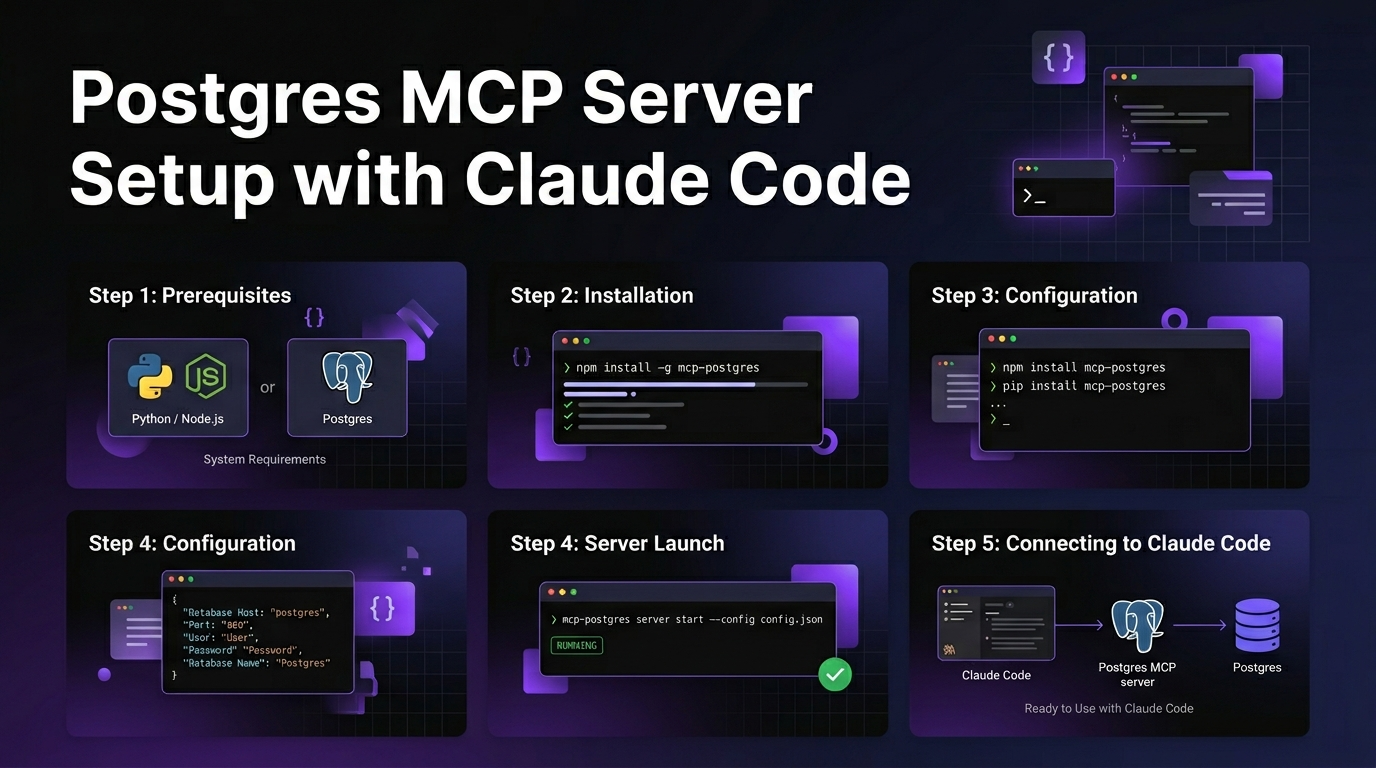
How to Set Up Postgres MCP Server with Claude Code
By David Henderson | March 26, 2026 | 13 min read
What you will build: A direct connection between your PostgreSQL database and Claude Code. When finished, you can query tables, explore schemas, analyze data, debug issues, and generate SQL — all through natural language in your terminal. Setup takes about 10 minutes. Security hardening takes another 5.
Table of Contents
- Why Connect Postgres to Claude Code?
- Prerequisites
- Step 1: Create a Read-Only Database User
- Step 2: Get Your Connection String
- Step 3: Configure Claude Code
- Step 4: Test the Connection
- Real Queries You Can Run
- Security Best Practices
- Troubleshooting
- Frequently Asked Questions
Why Connect Postgres to Claude Code? {#why-connect}
I spend a significant portion of my development time interacting with databases. Exploring schemas, debugging data issues, writing complex queries, analyzing production data for bug reports. The workflow is always the same: open a database client, write SQL, run it, look at the results, go back to the code.
With the Postgres MCP server, Claude Code becomes a natural language interface to your database. Instead of writing SQL, you describe what you want:
- "Show me all users who signed up in the last 7 days but haven't completed onboarding"
- "What's the schema of the orders table?"
- "Find the top 10 products by revenue this month"
- "Are there any orphaned records in the order_items table?"
Claude writes the SQL, runs it against your database, and returns the results — all in one step. It understands your schema, remembers context from previous queries, and can chain queries together to answer complex questions.
The key is setting it up safely. You do not want an AI tool with write access to your production database. The setup below uses a read-only database user by default, with clear guidance on when (and whether) to enable writes.
Prerequisites {#prerequisites}
- Claude Code installed and working
- A PostgreSQL database you want to connect to (local, cloud, or managed)
- Node.js 18+ installed
- Database credentials with permission to create users (for the read-only setup)
Step 1: Create a Read-Only Database User {#step-1}
Do not connect Claude Code with your admin database credentials. Create a dedicated read-only user instead. This is the single most important security step.
Connect to your PostgreSQL database as an admin and run:
-- Create a read-only user for Claude Code
CREATE USER claude_readonly WITH PASSWORD 'your_secure_password_here';

-- Grant connect permission
GRANT CONNECT ON DATABASE your_database_name TO claude_readonly;

-- Grant schema usage
GRANT USAGE ON SCHEMA public TO claude_readonly;

-- Grant SELECT on all existing tables
GRANT SELECT ON ALL TABLES IN SCHEMA public TO claude_readonly;

-- Grant SELECT on all future tables (so you don't have to run this again)
ALTER DEFAULT PRIVILEGES IN SCHEMA public GRANT SELECT ON TABLES TO claude_readonly;

-- Grant SELECT on sequences (needed for some queries)
GRANT SELECT ON ALL SEQUENCES IN SCHEMA public TO claude_readonly;
Replace your_database_name with your actual database name and your_secure_password_here with a strong password.
For multiple schemas, repeat the GRANT USAGE, GRANT SELECT, and ALTER DEFAULT PRIVILEGES lines for each schema.
Verify the user works
Test the connection:
psql -h localhost -U claude_readonly -d your_database_name -c "SELECT current_user, current_database();"If you see the username and database name returned, the user is configured correctly.
Step 2: Get Your Connection String {#step-2}
The Postgres MCP server needs a connection string in the standard PostgreSQL URI format:
postgresql://username:password@host:port/databaseLocal Database
postgresql://claude_readonly:your_password@localhost:5432/myapp_devCloud-Hosted (Supabase, Neon, Railway, Render)
Most managed Postgres providers give you a connection string in their dashboard. It looks like:
postgresql://claude_readonly:your_password@db.abcdefghij.supabase.co:5432/postgresFind this in your provider's dashboard:
- Supabase: Settings > Database > Connection string
- Neon: Dashboard > Connection Details
- Railway: Variables tab > DATABASE_URL
- Render: Dashboard > Database > External URL
With SSL (recommended for cloud databases)
Add ?sslmode=require to the connection string:
postgresql://claude_readonly:your_password@db.example.com:5432/myapp?sslmode=requireStep 3: Configure Claude Code {#step-3}
Add the Postgres MCP server to your Claude Code configuration.
Project-Level Configuration
Create or edit .claude/mcp.json in your project root:
{
  "mcpServers": {
    "postgres": {
      "command": "npx",
      "args": [
        "-y",
        "@anthropic/postgres-mcp-server",
        "postgresql://claude_readonly:your_password@localhost:5432/myapp_dev"
      ]
    }
  }
}
Global Configuration
For access in every session, edit ~/.claude/mcp.json:
{
  "mcpServers": {
    "postgres": {
      "command": "npx",
      "args": [
        "-y",
        "@anthropic/postgres-mcp-server",
        "postgresql://claude_readonly:your_password@localhost:5432/myapp_dev"
      ]
    }
  }
}
Note: The connection string is passed as a command-line argument, not as an environment variable. This is different from most other MCP servers.
Multiple Databases
If you need to connect to multiple databases (development and staging, for example), give them different names:
{
  "mcpServers": {
    "postgres-dev": {
      "command": "npx",
      "args": [
        "-y",
        "@anthropic/postgres-mcp-server",
        "postgresql://claude_readonly:password@localhost:5432/myapp_dev"
      ]
    },
    "postgres-staging": {
      "command": "npx",
      "args": [
        "-y",
        "@anthropic/postgres-mcp-server",
        "postgresql://claude_readonly:password@staging.example.com:5432/myapp_staging?sslmode=require"
      ]
    }
  }
}
Step 4: Test the Connection {#step-4}
Restart Claude Code and test:
claude "List all tables in my Postgres database"If the connection is working, you will see a list of your tables.
Try a few more:
claude "Describe the schema of the users table"claude "How many rows are in each table?"claude "Show me the 5 most recent entries in the orders table"Real Queries You Can Run {#real-queries}
Here are the queries I run most frequently through the Postgres MCP server. These are natural language — Claude translates them to SQL automatically.
Schema Exploration
"What tables exist in the database and how are they related?"
"Show me the schema of the users table including indexes and constraints"
"Which tables have foreign key relationships with the orders table?"
"Are there any tables without primary keys?"
Data Analysis
"How many users signed up each day this week?"
"What's the average order value by country for the last 30 days?"
"Show me the top 10 most active users by number of orders"
"What percentage of users have completed their profile?"
Debugging
"Are there any users with duplicate email addresses?"
"Find orders that have no corresponding order_items"
"Show me all records in the events table where the payload JSON is malformed"
"Which users have a created_at date in the future? That seems like a bug."
Complex Reports
"Monthly recurring revenue for the last 12 months, broken down by plan tier"
"User retention: of users who signed up in January, what percentage are still active?"
"Compare the average response time between free and paid users"
Claude handles joins, aggregations, subqueries, window functions, and CTEs. For complex analytical queries, it often writes better SQL than I do — and it does it in seconds.
Combining with Code Context
This is where the Postgres MCP server pairs perfectly with Claude Code's code understanding:
"Look at the User model in our codebase and compare it to the actual users table schema. Are there any mismatches?"
"The signup flow is broken — query the database for users created in the last hour and check if any are missing required fields"
"Based on the migration files in our project, what schema changes are pending?"
For the full catalog of MCP servers you can pair with Postgres, browse the Skiln MCP directory.
Security Best Practices {#security}
Connecting a database to an AI tool requires careful security consideration. Here is what I recommend.
Always Use a Read-Only User
The Step 1 setup creates a read-only user. Do not skip this. Even if you trust Claude Code, a read-only user protects against:
- Accidental DELETE or UPDATE queries
- SQL injection from malformed prompts
- Mistakes in complex queries that modify data unintentionally
Never Connect Production with Write Access
If you need Claude Code to write to a database, use a development or staging database. Production write access through an AI tool is a risk that is not worth taking, regardless of how careful you are.
Use Connection Pooling for Cloud Databases
If your database has a connection limit (most managed databases do), consider routing the MCP connection through a connection pooler like PgBouncer or your provider's built-in pooler. The MCP server maintains a persistent connection, which counts against your limit.
Rotate Credentials
Change the claude_readonly password periodically. Update your mcp.json config when you do.
Restrict Network Access
If your database has IP allowlisting (Supabase, Neon, and most managed providers do), add your development machine's IP. Do not allowlist 0.0.0.0/0 just to get the MCP server working.
Monitor Query Logs
Enable PostgreSQL query logging for the claude_readonly user so you can audit what queries are being run:
ALTER USER claude_readonly SET log_statement = 'all';Troubleshooting {#troubleshooting}
"Connection refused" error
The database is not reachable from your machine.
Fix: Check that the host and port are correct. For local databases, ensure PostgreSQL is running (pg_isready). For cloud databases, check that your IP is allowlisted and the database is not paused.
"Password authentication failed"
Wrong credentials.
Fix: Verify the username and password. Test manually: psql -h host -U claude_readonly -d database. If it fails there too, the credentials are wrong — recreate the user.
"Permission denied for table"
The read-only user does not have SELECT access to the table.
Fix: Run GRANT SELECT ON table_name TO claude_readonly; as a database admin. If you created the table after running the initial grants, the ALTER DEFAULT PRIVILEGES command from Step 1 should have covered it — but verify.
SSL required but not configured
Cloud databases often require SSL connections.
Fix: Add ?sslmode=require to your connection string.
MCP server starts but Claude has no database tools
- Restart Claude Code
- Verify JSON syntax in
mcp.json - Check that the connection string is passed as an argument, not an env variable
Frequently Asked Questions {#faq}
Can Claude Code modify data in my database through the Postgres MCP server?
If you follow this guide and create a read-only user, no. The claude_readonly user only has SELECT permission, so any INSERT, UPDATE, or DELETE query will fail. Claude Code can generate the SQL, but the database will reject it. If you want write access, you would need to grant additional permissions to the user — but I strongly recommend against this for production databases.
Does this work with MySQL, SQLite, or other databases?
This guide covers PostgreSQL specifically. There are separate MCP servers for other databases — MySQL, SQLite, MongoDB, and others exist in the MCP ecosystem. The setup process is similar but the connection details differ. Check the Skiln MCP directory for the full list of database MCP servers.
Is my database data sent to Anthropic?
Yes. When Claude Code queries your database, the query results are sent to Anthropic's API as part of the conversation. This is the same as copying query results and pasting them into a Claude conversation. If your database contains sensitive data (PII, financial records, health data), consider using a development database with anonymized data instead of connecting to production.
How do I connect to a database behind a VPN or SSH tunnel?
The MCP server connects directly to the database host specified in the connection string. If your database is behind a VPN, you need to be connected to the VPN first. For SSH tunnels, set up the tunnel separately and point the connection string to localhost:local_port. For example: ssh -L 5433:db.internal.com:5432 bastion-host then use postgresql://claude_readonly:password@localhost:5433/myapp.
What is the performance impact on my database?
Minimal. Claude Code sends individual queries, not bulk operations. A typical session might run 10-50 queries. If you are running heavy analytical queries on a production database, they could impact performance — use a read replica if available. The read-only user helps here too: no writes means no locks on tables.