How to Set Up Notion MCP Server with Claude Code (Step-by-Step)
Complete step-by-step guide to connecting Notion with Claude Code via MCP. Create an integration, configure the server, and start querying your Notion workspace from the terminal.

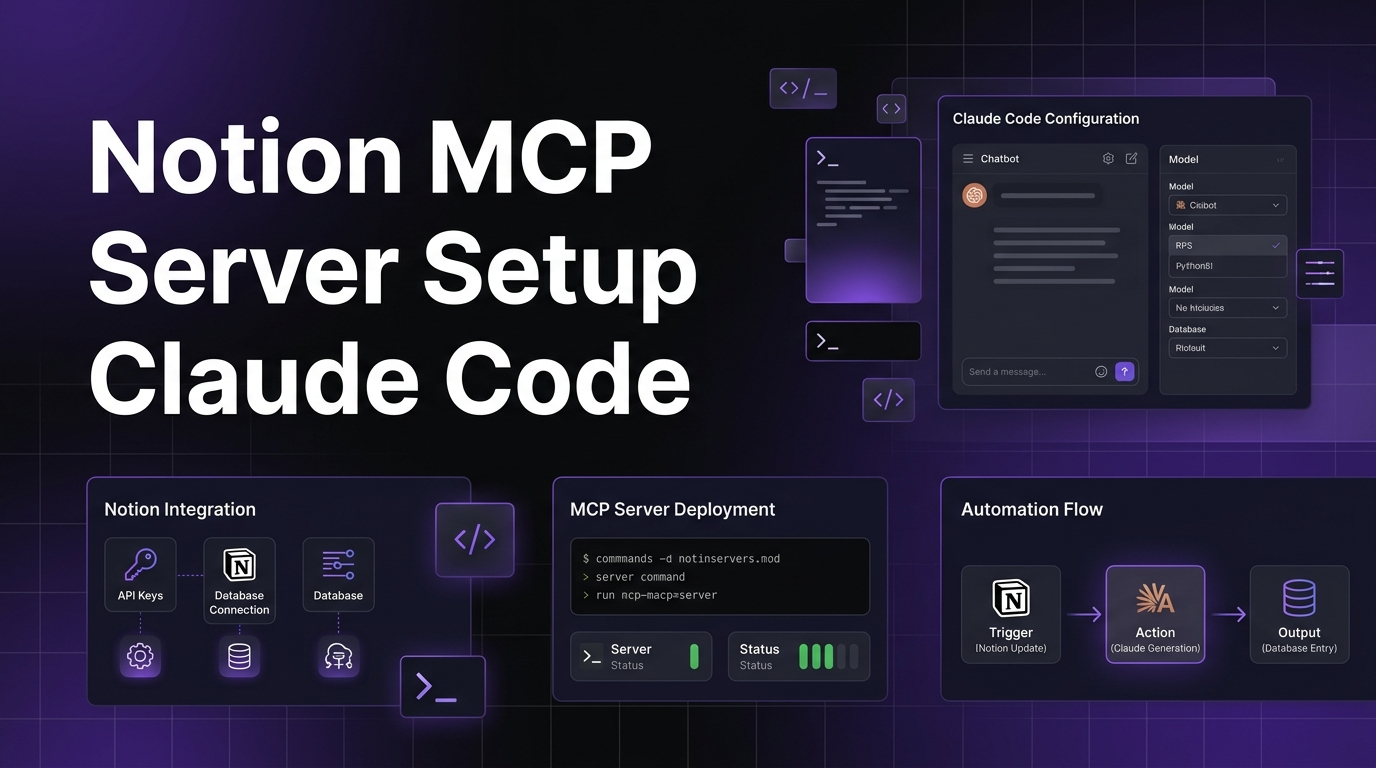
How to Set Up Notion MCP Server with Claude Code (Step-by-Step)
By Sarah Walker | March 26, 2026 | 11 min read
What you will build: A working connection between your Notion workspace and Claude Code. When you are done, you will be able to search pages, read databases, create new content, and manage your Notion workspace entirely from Claude Code's terminal interface. Setup takes about 10 minutes.
Table of Contents
- Prerequisites
- Step 1: Create a Notion Integration
- Step 2: Share Pages with Your Integration
- Step 3: Install the Notion MCP Server
- Step 4: Configure Claude Code
- Step 5: Test the Connection
- What You Can Do with Notion MCP
- Troubleshooting Common Issues
- Frequently Asked Questions
Prerequisites {#prerequisites}
Before starting, make sure you have:
- Claude Code installed and working (run
claudein your terminal to verify) - A Notion account with at least one workspace
- Node.js 18+ installed (the MCP server runs on Node)
- Admin or member access to the Notion workspace you want to connect
If you do not have Claude Code installed yet, check the Skiln beginner's guide for setup instructions.
Step 1: Create a Notion Integration {#step-1}
Notion uses integrations (internal API tokens) to grant external tools access to your workspace. You need to create one for the MCP server.
- Go to https://www.notion.so/my-integrations
- Click "New integration"
- Fill in the details:
- Name:
Claude Code MCP(or whatever you prefer) - Associated workspace: Select the workspace you want to connect
- Type: Internal integration
- Under Capabilities, enable:
- Read content
- Update content
- Insert content
- Read comments (optional, but useful)
- Click Submit
You will see a page with your Internal Integration Secret. It starts with ntn_ followed by a long string. Copy this token and save it somewhere safe — you will need it in Step 4.
Important: This token gives access to your Notion data. Do not commit it to version control, share it publicly, or paste it into files that get synced to the cloud.
Step 2: Share Pages with Your Integration {#step-2}
Creating an integration does not automatically give it access to everything in your workspace. Notion uses an explicit sharing model — you need to invite the integration to specific pages or databases.
For each page or database you want accessible via Claude Code:
- Open the page in Notion
- Click the "..." menu in the top right
- Click "Connections" (or "Add connections")
- Search for your integration name (
Claude Code MCP) - Click it to connect
The integration now has access to that page and all of its child pages. If you connect a top-level page, everything nested under it becomes accessible.
My recommendation: Create a top-level page called "AI Workspace" or "Claude Access" and put everything you want Claude to reach under it. This gives you a clean boundary between what Claude can and cannot see.
Step 3: Install the Notion MCP Server {#step-3}
The official Notion MCP server is published as an npm package. You do not need to clone any repository — just reference it in your Claude Code configuration.
The package is @notionhq/notion-mcp-server. If you want to verify it exists before configuring:
npx @notionhq/notion-mcp-server --helpThis should print usage information. If it does, the package is available and working.
Alternatively, you can install it globally:
npm install -g @notionhq/notion-mcp-serverBoth approaches work. Using npx in your config means you do not need a global install — Claude Code will download and run it automatically.
Step 4: Configure Claude Code {#step-4}
Now connect the Notion MCP server to Claude Code. You need to add it to your MCP configuration file.
Option A: Project-Level Configuration
If you want Notion access only in a specific project, create or edit .claude/mcp.json in your project root:
{
  "mcpServers": {
    "notion": {
      "command": "npx",
      "args": ["-y", "@notionhq/notion-mcp-server"],
      "env": {
        "NOTION_API_KEY": "ntn_your_integration_secret_here"
      }
    }
  }
}
Option B: Global Configuration
If you want Notion access in every Claude Code session, add it to your global config at ~/.claude/mcp.json:
{
  "mcpServers": {
    "notion": {
      "command": "npx",
      "args": ["-y", "@notionhq/notion-mcp-server"],
      "env": {
        "NOTION_API_KEY": "ntn_your_integration_secret_here"
      }
    }
  }
}
Replace ntn_your_integration_secret_here with the token you copied in Step 1.
Security Note
The NOTION_API_KEY is stored in plain text in this file. For project-level configs, add .claude/mcp.json to your .gitignore:
# .gitignore
.claude/mcp.json
For the global config, the file lives in your home directory and is not at risk of being committed. But be aware that anyone with access to your machine can read it.
Step 5: Test the Connection {#step-5}
Restart Claude Code (close and reopen, or start a new session). When it starts, it should load the Notion MCP server automatically.
Run a test query:
claude "Search my Notion workspace for pages about project planning"If the connection is working, Claude will use the Notion MCP tools to search your workspace and return matching pages.
You can also test specific operations:
claude "List all databases in my Notion workspace"claude "Read the contents of my 'Q2 Roadmap' page in Notion"If you see results from your workspace, the setup is complete.
What You Can Do with Notion MCP {#what-you-can-do}
With the Notion MCP server connected, Claude Code can interact with your Notion workspace in several ways. Here are the most useful operations I use daily.
Search Pages and Databases
Ask Claude to find specific content across your workspace:
"Find all Notion pages mentioning the March product launch"
"Search my Notion for meeting notes from this week"
"Which databases contain customer information?"
Read Page Content
Pull the full contents of any shared page:
"Read my 'Content Calendar' page and summarize what's planned for next week"
"Show me the tasks in my 'Sprint Backlog' database that are marked as 'In Progress'"
"What are the open items in my 'Bug Tracker' database?"
Create and Update Content
Write new pages or update existing ones:
"Create a new page in my 'Meeting Notes' database with today's standup notes"
"Add a new row to my 'Content Ideas' database with the title 'Notion MCP Guide'"
"Update the status of the 'Homepage Redesign' task to 'Complete'"
Cross-Reference with Code
This is where it gets powerful. Claude can read your Notion docs and use them alongside your code:
"Read the API specification in my Notion docs and check if our current implementation matches"
"Pull the acceptance criteria from the Notion ticket and write tests for them"
"Read the design doc in Notion and create a project scaffold based on the architecture described"
Workflow Automation
Combine Notion with other MCP servers for automated workflows:
"Read my Notion task list, find overdue items, and post a summary to Slack"
"Check my GitHub PRs and update the corresponding Notion tickets with their status"
"Read my Notion meeting notes and create follow-up tasks in the task database"
The Notion MCP server exposes the full Notion API through Claude Code. If you can do it through Notion's API, you can do it through Claude Code.
For more MCP servers you can pair with Notion — Slack, GitHub, Google Drive, Postgres — browse the Skiln MCP directory.
Troubleshooting Common Issues {#troubleshooting}
"Permission denied" or "Object not found" errors
The most common issue. Your integration does not have access to the page or database you are trying to read.
Fix: Go to the page in Notion, click "..." > "Connections," and add your integration. Remember that access is not recursive by default in all cases — you may need to share parent pages.
MCP server fails to start
If Claude Code reports that the Notion MCP server failed to start:
- Check Node.js version: Run
node -v. You need 18+. - Test the server manually: Run
npx @notionhq/notion-mcp-serverin your terminal. If it fails, the error message will tell you why. - Check your API key: Make sure the
NOTION_API_KEYin your config is correct and has not expired. Go to https://www.notion.so/my-integrations to verify.
Slow responses
The Notion API has rate limits (approximately 3 requests per second). If you are querying large databases or many pages, responses may be slow.
Fix: Be specific in your queries. Instead of "read all my Notion pages," ask for specific pages or databases by name.
"Unknown tool" errors
If Claude says it does not have Notion tools available:
- Restart Claude Code after adding the config
- Check config file location: Make sure
mcp.jsonis in.claude/mcp.json(project) or~/.claude/mcp.json(global) - Validate JSON: A syntax error in the config file will silently prevent the server from loading. Use a JSON validator.
Frequently Asked Questions {#faq}
Can the Notion MCP server access my entire workspace?
No. It can only access pages and databases that you have explicitly shared with the integration. Notion uses an opt-in sharing model, so you control exactly what Claude Code can see. If you did not connect a page to the integration (Step 2), it is invisible.
Does this work with Claude Desktop or only Claude Code?
This guide covers Claude Code (the CLI tool). Claude Desktop also supports MCP servers but uses a different configuration file location. The server package and Notion setup steps are identical — only the config file path differs. For Claude Desktop, the config lives in ~/Library/Application Support/Claude/claude_desktop_config.json on macOS.
Is my Notion data sent to Anthropic?
When Claude Code queries your Notion workspace, the page content is sent to Anthropic's API as part of the conversation context. This is the same as pasting text into any Claude conversation. If your workspace contains sensitive data, consider sharing only the pages you need with the integration rather than granting broad access.
Can I use this with a Notion workspace I do not own?
You need admin or member access to create an integration. If you are a guest in someone else's workspace, you cannot create integrations for it. Ask the workspace admin to create the integration and share the token with you.
How do I disconnect the Notion MCP server?
Remove the notion entry from your mcp.json config file and restart Claude Code. To revoke the integration's access entirely, go to https://www.notion.so/my-integrations and delete the integration. This immediately cuts off all access.