How to Set Up NanoClaw: Complete Beginner's Guide (2026)
Learn how to set up NanoClaw in under 20 minutes. Step-by-step installation guide covering Docker, Claude Code CLI, WhatsApp, Telegram, Discord, and more. Updated for 2026.
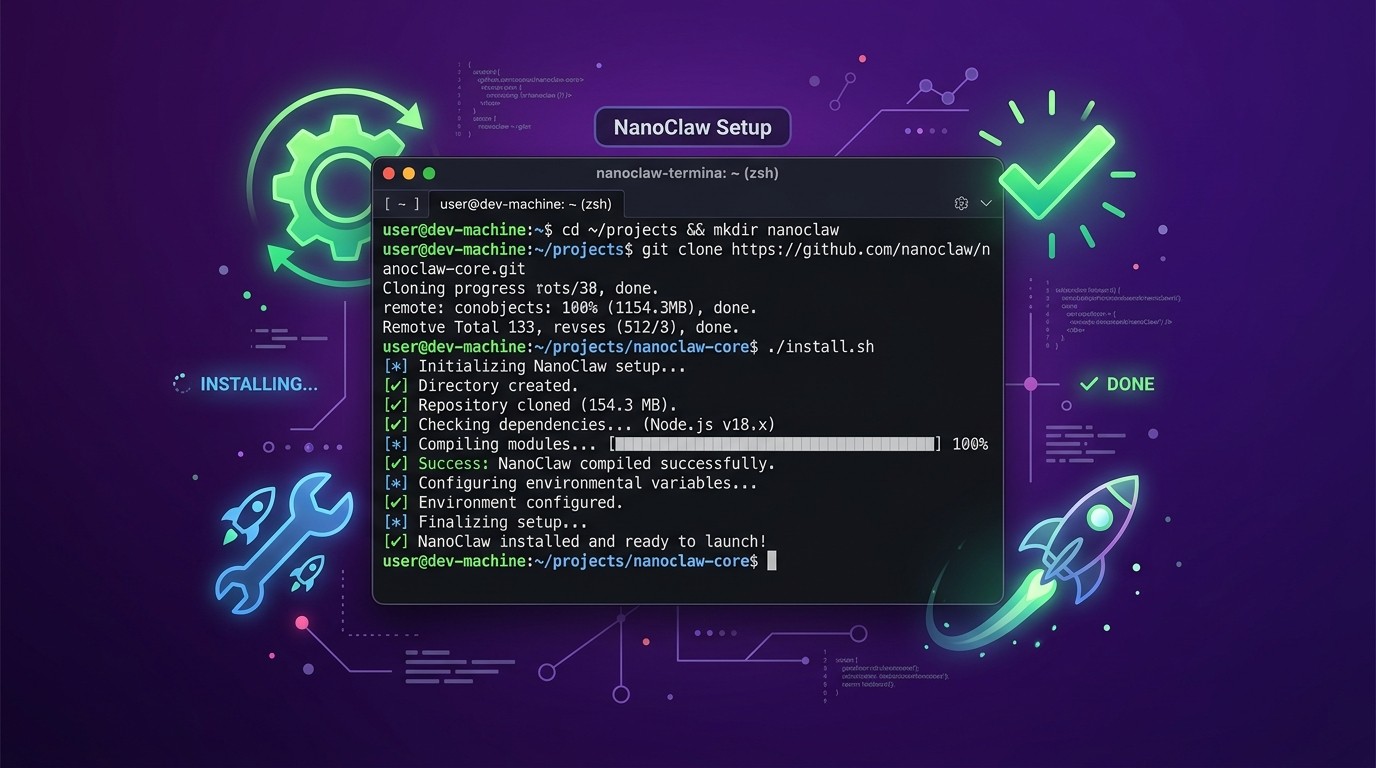
How to Set Up NanoClaw: Complete Beginner's Guide (2026)
Last updated: March 2026 | Read time: 12 min
Table of Contents
- Step 1: Install Claude Code CLI
- Step 2: Clone the NanoClaw Repo
- Step 3: Run the /setup Skill
- Step 4: Configure Your Anthropic API Key
- Step 5: Set Up Docker Sandbox
- Step 6: Add Your First Messaging Skill (WhatsApp)
- Step 7: Scan the QR Code to Pair WhatsApp
- Step 8: Send Your First Message
- Step 9: Add More Skills (Telegram, Discord)
- Step 10: Configure Scheduled Jobs and Automation
- Troubleshooting Common Issues
- Essential NanoClaw Commands
- Recommended First Skills to Add
- NanoClaw vs Running Manually
- Next Steps
- Frequently Asked Questions
What is NanoClaw?
NanoClaw is a lightweight, open-source AI assistant created by Gavriel Cohen. It runs on Anthropic's Claude Agent SDK and executes entirely inside a Docker container, keeping the host machine isolated from anything the assistant does.
At roughly 3,900 lines of code, NanoClaw sits at the opposite end of the spectrum from heavyweight agent frameworks. There are no sprawling dependency trees, no proprietary runtimes, and no multi-gigabyte installs. The entire project lives in a single GitHub repository — qwibitai/nanoclaw — and ships with 18 pre-built skills that connect to popular messaging platforms and productivity tools.
Those 18 skills cover a wide surface area:
- Messaging: WhatsApp, Telegram, Discord, Slack
- Email: Gmail reading, composing, and automation
- Productivity: Calendar management, file operations, web search
- Development: Code execution, shell commands (sandboxed inside Docker)
- Automation: Scheduled jobs, webhook triggers, custom workflows
The setup process uses NanoClaw's own /setup skill, which is a guided configuration wizard that runs inside Claude Code. Instead of manually editing config files, the skill asks a series of questions and writes the correct environment variables, Docker Compose settings, and platform credentials automatically.
NanoClaw matters in 2026 because the AI assistant landscape has split into two camps: enterprise platforms with complex pricing and opaque infrastructure, and open-source projects that demand deep DevOps knowledge to deploy. NanoClaw occupies a middle ground — open-source and self-hosted, but opinionated enough that a beginner can get it running in a single session. The Docker sandboxing addresses the trust problem that keeps many users from giving AI agents real access to their systems.
For teams already using Claude Code with Skills and MCP servers, NanoClaw slots in as a persistent runtime layer. Skills run once when invoked; NanoClaw keeps running in the background, listening for messages, processing requests, and executing automations on a schedule.
 NanoClaw running inside a Docker container after successful setup
Prerequisites
Before starting the setup, verify that these five dependencies are installed and working. Missing even one will stall the process.
Node.js 18+
NanoClaw's CLI tooling and the Claude Code runtime both require Node.js 18 or higher. Check the installed version:
node --versionIf the output shows v18.x.x or higher, proceed. Otherwise, download the latest LTS release from nodejs.org or use a version manager like nvm:
nvm install 20
nvm use 20
Claude Code CLI
The Claude Code CLI is NanoClaw's execution environment. It provides the Agent SDK that NanoClaw builds on. Install it globally via npm:
npm install -g @anthropic-ai/claude-codeVerify:
claude --versionA version number confirms the installation succeeded. If the command is not found, ensure the npm global binary directory is on the system PATH.
Docker Desktop
Docker is non-negotiable. NanoClaw runs every operation — message processing, code execution, file access — inside a Docker container. This sandbox prevents the AI from modifying the host system directly.
Download Docker Desktop from docker.com for Windows, macOS, or Linux. After installation:
docker --version
docker compose version
Both commands should return version numbers. On Windows, make sure Docker Desktop is running (check the system tray icon) before proceeding.
GitHub Account
The NanoClaw source code lives at github.com/qwibitai/nanoclaw. A GitHub account is not strictly required to download the code (a ZIP download works), but git clone is the recommended method for receiving updates later.
git --versionAnthropic API Key
NanoClaw uses Claude as its language model. An API key from console.anthropic.com is required. The key starts with sk-ant- and should be kept private. Free-tier credits may suffice for testing, but sustained usage requires a paid plan.
Estimated cost: Light usage (10-20 messages per day) runs approximately $2-5/month on Claude Sonnet. Heavy usage with larger models costs more.
Step-by-Step Setup
The following 10 steps take approximately 20 minutes from start to finish. Each step includes the exact commands to run and what the expected output looks like.
Step 1: Install Claude Code CLI
If Claude Code is not already installed, open a terminal and run:
npm install -g @anthropic-ai/claude-codeThis installs the claude command globally. Confirm it works:
claude --versionExpected output: A version number like 1.0.32 or higher.
If Node.js is not installed, the npm command will fail. Install Node.js 18+ first (see Prerequisites above), then retry.
Step 2: Clone the NanoClaw Repo
Navigate to the directory where NanoClaw should live, then clone the repository:
cd ~/projects
git clone https://github.com/qwibitai/nanoclaw.git
cd nanoclaw
The clone downloads the full project — skills, Docker configuration, and the core runtime. The repository is small (under 5 MB), so this takes only a few seconds even on slow connections.
Expected output:
Cloning into 'nanoclaw'...
remote: Enumerating objects: ...
Receiving objects: 100% ...
After cloning, verify the project structure:
ls -laKey files and directories to confirm:
docker-compose.yml— Container orchestration.claude/skills/— Pre-built skill definitionssrc/— Core NanoClaw runtime code.env.example— Template for environment variables
Step 3: Run the /setup Skill
This is where NanoClaw differs from most open-source projects. Instead of manually editing configuration files, run the built-in setup skill:
claude /setupThe /setup skill launches an interactive wizard inside Claude Code. It will:
- Detect the operating system and Docker installation
- Check for required dependencies (Node.js, Docker, Git)
- Create a
.envfile from the.env.exampletemplate - Prompt for the Anthropic API key
- Ask which messaging platforms to configure
- Generate the Docker Compose configuration for the selected services
- Pull the required Docker images
Follow the prompts. The skill asks questions in plain English and explains each choice. For a first-time setup, accept the defaults unless there is a specific reason to change them.
Expected output: The skill prints a summary of what it configured, ending with a success message:
✓ NanoClaw setup complete
✓ Docker configuration written
✓ Environment variables saved
✓ Ready to start with: docker compose up
Step 4: Configure Your Anthropic API Key
If the /setup skill did not prompt for the API key (or if manual configuration is preferred), open the .env file:
nano .envFind the ANTHROPIC_API_KEY line and paste the key:
ANTHROPIC_API_KEY=sk-ant-api03-your-key-hereSecurity note: Never commit the .env file to Git. The project's .gitignore already excludes it, but double-check:
grep ".env" .gitignoreThe API key authenticates every request NanoClaw makes to Claude. Without it, the assistant cannot process any messages.
To verify the key works before proceeding:
claude "hello" --api-key sk-ant-api03-your-key-hereIf Claude responds, the key is valid.
Step 5: Set Up Docker Sandbox
With the configuration in place, build and start the Docker container:
docker compose up -dThe -d flag runs the container in detached mode (background). The first run takes longer because Docker needs to pull the base images and build the NanoClaw container.
Expected output:
[+] Running 2/2
 ✓ Network nanoclaw_default  Created
 ✓ Container nanoclaw        Started
Verify the container is running:
docker compose psThe STATUS column should show Up with a duration (e.g., Up 5 seconds). If it shows Exited or Restarting, check the logs:
docker compose logs --tail 50Common reasons for container failure at this stage: missing API key in .env, Docker Desktop not running, or port conflicts with other services.
To confirm NanoClaw is healthy inside the container:
docker compose exec nanoclaw claude --versionThis runs the claude --version command inside the container. A version number means the runtime is operational.
Step 6: Add Your First Messaging Skill (WhatsApp)
NanoClaw ships with 18 skills, but none are activated by default. The WhatsApp skill is the most popular starting point because it requires no API keys from Meta — it uses the WhatsApp Web protocol directly.
Activate the WhatsApp skill:
docker compose exec nanoclaw claude /skill add whatsappThe skill installer will:
- Download the WhatsApp Web bridge dependency
- Configure the message listener inside the container
- Create a session directory for WhatsApp authentication
- Start the WhatsApp connection service
Expected output:
✓ WhatsApp skill installed
✓ Bridge service started
✓ Waiting for QR code pairing...
The skill is now running but not yet linked to a WhatsApp account. That happens in the next step.
Step 7: Scan the QR Code to Pair WhatsApp
After the WhatsApp skill starts, it generates a QR code in the terminal:
docker compose exec nanoclaw claude /whatsapp pairA QR code appears directly in the terminal output. To scan it:
- Open WhatsApp on a phone
- Go to Settings > Linked Devices
- Tap Link a Device
- Point the phone camera at the terminal QR code
The pairing completes in 2-5 seconds. The terminal updates:
✓ WhatsApp paired successfully
✓ Listening for messages on: +1-XXX-XXX-XXXX
Important: The QR code expires after approximately 60 seconds. If it times out, re-run the pair command to generate a new one. The WhatsApp session persists across container restarts, so pairing only needs to happen once (unless the session is revoked from the phone).
Step 8: Send Your First Message
With WhatsApp paired, NanoClaw is live. Send a test message to the linked WhatsApp number from another phone or WhatsApp account:
Hey NanoClaw, what can you do?NanoClaw processes the message through Claude, generates a response, and sends it back through WhatsApp. The first response may take 3-5 seconds as the model loads.
To monitor incoming and outgoing messages in real time:
docker compose logs -f nanoclawThe log output shows each message received, the Claude API call, and the response sent back. This is useful for debugging if messages are not going through.
What NanoClaw can do out of the box with the WhatsApp skill:
- Answer questions using Claude's knowledge
- Summarize long messages or forwarded content
- Translate between languages
- Draft replies for professional contexts
- Execute commands from other installed skills
If the response contains an error instead of a helpful answer, check that the API key is valid and that the container has internet access.
Step 9: Add More Skills (Telegram, Discord)
Once WhatsApp is confirmed working, add additional messaging platforms. Each platform follows the same pattern: install the skill, then authenticate.
Telegram
docker compose exec nanoclaw claude /skill add telegramTelegram requires a bot token from @BotFather. The skill prompts for it during installation:
- Open Telegram and message
@BotFather - Send
/newbotand follow the prompts to create a bot - Copy the bot token (format:
123456789:ABCdefGHIjklMNOpqrsTUVwxyz) - Paste it when the NanoClaw skill asks for it
✓ Telegram skill installed
✓ Bot connected: @YourBotName
✓ Listening for messages
Discord
docker compose exec nanoclaw claude /skill add discordDiscord requires a bot token from the Discord Developer Portal:
- Create a new application in the portal
- Navigate to Bot > Add Bot
- Copy the bot token
- Under Privileged Gateway Intents, enable Message Content Intent
- Paste the token when the NanoClaw skill prompts for it
- Use the OAuth2 URL generator to invite the bot to a server
✓ Discord skill installed
✓ Bot connected to 1 server
✓ Listening in all permitted channels
Slack
docker compose exec nanoclaw claude /skill add slackSlack uses an app manifest and a bot token from api.slack.com/apps. The skill walks through the OAuth flow interactively.
All installed skills run concurrently inside the same Docker container. NanoClaw handles message routing automatically — a WhatsApp message gets processed by the WhatsApp skill, a Telegram message by the Telegram skill, and so on.
Step 10: Configure Scheduled Jobs and Automation
NanoClaw includes a built-in scheduler for recurring tasks. This turns the assistant from a reactive chatbot into a proactive automation engine.
View the scheduler configuration:
docker compose exec nanoclaw claude /scheduler listAdd a scheduled job:
docker compose exec nanoclaw claude /scheduler addThe scheduler prompts for:
- Job name: A descriptive label (e.g., "daily-summary")
- Schedule: Cron syntax or natural language (e.g., "every day at 9am")
- Action: What the job does (e.g., "send a daily news summary to WhatsApp")
- Target: Which platform to execute on
Example: Daily news summary at 9 AM
docker compose exec nanoclaw claude /scheduler add \
  --name "morning-brief" \
  --cron "0 9 * * *" \
  --action "Summarize top AI news and send to WhatsApp" \
  --target whatsapp
Example: Weekly report every Monday at 8 AM
docker compose exec nanoclaw claude /scheduler add \
  --name "weekly-report" \
  --cron "0 8 * * 1" \
  --action "Generate a summary of all conversations this week" \
  --target telegram
Verify scheduled jobs:
docker compose exec nanoclaw claude /scheduler listThe scheduler runs inside the Docker container, so jobs persist across host machine reboots as long as Docker Desktop is set to start automatically.
Troubleshooting Common Issues
Docker Not Starting
Symptoms: docker compose up fails with "Cannot connect to the Docker daemon" or "docker: command not found."
Solutions:
- Docker Desktop not running. Open Docker Desktop from the Start menu (Windows) or Applications folder (macOS). Wait for the whale icon to appear in the system tray before retrying.
- Docker not installed. Download from docker.com and complete the installation. A restart may be required.
- WSL2 backend issue (Windows). Open PowerShell as admin and run
wsl --update. Then restart Docker Desktop. - Permission denied (Linux). Add the current user to the Docker group:
sudo usermod -aG docker $USER, then log out and back in.
QR Code Not Appearing
Symptoms: The WhatsApp pairing step hangs without displaying a QR code, or the terminal shows garbled characters.
Solutions:
- Terminal too narrow. QR codes require a minimum terminal width of approximately 60 columns. Resize the terminal window and retry.
- Unicode rendering issue. Some terminals cannot render QR block characters. Try a different terminal emulator (Windows Terminal, iTerm2, or GNOME Terminal).
- WhatsApp bridge crashed. Check the logs:
docker compose logs nanoclaw | grep -i whatsapp. If the bridge exited, restart it:docker compose restart nanoclaw. - Network restriction. The WhatsApp Web protocol requires outbound HTTPS access. Corporate firewalls or VPNs may block it.
Claude API Key Errors
Symptoms: Messages receive error responses like "Invalid API key" or "Authentication failed."
Solutions:
- Key not set. Open
.envand verifyANTHROPIC_API_KEYcontains a value starting withsk-ant-. - Key copied incorrectly. Regenerate the key at console.anthropic.com and paste it again. Watch for trailing spaces or line breaks.
- Key revoked or expired. Log into the Anthropic console and check the key's status. Create a new key if needed.
- Container not using updated
.env. After editing.env, restart the container:docker compose down && docker compose up -d.
WhatsApp Disconnecting
Symptoms: NanoClaw stops responding to WhatsApp messages after hours or days. The logs show "session expired" or "disconnected."
Solutions:
- Phone went offline. WhatsApp Web sessions require the phone to have internet access periodically. Ensure the phone stays connected to Wi-Fi or mobile data.
- Session revoked. Someone (or WhatsApp's security system) revoked the linked device. Re-pair by running
docker compose exec nanoclaw claude /whatsapp pair. - Container restarted without session persistence. Verify the Docker volume for WhatsApp sessions is mounted correctly in
docker-compose.yml. The session data directory should survive container restarts. - WhatsApp rate limiting. Sending too many messages in a short period triggers rate limits. Reduce automation frequency.
Skills Not Loading
Symptoms: Running /skill add returns "skill not found" or the skill installs but does not respond to messages.
Solutions:
- Typo in skill name. List all available skills:
docker compose exec nanoclaw claude /skill list. Skill names are case-sensitive. - Missing dependency. Some skills require additional configuration (API keys, OAuth tokens). Check the skill's documentation:
docker compose exec nanoclaw claude /skill info. - Skill conflict. Two skills listening on the same trigger can interfere. Disable one temporarily:
docker compose exec nanoclaw claude /skill disable. - Outdated NanoClaw. Pull the latest version:
cd nanoclaw && git pull && docker compose build && docker compose up -d.
Permission Denied Errors
Symptoms: Commands fail with "EACCES" or "permission denied" inside the container.
Solutions:
- Volume mount permissions. On Linux, Docker volumes may inherit root ownership. Fix with:
sudo chown -R $USER:$USER ./data. - Docker socket access. If NanoClaw needs Docker-in-Docker capabilities (rare), the socket must be mounted with correct permissions.
- File created by root. Stop the container, fix ownership, and restart:
docker compose down && sudo chown -R $USER:$USER . && docker compose up -d. - npm global install permissions. If the initial
npm install -gfailed, usesudo npm install -g @anthropic-ai/claude-codeor fix npm permissions withnpm config set prefix ~/.npm-globaland add~/.npm-global/binto PATH.
Essential NanoClaw Commands
A quick reference for the commands used most often after setup is complete.
| Command | What It Does |
|---|---|
| --------- | ------------- |
docker compose up -d | Start NanoClaw in background |
docker compose down | Stop NanoClaw and remove containers |
docker compose restart nanoclaw | Restart without rebuilding |
docker compose logs -f nanoclaw | Stream live logs |
docker compose logs --tail 100 | View last 100 log lines |
docker compose exec nanoclaw claude /skill list | List all available skills |
docker compose exec nanoclaw claude /skill add | Install a new skill |
docker compose exec nanoclaw claude /skill remove | Uninstall a skill |
docker compose exec nanoclaw claude /skill info | View skill details and config |
docker compose exec nanoclaw claude /scheduler list | View scheduled jobs |
docker compose exec nanoclaw claude /scheduler add | Create a new scheduled job |
docker compose exec nanoclaw claude /scheduler remove | Delete a scheduled job |
docker compose exec nanoclaw claude /whatsapp pair | Generate WhatsApp QR code |
docker compose exec nanoclaw claude /status | Health check for all services |
docker compose pull && docker compose up -d --build | Update to latest version |
Pro tip: Create shell aliases for frequently used commands. Add these to ~/.bashrc or ~/.zshrc:
alias nc-start="docker compose -f ~/projects/nanoclaw/docker-compose.yml up -d"
alias nc-stop="docker compose -f ~/projects/nanoclaw/docker-compose.yml down"
alias nc-logs="docker compose -f ~/projects/nanoclaw/docker-compose.yml logs -f"
alias nc-exec="docker compose -f ~/projects/nanoclaw/docker-compose.yml exec nanoclaw claude"
Then use nc-exec /skill list instead of the full command.
Recommended First Skills to Add
After completing the basic setup, these five skills deliver the most value for the least configuration effort.
1. WhatsApp (Messaging)
docker compose exec nanoclaw claude /skill add whatsappThe flagship skill. Turns a WhatsApp number into an AI assistant that responds to any message. No API key required — authentication happens through QR code pairing. Best for personal use and small team communication.
2. Telegram (Messaging)
docker compose exec nanoclaw claude /skill add telegramRequires a bot token from BotFather (free, takes 2 minutes to create). Telegram bots support richer formatting than WhatsApp — code blocks, inline keyboards, and file uploads. Best for developer-oriented teams.
3. Gmail (Email)
docker compose exec nanoclaw claude /skill add gmailConnects to a Gmail account via OAuth. NanoClaw can read incoming emails, draft replies, summarize long threads, and flag messages based on custom rules. Useful for inbox management and automated responses.
4. Discord (Community)
docker compose exec nanoclaw claude /skill add discordAdds NanoClaw as a bot in Discord servers. It can moderate messages, answer questions in support channels, summarize discussions, and respond to slash commands. Requires a bot token from the Discord Developer Portal.
5. Scheduler (Automation)
docker compose exec nanoclaw claude /skill add schedulerEnables cron-based job scheduling. Without this skill, NanoClaw only responds to incoming messages. With it, NanoClaw can proactively send summaries, reminders, reports, and alerts on a schedule. Pairs with every other skill.
NanoClaw vs Running Manually: Why Docker Matters
A reasonable question: why not just run Claude Code directly and skip Docker entirely?
The answer comes down to three factors: isolation, persistence, and portability.
Isolation
Claude Code running on a bare host machine has access to the filesystem, network, and installed tools. That is powerful but risky — a misconfigured skill could delete files, overwrite environment variables, or make unintended API calls. NanoClaw's Docker sandbox limits the blast radius. The container has access only to its own filesystem and explicitly mounted volumes. Even if a skill misbehaves, the host machine stays untouched.
Persistence
Running claude in a terminal session means the assistant stops when the terminal closes. NanoClaw inside Docker runs as a background service. It survives terminal closures, SSH disconnects, and even system reboots (if Docker is configured to start on boot). The scheduler skill depends on this — cron jobs cannot run if the process is not alive.
Portability
A docker-compose.yml file captures the entire runtime configuration: environment variables, volumes, network settings, and service dependencies. Moving NanoClaw from a development laptop to a cloud server takes one command:
docker compose up -dNo "works on my machine" debugging. No dependency version mismatches. The container runs identically everywhere Docker runs.
When to Skip Docker
Docker adds overhead — approximately 200-500 MB of disk space for the container image and a small memory footprint. For quick experiments or single-use tasks, running claude directly is faster. Docker becomes essential when NanoClaw needs to run unattended, serve multiple platforms simultaneously, or execute on a remote server.
Next Steps
With NanoClaw running and at least one skill active, here are the logical next steps to deepen the setup:
- Explore all 18 skills. Run
docker compose exec nanoclaw claude /skill listto see every available skill with a short description. Many skills — like web search, file management, and code execution — work entirely within the Docker sandbox and require no external API keys.
- Build a custom skill. NanoClaw skills are markdown files with a specific structure. The Skiln.co skill-building guide covers the format in detail. Custom skills let NanoClaw automate workflows specific to a team or business.
- Deploy to a cloud server. Running NanoClaw on a $5/month VPS (DigitalOcean, Hetzner, or AWS Lightsail) provides 24/7 uptime without keeping a laptop open. The Docker setup transfers directly —
git clone, copy the.envfile,docker compose up -d.
- Connect multiple platforms. NanoClaw handles messages from WhatsApp, Telegram, Discord, Slack, and Gmail simultaneously. Adding all five creates a unified AI assistant layer across every communication channel.
- Browse more skills at skiln.co/nanoclaw. The Skiln directory lists community-contributed skills compatible with NanoClaw, including integrations for Notion, Linear, GitHub Issues, and more.
- Join the community. The NanoClaw GitHub Discussions page is the best place to report bugs, request features, and share custom skill configurations.
Frequently Asked Questions
Is NanoClaw free to use?
NanoClaw itself is free and open-source under the MIT license. However, it requires an Anthropic API key to function, and Claude API usage is billed based on token consumption. Light usage (10-20 messages per day using Claude Sonnet) typically costs $2-5 per month. Docker Desktop is also free for personal use and small businesses.
Does NanoClaw work on Windows?
NanoClaw runs on Windows 10/11 via Docker Desktop with the WSL2 backend. The setup process is identical to macOS and Linux. Docker Desktop handles the Linux container layer transparently. Windows users should ensure WSL2 is installed and updated (wsl --update in PowerShell) before starting.
Can NanoClaw access files on my computer?
By default, no. NanoClaw runs inside a Docker container that is isolated from the host filesystem. To give NanoClaw access to specific directories, mount them as Docker volumes in docker-compose.yml. This is an opt-in process — only explicitly mounted paths are visible inside the container.
How is NanoClaw different from ChatGPT or Claude.ai?
NanoClaw is self-hosted and runs on local infrastructure (or a personal server). Messages are processed through the Anthropic API but never pass through a third-party middleman. NanoClaw also integrates directly with messaging platforms — it responds inside WhatsApp, Telegram, or Discord rather than requiring users to open a separate web interface. The skill system allows custom automations that web-based assistants cannot perform.
What happens if the Docker container crashes?
Docker Desktop can be configured to restart containers automatically. In docker-compose.yml, the restart: unless-stopped directive ensures the container restarts after a crash or system reboot. WhatsApp and Telegram sessions persist in mounted volumes, so re-authentication is not required after a restart. Scheduled jobs resume from where they left off.
Can multiple people use the same NanoClaw instance?
Yes. NanoClaw processes messages from all connected platforms simultaneously. Multiple people can message the same WhatsApp number or Telegram bot, and NanoClaw handles each conversation independently. For team use, Discord and Slack skills are recommended because they support channel-based conversations with built-in user identification.