NanoClaw + Docker Sandboxes: Complete Security & Setup Guide (2026)
1. [Why Docker Matters for AI Agents](#why-docker-matters-for-ai-agents) 2. [The NanoClaw + Docker Partnership](#the-nanoclaw--docker-partnership) 3. [How NanoClaw Uses Docker (Technical Deep-Dive)](#how-nanoclaw-uses-docker-technical-deep-dive) 4. [Setup Guide (8 Steps)](#setup-guide-8-steps) 5. [D
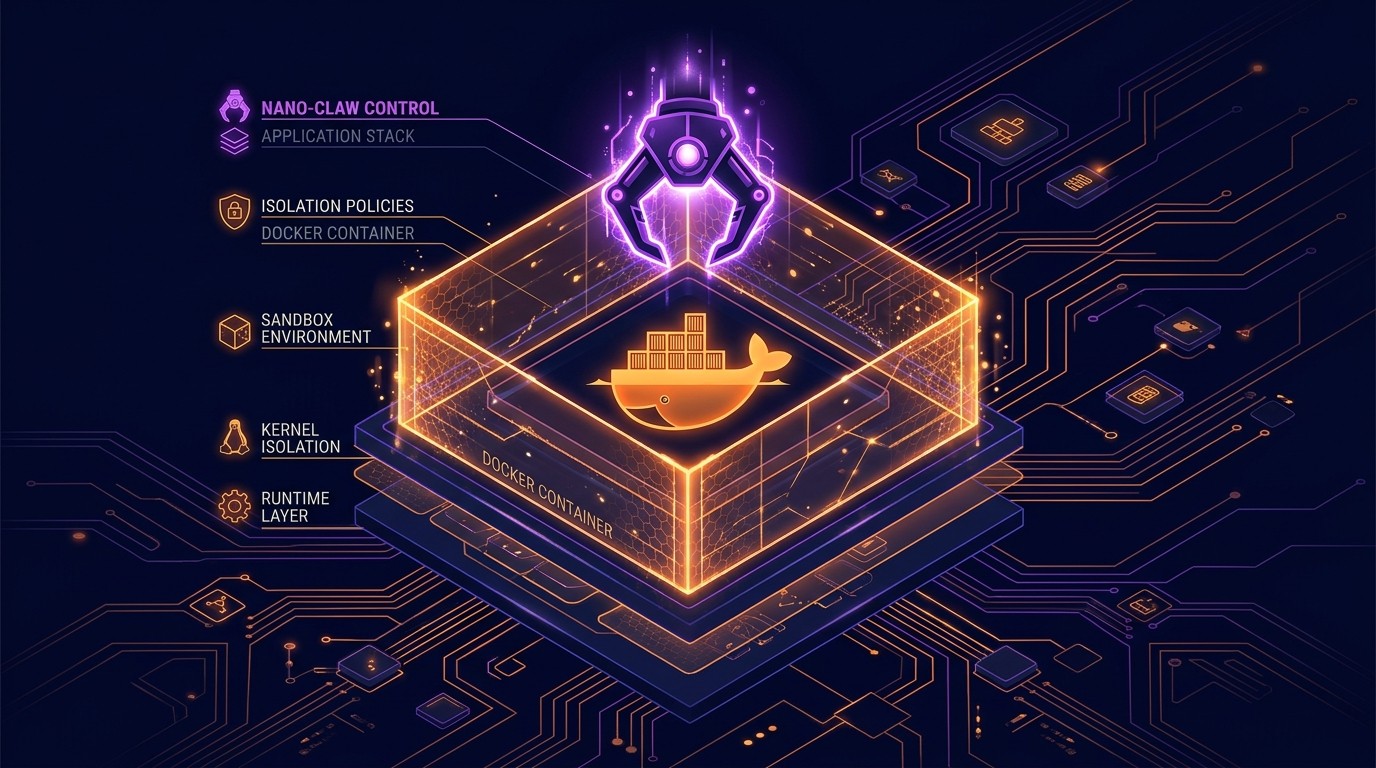
TL;DR — NanoClaw Docker Sandboxes
- What: NanoClaw runs every AI agent session inside an isolated Docker container (MicroVM). No agent can access the host file system, network, or other sessions.
- Why it matters: AI agents with tool access can read files, run commands, and make network requests. Without sandboxing, a compromised or misbehaving agent has the same access as the user who launched it.
- The partnership: On March 13, 2026, NanoClaw announced an official Docker partnership that integrates container orchestration directly into the agent runtime — no manual Docker setup required for cloud users.
- This guide: Full setup walkthrough for self-hosted NanoClaw Docker sandboxes, Docker Compose configurations, security hardening, performance tuning, and troubleshooting.
Table of Contents
- Why Docker Matters for AI Agents
- The NanoClaw + Docker Partnership
- How NanoClaw Uses Docker (Technical Deep-Dive)
- Setup Guide (8 Steps)
- Docker Compose Configuration
- Security Best Practices
- Performance Optimization
- Troubleshooting Docker Issues
- NanoClaw Docker vs OpenClaw Security
- Frequently Asked Questions
Why Docker Matters for AI Agents
AI agents are not chatbots. They execute code, read files, make API calls, install packages, and run shell commands — all on behalf of the user. That power is what makes agents useful. It is also what makes them dangerous.
Consider what happens when an AI agent runs without isolation:
- File system access. The agent can read SSH keys, environment variables, credentials stored in
.envfiles, browser cookies, and anything else the host user can access. - Network access. The agent can make arbitrary HTTP requests, exfiltrate data to external servers, or interact with internal services on the local network.
- Process execution. The agent can spawn background processes, modify system configurations, install software, or delete files.
- Persistence. Without session isolation, a misbehaving agent in one session can leave behind artifacts — modified configs, cron jobs, or planted scripts — that affect future sessions.
These are not hypothetical risks. In early 2026, security researchers demonstrated multiple prompt injection attacks where malicious instructions embedded in fetched web pages or repository files caused AI agents to exfiltrate sensitive data. The attack surface grows every time an agent gains a new tool.
Docker containers solve this by creating a sealed execution environment for each agent session. The container gets its own file system, its own network namespace, its own process tree, and strict resource limits. When the session ends, the container is destroyed. Nothing persists. Nothing leaks.
This is the same isolation model that powers cloud computing infrastructure worldwide. NanoClaw applies it specifically to AI agent sessions, and the March 2026 Docker partnership makes it a first-class feature of the platform.
The NanoClaw + Docker Partnership
On March 13, 2026, NanoClaw announced an official partnership with Docker Inc. The announcement covered three major components:
1. Native Container Runtime Integration
NanoClaw's agent runtime now embeds Docker Engine directly. Cloud-hosted NanoClaw sessions automatically spin up in isolated containers without any user configuration. Self-hosted deployments gain a streamlined setup path that replaces the previous manual Docker configuration with a single nanoclaw init --sandbox command.
2. MicroVM Architecture
The partnership introduced MicroVMs — lightweight containers optimized specifically for AI agent workloads. Unlike general-purpose Docker containers, MicroVMs boot in under 200 milliseconds, include only the dependencies an agent session needs, and enforce stricter default security policies (no root access, read-only base filesystem, mandatory resource caps).
3. Docker Hub Integration
NanoClaw published official base images on Docker Hub (nanoclaw/agent-sandbox, nanoclaw/agent-sandbox-gpu) that receive weekly security patches. Teams can extend these base images with custom tooling while inheriting the security baseline.
The timing was strategic. OpenClaw, NanoClaw's primary open-source competitor, operates without mandatory container isolation. Agents run directly on the host by default, relying on users to configure their own sandboxing. The Docker partnership positions NanoClaw as the security-first option for teams that need AI agents in production environments.
How NanoClaw Uses Docker (Technical Deep-Dive)
Understanding NanoClaw's container architecture is essential for anyone running self-hosted deployments or customizing the sandbox environment. Here is how the system works under the hood.
MicroVM Architecture
Each NanoClaw agent session runs inside a MicroVM — a purpose-built Docker container that provides:
- A minimal Alpine Linux base (~45MB) with only the packages required for agent execution: Python 3.12, Node.js 22 LTS, common CLI tools (curl, git, jq), and the NanoClaw agent runtime.
- A read-only root filesystem. The base image is mounted as read-only. Agents can write to
/workspace(session-scoped) and/tmp, but cannot modify system binaries, libraries, or configurations. - Non-root execution. The agent process runs as
uid 1000(usernanoclaw), not root. Even if an agent attempts privilege escalation, container-level security policies block it.
The MicroVM image is pulled once and cached locally. Subsequent sessions reuse the cached image, so there is no download delay after the first run.
Container Lifecycle per Session
The lifecycle follows a strict create-run-destroy pattern:
1. User starts a NanoClaw session
2. NanoClaw daemon requests a new container from Docker Engine
3. Docker creates the container from the MicroVM image
4. The /workspace volume is mounted (empty or with user-provided files)
5. The agent runtime starts inside the container
6. Agent executes tasks within the container boundary
7. User ends the session (or timeout triggers)
8. NanoClaw daemon sends SIGTERM to the container
9. Container stops gracefully (10s timeout, then SIGKILL)
10. Container and all ephemeral volumes are destroyed
No state persists between sessions unless explicitly exported by the user through NanoClaw's file export API. This is a deliberate design choice — it prevents cross-session contamination and eliminates the risk of sensitive data lingering in abandoned containers.
File System Isolation
NanoClaw's file system model uses three layers:
| Layer | Mount | Permissions | Persistence |
|---|---|---|---|
| ------- | ------- | ------------- | ------------- |
| Base image | / | Read-only | Cached across sessions |
| Workspace | /workspace | Read-write | Destroyed on session end |
| Temp | /tmp | Read-write | Destroyed on session end |
The host file system is never mounted into the container. If a user needs to provide files to the agent, they upload them through the NanoClaw API, which copies them into /workspace before the session starts. This prevents path traversal attacks and ensures the agent cannot access files outside its designated workspace.
Network Sandboxing
By default, NanoClaw containers run with a restricted network policy:
- Outbound HTTP/HTTPS is allowed to a configurable allowlist of domains (default: package registries like pypi.org, npmjs.com, and user-specified API endpoints).
- All other outbound traffic is blocked. The container cannot reach local network services, other containers, or arbitrary internet hosts.
- Inbound traffic is blocked entirely. No port mapping from host to container.
- DNS is handled by a NanoClaw-managed resolver that enforces the domain allowlist at the DNS level, preventing DNS-based exfiltration.
For teams that need broader network access (e.g., agents that interact with internal APIs), the allowlist is configurable in nanoclaw.toml:
[sandbox.network]
mode = "allowlist"
allowed_domains = [
  "api.github.com",
  "pypi.org",
  "registry.npmjs.org",
  "internal-api.company.com"
]
Resource Limits (CPU, Memory)
Every MicroVM has hard resource caps to prevent a runaway agent from consuming host resources:
| Resource | Default Limit | Configurable |
|---|---|---|
| ---------- | -------------- | ------------- |
| CPU | 2 cores | Yes (0.5–8) |
| Memory | 2 GB | Yes (512MB–16GB) |
| Disk (workspace) | 5 GB | Yes (1GB–50GB) |
| Session timeout | 30 minutes | Yes (5min–4hrs) |
| Max processes | 64 | Yes (16–256) |
These limits are enforced by Docker's cgroup integration. If an agent exceeds the memory limit, the container's OOM killer terminates the offending process. If it exceeds the CPU limit, the container is throttled, not killed — the agent continues running but at reduced speed.
Setup Guide (8 Steps)
This section walks through setting up NanoClaw Docker sandboxes on a self-hosted deployment. Cloud-hosted NanoClaw users get sandboxing automatically and can skip to the Security Best Practices section.
Step 1: Install Docker Desktop
NanoClaw requires Docker Engine 25.0 or later (Docker Desktop 4.35+ on macOS/Windows, or Docker CE on Linux).
macOS / Windows:
Download Docker Desktop from docker.com/products/docker-desktop and follow the installer. After installation, verify:
docker --version
# Docker version 25.0.x or later

docker info | grep "Server Version"
# Server Version: 25.0.x
Linux (Ubuntu/Debian):
# Remove old versions
sudo apt-get remove docker docker-engine docker.io containerd runc

# Install via official script
curl -fsSL https://get.docker.com | sh

# Add your user to the docker group
sudo usermod -aG docker $USER
newgrp docker

# Verify
docker run hello-world
Step 2: Configure Docker for NanoClaw
NanoClaw needs specific Docker daemon settings for optimal sandbox performance. Edit or create the Docker daemon configuration:
Linux: /etc/docker/daemon.json macOS/Windows: Docker Desktop → Settings → Docker Engine
{
  "default-runtime": "runc",
  "storage-driver": "overlay2",
  "log-driver": "json-file",
  "log-opts": {
    "max-size": "10m",
    "max-file": "3"
  },
  "default-ulimits": {
    "nofile": {
      "Name": "nofile",
      "Hard": 65536,
      "Soft": 65536
    }
  },
  "features": {
    "containerd-snapshotter": true
  }
}
Restart Docker after making changes:
# Linux
sudo systemctl restart docker

# macOS/Windows — restart Docker Desktop from the system tray
Step 3: Enable Sandbox Mode
Initialize NanoClaw with sandbox mode enabled:
# Install NanoClaw CLI (if not already installed)
npm install -g @nanoclaw/cli

# Initialize with Docker sandboxing
nanoclaw init --sandbox

# This command:
# 1. Pulls the nanoclaw/agent-sandbox image
# 2. Creates the nanoclaw.toml config
# 3. Sets up the Docker network (nanoclaw-sandbox-net)
# 4. Runs a verification test
Verify the setup:
nanoclaw sandbox test
# ✓ Docker Engine reachable
# ✓ MicroVM image available (nanoclaw/agent-sandbox:latest)
# ✓ Container creation: 187ms
# ✓ File system isolation: passed
# ✓ Network isolation: passed
# ✓ Resource limits: passed
Step 4: Set Resource Limits
Edit nanoclaw.toml (created during init, located in the project root or ~/.config/nanoclaw/):
[sandbox]
enabled = true
image = "nanoclaw/agent-sandbox:latest"

[sandbox.resources]
cpus = 2.0          # Number of CPU cores
memory = "2g"       # Memory limit
disk = "5g"         # Workspace disk limit
timeout = "30m"     # Session timeout
max_processes = 64  # Max concurrent processes inside container
For development machines with limited resources, a lighter configuration works well:
[sandbox.resources]
cpus = 1.0
memory = "1g"
disk = "2g"
timeout = "15m"
max_processes = 32
For production servers running multiple concurrent agent sessions, scale up:
[sandbox.resources]
cpus = 4.0
memory = "8g"
disk = "20g"
timeout = "60m"
max_processes = 128
Step 5: Configure Network Policies
The default network policy blocks everything except essential package registries. Most teams need to add their own API endpoints:
[sandbox.network]
mode = "allowlist"    # Options: "allowlist", "block_all", "unrestricted"

allowed_domains = [
  # Package registries (included by default)
  "pypi.org",
  "files.pythonhosted.org",
  "registry.npmjs.org",
  "raw.githubusercontent.com",

  # Add your own
  "api.openai.com",
  "api.anthropic.com",
  "api.github.com",
  "your-internal-api.company.com",
]

# Block specific IPs (prevents access to metadata services, local network)
blocked_cidrs = [
  "169.254.169.254/32",   # Cloud metadata service
  "10.0.0.0/8",           # Private network
  "172.16.0.0/12",        # Private network
  "192.168.0.0/16",       # Private network
]
The blocked_cidrs setting is critical for cloud deployments. Without it, an agent could access the cloud provider's metadata service and retrieve instance credentials.
Step 6: Test Container Isolation
Run NanoClaw's built-in isolation test suite to verify that the sandbox is properly configured:
nanoclaw sandbox verify --full

# Test results:
# ✓ Cannot read host /etc/passwd
# ✓ Cannot access host filesystem via /proc/1/root
# ✓ Cannot access Docker socket
# ✓ Cannot reach blocked network destinations
# ✓ Cannot exceed memory limit (OOM triggered correctly)
# ✓ Cannot exceed process limit
# ✓ Cannot write to read-only filesystem
# ✓ Cannot escalate to root
# ✓ Session cleanup: all artifacts removed
If any test fails, NanoClaw outputs the specific remediation steps. The most common failure is the Docker socket test — make sure /var/run/docker.sock is never mounted into agent containers.
Step 7: Deploy with Docker Compose
For production deployments or teams running multiple NanoClaw services, Docker Compose provides a declarative setup. See the full configuration in the Docker Compose Configuration section below.
# Start all services
docker compose -f nanoclaw-compose.yml up -d

# Check status
docker compose -f nanoclaw-compose.yml ps

# View logs
docker compose -f nanoclaw-compose.yml logs -f nanoclaw-daemon
Step 8: Monitor Container Health
NanoClaw exposes a health endpoint and container metrics:
# Check daemon health
curl http://localhost:9800/health
# {"status":"healthy","containers_active":3,"containers_total":47,"uptime":"4h12m"}

# List active agent sessions
nanoclaw sandbox list
# ID            IMAGE                          STATUS    CPU%   MEM
# nc-a1b2c3d4   nanoclaw/agent-sandbox:latest   running   12%    340MB
# nc-e5f6g7h8   nanoclaw/agent-sandbox:latest   running    3%    128MB

# View metrics for a specific session
nanoclaw sandbox stats nc-a1b2c3d4
For long-running deployments, connect NanoClaw's metrics endpoint to Prometheus/Grafana:
[monitoring]
enabled = true
prometheus_port = 9801
metrics_path = "/metrics"
Docker Compose Configuration
Below is a complete nanoclaw-compose.yml for a production NanoClaw deployment with Docker sandboxing, a Redis session store, and a monitoring stack.
version: "3.9"

services:
  nanoclaw-daemon:
    image: nanoclaw/daemon:latest
    container_name: nanoclaw-daemon
    restart: unless-stopped
    ports:
      - "9800:9800"     # API
      - "9801:9801"     # Metrics
    volumes:
      - /var/run/docker.sock:/var/run/docker.sock:ro
      - ./nanoclaw.toml:/etc/nanoclaw/nanoclaw.toml:ro
      - nanoclaw-workspace:/var/lib/nanoclaw/workspaces
    environment:
      - NANOCLAW_LOG_LEVEL=info
      - NANOCLAW_REDIS_URL=redis://redis:6379/0
      - NANOCLAW_SANDBOX_ENABLED=true
    depends_on:
      redis:
        condition: service_healthy
    deploy:
      resources:
        limits:
          cpus: "1.0"
          memory: 512M
    networks:
      - nanoclaw-internal

  redis:
    image: redis:7-alpine
    container_name: nanoclaw-redis
    restart: unless-stopped
    command: redis-server --maxmemory 256mb --maxmemory-policy allkeys-lru
    volumes:
      - redis-data:/data
    healthcheck:
      test: ["CMD", "redis-cli", "ping"]
      interval: 10s
      timeout: 3s
      retries: 3
    deploy:
      resources:
        limits:
          cpus: "0.5"
          memory: 300M
    networks:
      - nanoclaw-internal

  # Optional: Prometheus metrics collection
  prometheus:
    image: prom/prometheus:latest
    container_name: nanoclaw-prometheus
    restart: unless-stopped
    ports:
      - "9090:9090"
    volumes:
      - ./prometheus.yml:/etc/prometheus/prometheus.yml:ro
      - prometheus-data:/prometheus
    networks:
      - nanoclaw-internal

volumes:
  nanoclaw-workspace:
  redis-data:
  prometheus-data:

networks:
  nanoclaw-internal:
    driver: bridge
    internal: false
Key configuration notes:
- The Docker socket is mounted read-only (
:ro). The daemon needs it to create agent containers, but write access is not required for container creation — Docker's API handles this through the socket. - The
nanoclaw-workspacevolume stores active session workspaces. It is managed by the daemon and cleaned up when sessions end. - Redis serves as the session store, tracking active containers, their resource usage, and session metadata. The
allkeys-lrueviction policy ensures stale session data does not consume unbounded memory. - Resource limits on the daemon itself are modest (1 CPU, 512MB) because the daemon is a lightweight orchestrator. The actual compute runs inside the agent MicroVMs.
Security Best Practices
Running AI agents in Docker containers provides a strong security baseline, but containers are not a silver bullet. These six practices harden the setup for production use.
1. Never Mount the Docker Socket into Agent Containers
The Docker socket (/var/run/docker.sock) is mounted into the NanoClaw daemon container so it can orchestrate agent containers. It must never be passed through to the agent containers themselves. An agent with Docker socket access could create new containers, escape its sandbox, or take control of the host.
NanoClaw enforces this by default, but verify it:
nanoclaw sandbox verify --check docker-socket2. Pin Image Versions in Production
Using nanoclaw/agent-sandbox:latest is acceptable for development. In production, pin to a specific digest:
[sandbox]
image = "nanoclaw/agent-sandbox@sha256:a1b2c3d4e5f6..."
This prevents supply chain attacks where a compromised latest tag could introduce a malicious base image. Update the digest on a regular schedule after reviewing the changelog.
3. Enable Seccomp and AppArmor Profiles
NanoClaw ships with a custom seccomp profile that blocks dangerous syscalls (e.g., mount, ptrace, reboot). Ensure it is active:
[sandbox.security]
seccomp_profile = "nanoclaw-default"   # Ships with NanoClaw
apparmor_profile = "nanoclaw-agent"    # Linux only
no_new_privileges = true
read_only_rootfs = true
The no_new_privileges flag prevents any process inside the container from gaining additional privileges through setuid binaries or other escalation vectors.
4. Rotate and Audit API Keys
Agents often need API keys for external services (OpenAI, Anthropic, GitHub). Pass them as environment variables through NanoClaw's secrets manager rather than baking them into the container or workspace:
nanoclaw secrets set OPENAI_API_KEY "sk-..."
nanoclaw secrets set GITHUB_TOKEN "ghp_..."
NanoClaw injects these as environment variables at container start. They are never written to disk inside the container, and they are purged from memory when the session ends. Rotate keys regularly and audit access through NanoClaw's logs.
5. Enforce Session Timeouts
A runaway agent session can consume resources indefinitely without a timeout. The default 30-minute timeout is a reasonable starting point. For production workloads, set timeouts based on the expected task duration plus a buffer:
[sandbox.resources]
timeout = "45m"

[sandbox.timeout]
warning_at = "40m"        # Notify user before forced termination
grace_period = "30s"      # Time between SIGTERM and SIGKILL
6. Log Everything
Enable comprehensive logging for security audits and incident response:
[logging]
level = "info"
format = "json"
output = "file"
path = "/var/log/nanoclaw/agent-sessions.log"

[logging.audit]
enabled = true
log_commands = true        # Log every command the agent executes
log_network = true         # Log all outbound network requests
log_file_access = true     # Log file read/write operations
These logs are invaluable when investigating suspicious agent behavior. Ship them to a centralized logging system (ELK, Datadog, Grafana Loki) for searchability and alerting.
Performance Optimization
Docker adds a thin layer of overhead to agent execution. In practice, the overhead is negligible for most workloads, but these optimizations keep things fast for resource-intensive sessions.
Use overlay2 Storage Driver
The overlay2 storage driver is the fastest option for Docker on Linux. It is the default on modern installations, but verify:
docker info | grep "Storage Driver"
# Storage Driver: overlay2
If the system is using vfs or devicemapper, performance degrades significantly — especially for container creation and filesystem operations.
Pre-pull and Cache the MicroVM Image
The first session on a fresh machine requires pulling the MicroVM image (~45MB compressed). Subsequent sessions reuse the cached image. For teams provisioning new machines frequently, include the image pull in the machine setup script:
docker pull nanoclaw/agent-sandbox:latestAllocate Appropriate Resources
Under-provisioning causes slow agent execution. Over-provisioning wastes host resources and limits concurrency. The right configuration depends on the workload:
| Workload Type | Recommended CPU | Recommended Memory |
|---|---|---|
| --------------- | ---------------- | ------------------- |
| Light (text generation, file editing) | 1 core | 1 GB |
| Medium (code execution, package installation) | 2 cores | 2 GB |
| Heavy (data processing, ML inference) | 4 cores | 8 GB |
| GPU workloads | 4 cores + GPU passthrough | 16 GB |
Enable tmpfs for /tmp
Mounting /tmp as tmpfs (RAM-backed filesystem) eliminates disk I/O for temporary files, which many agent workflows use heavily:
[sandbox.mounts]
tmp_tmpfs = true
tmp_size = "512m"
Use Local Volumes for Workspaces
Network-attached storage (NFS, EFS) introduces latency for workspace file operations. Use local SSD-backed volumes whenever possible. If shared storage is required for multi-node deployments, consider a caching layer or syncing only the input/output files.
Troubleshooting Docker Issues
Problem 1: "Cannot connect to Docker daemon"
Symptoms: nanoclaw sandbox test fails with a connection refused error.
Solutions:
# Check if Docker is running
sudo systemctl status docker    # Linux
docker info                     # All platforms

# If Docker Desktop, ensure it is started from the system tray

# Check socket permissions (Linux)
ls -la /var/run/docker.sock
# Should be: srw-rw---- 1 root docker
# Fix: sudo usermod -aG docker $USER && newgrp docker
Problem 2: Container Creation is Slow (>2 seconds)
Symptoms: Agent sessions take several seconds to start.
Solutions:
- Verify the MicroVM image is cached locally:
docker images nanoclaw/agent-sandbox - Check disk space:
docker system df— low disk space forces Docker to garbage collect during creation. - On macOS/Windows, increase Docker Desktop's allocated resources (Settings → Resources). The file-sharing layer between host and VM can bottleneck.
Problem 3: Agent Runs Out of Memory
Symptoms: The agent process is killed mid-session. Logs show OOM (out of memory) events.
Solutions:
# Check container memory usage
docker stats --no-stream

# Increase the memory limit in nanoclaw.toml
# [sandbox.resources]
# memory = "4g"

# Identify memory-hungry operations in the session log
nanoclaw logs --session <session-id> | grep "memory"
Common memory culprits: installing large Python packages (PyTorch, TensorFlow), loading large files into memory, or running multiple subprocesses simultaneously.
Problem 4: Network Requests Fail Inside Container
Symptoms: The agent cannot reach external APIs. Errors like connection refused or DNS resolution failed.
Solutions:
- Check the allowlist in
nanoclaw.toml— the domain must be explicitly listed. - Verify DNS is working:
nanoclaw sandbox exec-- nslookup api.github.com - If running behind a corporate proxy, configure the proxy in Docker daemon settings:
{
  "proxies": {
    "http-proxy": "http://proxy.company.com:8080",
    "https-proxy": "http://proxy.company.com:8080",
    "no-proxy": "localhost,127.0.0.1"
  }
}
Problem 5: Files Not Persisting Between Sessions
Symptoms: Files created during one session are gone in the next.
This is expected behavior. NanoClaw destroys the container and its workspace when the session ends. To preserve files:
- Use
nanoclaw exportto download files before ending the session. - Configure a persistent output directory in
nanoclaw.toml:
[sandbox.persistence]
export_on_end = true
export_path = "/var/lib/nanoclaw/exports/{session_id}/"
export_patterns = ["*.py", "*.md", "*.json", "output/**"]
This automatically copies matching files out of the container before it is destroyed.
NanoClaw Docker vs OpenClaw Security
The security architectures of NanoClaw and OpenClaw differ fundamentally. This comparison focuses on how each platform handles AI agent isolation.
| Security Feature | NanoClaw | OpenClaw |
|---|---|---|
| ----------------- | ---------- | ---------- |
| Default isolation | Docker container (MicroVM) | None (runs on host) |
| Container support | Built-in, official Docker partnership | Community-contributed, optional |
| File system isolation | Read-only root, scoped workspace | Host filesystem access by default |
| Network sandboxing | Domain allowlist, DNS filtering | No network restrictions by default |
| Resource limits | Enforced per session (CPU, memory, disk) | No default limits |
| Session cleanup | Automatic container destruction | Manual cleanup required |
| Seccomp profiles | Custom profile, ships with platform | User must configure manually |
| Docker socket protection | Blocked from agent containers | Not addressed |
| Cloud metadata blocking | Default CIDR blocks for 169.254.x.x | Not addressed |
| Secret management | Built-in secrets injection (env-only, no disk) | Environment variables on host |
The distinction is not that OpenClaw cannot be secured — it can, with significant manual configuration. The distinction is that NanoClaw provides container isolation by default, with no additional setup for cloud users and minimal setup for self-hosted deployments. OpenClaw requires the user to build, configure, and maintain their own sandboxing infrastructure.
For individual developers running agents on personal machines, the risk difference is modest. For teams running agents in production — especially agents with access to customer data, internal APIs, or cloud infrastructure — the gap is significant. A single misconfigured agent without container isolation can access every secret on the host machine.
NanoClaw's Docker partnership also means the sandboxing solution receives dedicated engineering attention and regular security updates. Community-contributed Docker setups for OpenClaw depend on volunteer maintainers and may lag behind security patches.
Frequently Asked Questions
Does NanoClaw Docker sandboxing work on Windows?
Yes. NanoClaw Docker sandboxes work on Windows 10/11 with Docker Desktop installed. Docker Desktop for Windows uses WSL2 as its backend, and NanoClaw's MicroVMs run inside WSL2's Linux environment. Performance is comparable to native Linux for most agent workloads.
Can I use Podman instead of Docker?
NanoClaw officially supports Docker Engine and Docker Desktop. Podman compatibility is experimental as of March 2026. The core container lifecycle works with Podman, but some features — notably network policy enforcement and the metrics endpoint — require Docker-specific APIs. Check the NanoClaw docs for the latest Podman compatibility status.
How much overhead does Docker sandboxing add?
Container creation adds approximately 150–250ms to session startup. Runtime overhead for CPU-bound tasks is under 2%. Memory overhead is approximately 30MB per container for the NanoClaw agent runtime. For most workflows, the overhead is imperceptible.
Can agents access GPUs inside Docker containers?
Yes. NanoClaw supports NVIDIA GPU passthrough using the NVIDIA Container Toolkit. Use the GPU-enabled base image:
[sandbox]
image = "nanoclaw/agent-sandbox-gpu:latest"

[sandbox.resources]
gpus = "all"    # Or specify: "device=0,1"
AMD ROCm GPU support is on the roadmap for Q3 2026.
What happens if Docker crashes during an agent session?
If Docker Engine crashes, all running agent containers are terminated immediately. NanoClaw's daemon detects the Docker failure and marks all active sessions as "interrupted." When Docker restarts, NanoClaw automatically cleans up orphaned containers and volumes. No data is persisted from interrupted sessions unless export_on_end was configured.
Is NanoClaw Docker sandboxing free?
Docker sandboxing is included in all NanoClaw plans, including the free tier. Cloud-hosted users get it automatically. Self-hosted users need Docker Engine (free, open-source) installed on their machines. There are no additional licensing costs for the NanoClaw Docker integration.