Claude Code Keyboard Shortcuts & Commands Cheat Sheet (2026)
Every Claude Code keyboard shortcut, slash command, and CLI flag in one reference page. Copy this cheat sheet and keep it next to your terminal.

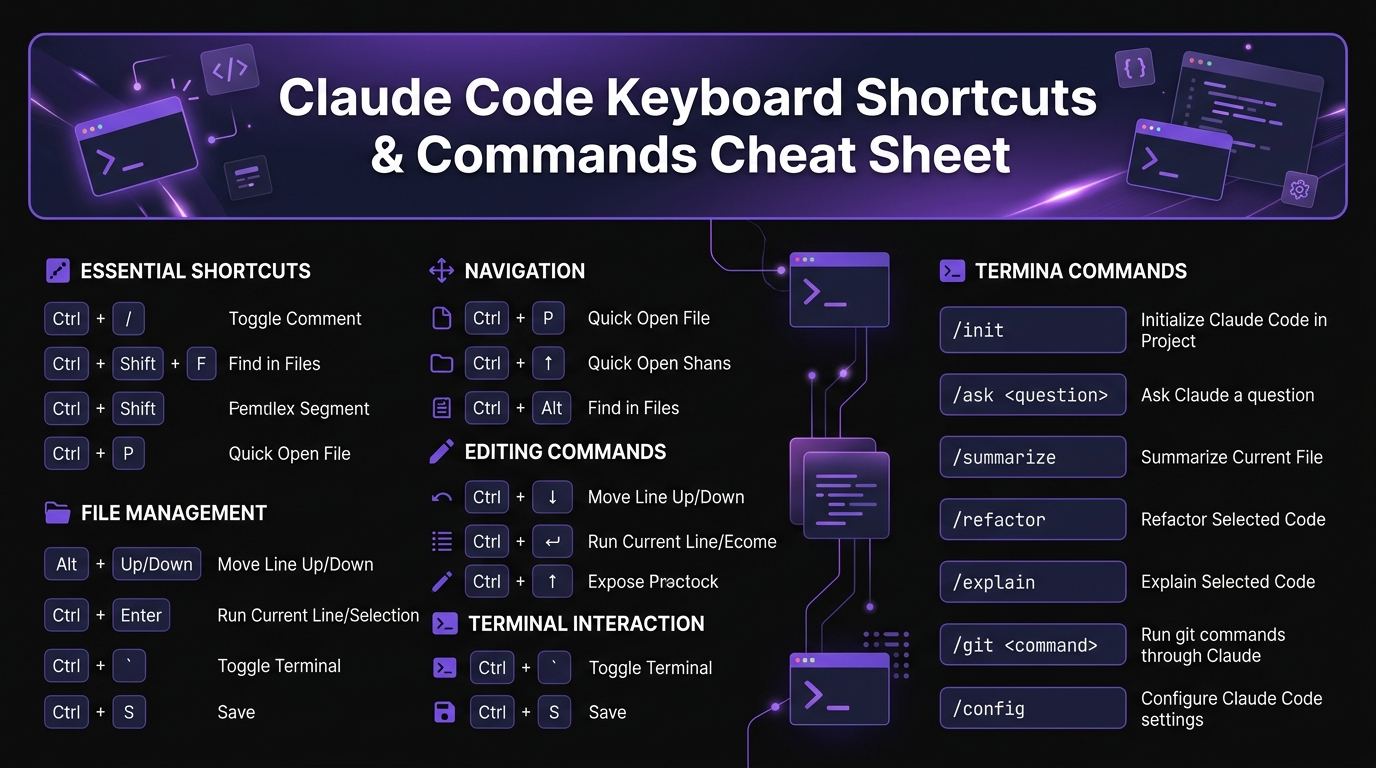
Claude Code Keyboard Shortcuts & Commands Cheat Sheet (2026)
By Sarah Walker | March 26, 2026 | 10 min read
Bookmark this page. Every Claude Code keyboard shortcut, slash command, CLI flag, and configuration option in one place. Updated for March 2026. Print it, pin it, or keep it in a tab — you will reference it more than you expect.
Table of Contents
- Keyboard Shortcuts
- Slash Commands
- CLI Flags and Options
- Configuration Files
- Environment Variables
- Quick Reference Card
- Frequently Asked Questions
Keyboard Shortcuts {#keyboard-shortcuts}
These work inside an active Claude Code session in your terminal.
Essential Shortcuts (Memorize These)
| Shortcut | Action | When to use |
|---|---|---|
| ---------- | -------- | ------------- |
| Ctrl+C | Cancel current generation | Claude is writing something you don't need — stop it immediately |
| Ctrl+D | Exit Claude Code | End your session gracefully |
| Esc | Cancel current input / dismiss | You started typing a prompt and want to clear it |
| Enter | Send message | Submit your prompt to Claude |
| Shift+Enter | New line in input | Write multi-line prompts without sending |
| Up Arrow | Previous message | Scroll through your prompt history |
| Down Arrow | Next message | Navigate forward through prompt history |
Navigation Shortcuts
| Shortcut | Action | Notes |
|---|---|---|
| ---------- | -------- | ------- |
| Tab | Accept suggestion / autocomplete | When Claude suggests a file path or command |
| Ctrl+L | Clear screen | Clears visual clutter but keeps session context |
| Ctrl+A | Move cursor to start of line | Standard terminal behavior, works in Claude Code |
| Ctrl+E | Move cursor to end of line | Standard terminal behavior |
| Ctrl+W | Delete word before cursor | Quick editing while typing prompts |
| Ctrl+U | Delete entire line | Clear your current input and start over |
Tool Approval Shortcuts
When Claude wants to use a tool (read a file, run a command, etc.), you see an approval prompt:
| Shortcut | Action |
|---|---|
| ---------- | -------- |
| y or Enter | Approve the tool use |
| n | Reject the tool use |
| a | Approve all tool uses for this session (trust mode) |
| e | Edit the command before running it |
Tip: If you trust Claude's actions for the current session and do not want to approve each one individually, press a once. This enables auto-approval for the remainder of the session. You can always press Ctrl+C to stop an action in progress.
Slash Commands {#slash-commands}
Type these at the Claude Code prompt (where you normally type your messages). They start with /.
Session Management
| Command | What it does |
|---|---|
| --------- | ------------- |
/help | Show all available commands and shortcuts |
/clear | Clear conversation history and start fresh (resets context) |
/compact | Compress the conversation to save context space |
/cost | Show how much the current session has cost in API credits |
/exit | Exit Claude Code (same as Ctrl+D) |
Configuration
| Command | What it does |
|---|---|
| --------- | ------------- |
/config | View or modify Claude Code settings |
/doctor | Run diagnostics — checks your installation, API connection, and MCP servers |
/model | View or change the AI model being used |
Context Management
| Command | What it does |
|---|---|
| --------- | ------------- |
/add-dir | Add a directory to Claude's context |
/add-file | Add a specific file to Claude's context |
MCP and Skills
| Command | What it does |
|---|---|
| --------- | ------------- |
/mcp | Show status of connected MCP servers |
/skill | Run a saved skill (custom command) |
Detailed Breakdown of Key Commands
/clear
Resets the entire conversation. Claude forgets everything from the current session — files it read, decisions it made, context it gathered. Use this when you are switching to a completely different task and the old context is getting in the way.
When to use: You have been debugging one feature for 20 minutes and now want to work on something unrelated. The old context is using up your context window for no benefit.
When NOT to use: You are in the middle of a multi-step task. Clearing will erase Claude's understanding of what has been done.
/compact
Compresses the conversation to use less context space without losing the key information. Claude summarizes what has happened so far and continues from the summary. This extends your session when you are running into context limits.
When to use: Claude mentions it is running low on context, or you notice responses getting shorter and less detailed (a sign of context pressure).
Tip: Run /compact proactively after completing a major sub-task. This keeps the session lean.
/cost
Shows your spending for the current session. The output breaks down input tokens, output tokens, and total cost. Use this to monitor spending on expensive operations.
Example output:
Session cost: $0.42
  Input tokens: 145,230 ($0.22)
  Output tokens: 52,100 ($0.20)
  Cache reads: 89,000 (free)
/doctor
Runs a diagnostic check on your Claude Code installation. It verifies:
- API connection is working
- API key is valid
- MCP servers are connected and responsive
- Node.js version is compatible
- Configuration files are valid
Run this first when something is not working. It catches most configuration issues.
CLI Flags and Options {#cli-flags}
These are used when launching Claude Code from your terminal (before the session starts).
Starting a Session
| Command | What it does |
|---|---|
| --------- | ------------- |
claude | Start an interactive session in the current directory |
claude "your prompt" | Run a single prompt and exit (non-interactive) |
claude -p "your prompt" | Print mode — output only, no interactive session |
claude -c | Continue your last conversation (resume where you left off) |
Model Selection
| Flag | What it does |
|---|---|
| ------ | ------------- |
--model | Use a specific model (e.g., --model claude-sonnet-4-20250514) |
Output Control
| Flag | What it does |
|---|---|
| ------ | ------------- |
-p / --print | Print Claude's response to stdout (useful for piping to other commands) |
--output-format json | Output in JSON format (for scripting) |
--output-format text | Output in plain text (default) |
--verbose | Show detailed information about tool calls and reasoning |
Session Options
| Flag | What it does |
|---|---|
| ------ | ------------- |
-c / --continue | Resume the last conversation |
--no-cache | Disable prompt caching (rarely needed) |
Piping and Scripting
Claude Code supports Unix-style piping:
# Pipe file content to Claude
cat error.log | claude -p "What caused this error?"

# Pipe Claude's output to a file
claude -p "Write a bash script that backs up my database" > backup.sh

# Chain commands
git diff | claude -p "Summarize these changes for a commit message"
This is one of Claude Code's most powerful features for automation. You can integrate it into shell scripts, CI/CD pipelines, and makefiles.
Configuration Files {#config-files}
Claude Code reads configuration from several files. Here is where each one lives and what it controls.
CLAUDE.md (Project Instructions)
Location: ./CLAUDE.md (project root)
This file tells Claude how your project works. It is the most important configuration file — Claude reads it at the start of every session.
# My Project

## Tech Stack
- Next.js 15 with App Router
- TypeScript strict mode
- Tailwind CSS + shadcn/ui
- Drizzle ORM with Postgres

## Conventions
- Components in src/components/
- Server actions in src/actions/
- Always use TypeScript, never JavaScript

## Do NOT
- Use CSS modules
- Use default exports (except for pages)
- Use any type
.claude/mcp.json (MCP Server Configuration)
Location: ./.claude/mcp.json (project-level) or ~/.claude/mcp.json (global)
Configures MCP server connections:
{
  "mcpServers": {
    "server-name": {
      "command": "npx",
      "args": ["-y", "package-name"],
      "env": {
        "API_KEY": "your-key"
      }
    }
  }
}
.claude/settings.json (Project Settings)
Location: ./.claude/settings.json
Project-specific settings like allowed/denied tools:
{
  "permissions": {
    "allow": ["Read", "Write", "Edit", "Bash"],
    "deny": []
  }
}
~/.claude/settings.json (Global Settings)
Location: ~/.claude/settings.json
User-level settings that apply to all projects.
Environment Variables {#env-vars}
| Variable | Purpose | Default |
|---|---|---|
| ---------- | --------- | --------- |
ANTHROPIC_API_KEY | Your API key for Claude | Required |
CLAUDE_MODEL | Default model to use | claude-sonnet-4-20250514 |
CLAUDE_CONFIG_DIR | Override config directory location | ~/.claude |
Set these in your shell profile (~/.bashrc, ~/.zshrc, or ~/.bash_profile):
export ANTHROPIC_API_KEY="sk-ant-your-key-here"Quick Reference Card {#quick-reference}
Print this section and keep it next to your monitor.
KEYBOARD SHORTCUTS
  Ctrl+C .......... Cancel generation
  Ctrl+D .......... Exit session
  Esc ............. Cancel input
  Shift+Enter ..... New line (multi-line prompt)
  Up/Down ......... Prompt history
  Tab ............. Accept suggestion
  Ctrl+L .......... Clear screen

TOOL APPROVAL
  y / Enter ....... Approve
  n ............... Reject
  a ............... Approve all (session)
  e ............... Edit before running

SLASH COMMANDS
  /help ........... Show help
  /clear .......... Reset conversation
  /compact ........ Compress context
  /cost ........... Show session cost
  /doctor ......... Run diagnostics
  /config ......... View settings
  /model .......... Change model
  /mcp ............ MCP server status

CLI USAGE
  claude .......... Interactive session
  claude "msg" .... Single prompt
  claude -p "msg" . Print mode (pipe-friendly)
  claude -c ....... Continue last session

CONFIG FILES
  CLAUDE.md ............ Project instructions
  .claude/mcp.json ..... MCP servers
  .claude/settings.json  Project settings
  ~/.claude/mcp.json ... Global MCP servers
For a deeper dive into skills, MCP servers, and advanced Claude Code workflows, check the Skiln ecosystem directory — we catalog every skill, MCP server, and configuration pattern in the Claude Code ecosystem.
Frequently Asked Questions {#faq}
How do I check which version of Claude Code I am running?
Run claude --version in your terminal. This shows the installed version number. To update to the latest version, run npm update -g @anthropic-ai/claude-code. Claude Code updates frequently — checking weekly is a good habit.
Can I customize the keyboard shortcuts?
Not currently. Claude Code's keyboard shortcuts are built-in and cannot be remapped. The shortcuts follow standard terminal conventions (Ctrl+C, Ctrl+D, Ctrl+L), so they should feel familiar if you use other terminal tools. Feature requests for custom keybindings can be submitted through the Claude Code GitHub repository.
What does /compact actually do to my conversation?
The /compact command takes your entire conversation history and compresses it into a shorter summary. Claude identifies the key information — files read, decisions made, tasks completed — and replaces the full history with a condensed version. You lose the detailed back-and-forth but keep the important context. This frees up context space for new work.
How do I run Claude Code commands in a script or CI pipeline?
Use the -p (print) flag for non-interactive usage: claude -p "your prompt". This sends a single prompt, prints the response to stdout, and exits. You can pipe input in (cat file | claude -p "analyze this") and pipe output out (claude -p "write a test" > test.js). For JSON output, add --output-format json. This makes Claude Code scriptable for CI/CD pipelines, cron jobs, and shell scripts.
Is there a way to see what MCP tools are available in my current session?
Yes. Type /mcp in your Claude Code session to see all connected MCP servers and their status. Claude will also list available tools when you ask — try "what tools do you have access to?" For a full catalog of available MCP servers you can install, browse the Skiln MCP directory.