Claude Code Hooks: Complete Guide with 15 Ready-to-Use Examples
**Claude Code hooks are shell commands that execute automatically at specific points in Claude Code's lifecycle** — before a tool runs, after a file is edited, when a session starts, or when Claude finishes a task. Think of them like Git hooks, but for AI-assisted coding. They let you enforce code
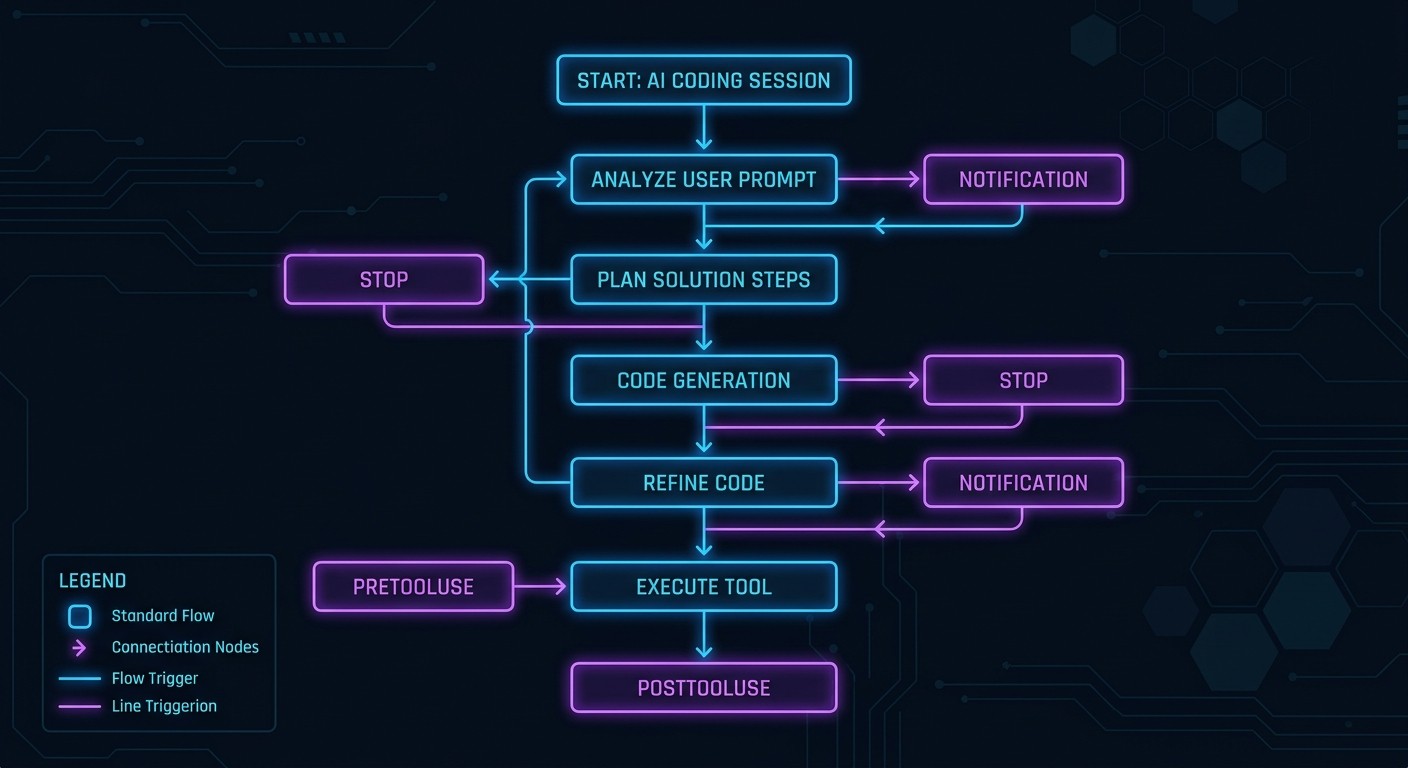
Claude Code Hooks: Complete Guide with 15 Ready-to-Use Examples
TL;DR
Claude Code hooks are shell commands that execute automatically at specific points in Claude Code's lifecycle — before a tool runs, after a file is edited, when a session starts, or when Claude finishes a task. Think of them like Git hooks, but for AI-assisted coding.
They let you enforce code quality, block dangerous operations, automate repetitive tasks, and integrate Claude Code into your existing development workflow — all without manual intervention.
3 best starter hooks to set up right now:
- Auto-format on file save — Run Prettier/ESLint after every edit so Claude's output always matches your style guide
- Block sensitive file access — Prevent Claude from reading or modifying
.env, credentials, or secret files - Run tests after code changes — Automatically execute your test suite after every file modification
Read on for all 15 ready-to-use examples with copy-paste configurations.
Table of Contents
- What Are Claude Code Hooks?
- Hook Types Explained
- How to Set Up Hooks
- 15 Ready-to-Use Hook Examples
- Hook Development Best Practices
- Troubleshooting Hooks
- Combining Hooks with Skills
- Frequently Asked Questions
What Are Claude Code Hooks?
Hooks are user-defined shell commands, HTTP endpoints, or prompts that execute automatically at specific points during a Claude Code session. Every time Claude Code performs an action — reading a file, writing code, running a command, finishing a task — it fires an event. Hooks let you intercept those events and run your own logic.
The concept is similar to Git hooks. Just as a pre-commit hook runs your linter before every commit, a PreToolUse hook runs your validation logic before Claude executes any tool. The difference is scope: Claude Code hooks cover the entire AI-assisted development lifecycle, not just version control.
Here is what hooks can do in practice:
- Gate dangerous operations — Block Claude from force-pushing, deleting protected files, or accessing secrets
- Enforce code quality — Auto-format, lint, and type-check every piece of code Claude writes
- Automate workflows — Run tests, update changelogs, send notifications, and commit changes without manual steps
- Add context — Inject project-specific information into Claude's workflow at session start
- Audit everything — Log every tool call, track what Claude changes, and maintain a full activity trail
Hooks communicate with Claude Code through stdin (receives event data as JSON), stdout (returns structured responses), stderr (error messages), and exit codes (control flow decisions). This means you can write hooks in any language — Bash, Python, Node.js, or anything that can read stdin and return an exit code.
Hook Types Explained
Claude Code supports six hook events. Each fires at a different point in the session lifecycle. Here are the four most commonly used types, plus two bonus events.
PreToolUse Hooks
When they fire: Before Claude Code executes any tool (Bash, Edit, Write, Read, etc.)
What they receive on stdin:
{
  "session_id": "abc123",
  "hook_event_name": "PreToolUse",
  "tool_name": "Edit",
  "tool_input": {
    "file_path": "/src/app.ts",
    "old_string": "const x = 1",
    "new_string": "const x = 2"
  }
}
What they can do:
- Allow the tool call (exit code 0)
- Deny the tool call with a reason (exit code 2, reason on stderr)
- Modify the tool input before execution (exit code 0, modified JSON on stdout)
PreToolUse hooks are your security layer. Use them to block access to sensitive files, prevent dangerous commands, validate inputs, and enforce project rules before Claude takes any action.
PostToolUse Hooks
When they fire: After a tool call completes successfully.
What they receive on stdin:
{
  "session_id": "abc123",
  "hook_event_name": "PostToolUse",
  "tool_name": "Edit",
  "tool_input": {
    "file_path": "/src/app.ts",
    "old_string": "const x = 1",
    "new_string": "const x = 2"
  },
  "tool_output": "File edited successfully"
}
What they can do:
- Run follow-up actions (formatting, testing, logging)
- Add context back to Claude via
additionalContextin stdout JSON - Block further processing if something went wrong (exit code 2)
PostToolUse hooks are your quality assurance layer. Use them to auto-format code, run tests, update documentation, and validate that changes meet your standards.
Notification Hooks
When they fire: When Claude Code sends a notification — typically when it needs user input or wants to alert you about something.
What they receive on stdin:
{
  "session_id": "abc123",
  "hook_event_name": "Notification",
  "message": "Task completed successfully"
}
Notification hooks are ideal for integrating Claude Code with external alerting systems like Slack, Discord, or desktop notifications.
Stop Hooks
When they fire: When Claude finishes generating its response and is about to hand control back to you.
Stop hooks are perfect for cleanup tasks, final validation, auto-committing work, or sending summary notifications.
Bonus: SessionStart and UserPromptSubmit
- SessionStart fires when a new Claude Code session begins or resumes. Use it to inject context, check environment prerequisites, or initialize project state.
- UserPromptSubmit fires after you submit a prompt but before Claude processes it. Use it to modify prompts, add context, or enforce prompt templates.
How Hooks Are Configured in settings.json
All hooks live in a hooks object within your Claude Code settings file. The structure follows three levels:
{
  "hooks": {
    "EventName": [
      {
        "matcher": "regex_pattern",
        "hooks": [
          {
            "type": "command",
            "command": "your-shell-command"
          }
        ]
      }
    ]
  }
}- Event name — Which lifecycle point triggers this hook (
PreToolUse,PostToolUse, etc.) - Matcher — A regex that filters when the hook fires. For tool events, it matches against
tool_name. Use"","*", or omit entirely to match everything. - Hook handlers — The commands to execute. Each handler has a
type(usually"command") and acommandstring.
How to Set Up Hooks
Step 1: Choose Your Settings File
Claude Code looks for hooks in three locations, in order of precedence:
| File | Scope | Version controlled? |
|---|---|---|
| ------ | ------- | ------------------- |
~/.claude/settings.json | Global (all projects) | No |
.claude/settings.json | Project (shared with team) | Yes |
.claude/settings.local.json | Project (personal) | No |
Recommendation: Use .claude/settings.json for team-shared hooks (formatting, linting, security gates) and ~/.claude/settings.json for personal preferences (notifications, logging).
Step 2: Add Your Hook Configuration
Open your chosen settings file and add the hooks key. Here is a minimal example that auto-formats TypeScript files after every edit:
{
  "hooks": {
    "PostToolUse": [
      {
        "matcher": "Edit|MultiEdit|Write",
        "hooks": [
          {
            "type": "command",
            "command": "cat /dev/stdin | jq -r '.tool_input.file_path // empty' | xargs -I {} npx prettier --write {}"
          }
        ]
      }
    ]
  }
}
Step 3: Create Helper Scripts (Optional)
For complex logic, reference external scripts instead of inline commands:
{
  "type": "command",
  "command": ".claude/hooks/post-edit-format.sh"
}
Make them executable:
chmod +x .claude/hooks/post-edit-format.shStep 4: Test Your Hooks
Start a Claude Code session and trigger the relevant tool. Watch for:
- Hook execution in the Claude Code output (visible in verbose mode)
- Expected behavior (file formatted, test ran, notification sent)
- Error messages on stderr
You can test hooks manually by piping sample JSON:
echo '{"tool_name":"Edit","tool_input":{"file_path":"src/app.ts"}}' | .claude/hooks/post-edit-format.shStep 5: Debug with Verbose Mode
If a hook is not firing or behaving unexpectedly, run Claude Code with verbose output to see hook execution details, including stdin data, exit codes, and stderr messages.
15 Ready-to-Use Hook Examples
Here is the cookbook. Every example includes the complete configuration JSON and any helper scripts needed. Copy, paste, and adapt to your project.
1. Auto-Format on File Save
What it does: Runs Prettier on every file Claude creates or modifies, so output always matches your project's style guide.
Hook configuration:
{
  "hooks": {
    "PostToolUse": [
      {
        "matcher": "Edit|MultiEdit|Write",
        "hooks": [
          {
            "type": "command",
            "command": ".claude/hooks/auto-format.sh"
          }
        ]
      }
    ]
  }
}
Shell script (.claude/hooks/auto-format.sh):
#!/bin/bash
set -euo pipefail

INPUT=$(cat /dev/stdin)
FILE_PATH=$(echo "$INPUT" | jq -r '.tool_input.file_path // empty')

if [ -z "$FILE_PATH" ] || [ ! -f "$FILE_PATH" ]; then
  exit 0
fi

EXTENSION="${FILE_PATH##*.}"

case "$EXTENSION" in
  ts|tsx|js|jsx|json|css|scss|html|md)
    npx prettier --write "$FILE_PATH" 2>/dev/null
    ;;
  py)
    python -m black "$FILE_PATH" 2>/dev/null
    ;;
  rs)
    rustfmt "$FILE_PATH" 2>/dev/null
    ;;
esac

exit 0
When to use it: Every project. This is the single most impactful hook. It eliminates style inconsistencies from AI-generated code without any manual intervention.
2. Run Tests After Code Changes
What it does: Executes your test suite after Claude modifies source files. Returns test results as additional context so Claude can self-correct failures.
Hook configuration:
{
  "hooks": {
    "PostToolUse": [
      {
        "matcher": "Edit|MultiEdit|Write",
        "hooks": [
          {
            "type": "command",
            "command": ".claude/hooks/run-tests.sh"
          }
        ]
      }
    ]
  }
}
Shell script (.claude/hooks/run-tests.sh):
#!/bin/bash
set -uo pipefail

INPUT=$(cat /dev/stdin)
FILE_PATH=$(echo "$INPUT" | jq -r '.tool_input.file_path // empty')

if [ -z "$FILE_PATH" ]; then
  exit 0
fi

# Only run tests for source files, not config or docs
if [[ "$FILE_PATH" == *.test.* ]] || [[ "$FILE_PATH" == *.spec.* ]] || [[ "$FILE_PATH" == *.md ]]; then
  exit 0
fi

# Run relevant tests (adjust command for your framework)
TEST_OUTPUT=$(npx jest --findRelatedTests "$FILE_PATH" --passWithNoTests 2>&1) || true
EXIT_CODE=$?

if [ $EXIT_CODE -ne 0 ]; then
  echo "{\"additionalContext\": \"Tests failed after editing $FILE_PATH:\\n$TEST_OUTPUT\"}"
fi

exit 0
When to use it: Projects with good test coverage where you want Claude to immediately see and fix test failures.
3. Lint Commit Messages
What it does: Validates commit message format before Claude runs any git commit command. Enforces conventional commits or your custom format.
Hook configuration:
{
  "hooks": {
    "PreToolUse": [
      {
        "matcher": "Bash",
        "hooks": [
          {
            "type": "command",
            "command": ".claude/hooks/lint-commit-msg.sh"
          }
        ]
      }
    ]
  }
}
Shell script (.claude/hooks/lint-commit-msg.sh):
#!/bin/bash
set -uo pipefail

INPUT=$(cat /dev/stdin)
COMMAND=$(echo "$INPUT" | jq -r '.tool_input.command // empty')

# Only check git commit commands
if ! echo "$COMMAND" | grep -q "git commit"; then
  exit 0
fi

# Extract commit message from -m flag
MSG=$(echo "$COMMAND" | grep -oP '(?<=-m ["'"'"'])[^"'"'"']+' | head -1)

if [ -z "$MSG" ]; then
  exit 0
fi

# Enforce conventional commit format
PATTERN="^(feat|fix|docs|style|refactor|perf|test|build|ci|chore|revert)(\(.+\))?: .{1,72}$"

if ! echo "$MSG" | head -1 | grep -qP "$PATTERN"; then
  echo "Commit message must follow conventional commits format: type(scope): description" >&2
  echo "Valid types: feat, fix, docs, style, refactor, perf, test, build, ci, chore, revert" >&2
  exit 2
fi

exit 0
When to use it: Teams that enforce conventional commits or any standardized commit message format.
4. Block Sensitive File Access
What it does: Prevents Claude from reading, editing, or writing to sensitive files like .env, credentials, private keys, and secret configuration.
Hook configuration:
{
  "hooks": {
    "PreToolUse": [
      {
        "matcher": "Read|Edit|MultiEdit|Write",
        "hooks": [
          {
            "type": "command",
            "command": ".claude/hooks/block-sensitive-files.sh"
          }
        ]
      }
    ]
  }
}
Shell script (.claude/hooks/block-sensitive-files.sh):
#!/bin/bash
set -uo pipefail

INPUT=$(cat /dev/stdin)
FILE_PATH=$(echo "$INPUT" | jq -r '.tool_input.file_path // empty')

if [ -z "$FILE_PATH" ]; then
  exit 0
fi

BASENAME=$(basename "$FILE_PATH")
BLOCKED_PATTERNS=(
  ".env"
  ".env.local"
  ".env.production"
  "credentials.json"
  "service-account.json"
  "*.pem"
  "*.key"
  "id_rsa"
  "id_ed25519"
  ".secrets"
  "secrets.yaml"
  "secrets.yml"
)

for PATTERN in "${BLOCKED_PATTERNS[@]}"; do
  if [[ "$BASENAME" == $PATTERN ]]; then
    echo "ACCESS DENIED: $FILE_PATH is a sensitive file and cannot be accessed by Claude Code." >&2
    exit 2
  fi
done

# Also block any path containing "secrets" or "credentials" directories
if [[ "$FILE_PATH" == *"/secrets/"* ]] || [[ "$FILE_PATH" == *"/credentials/"* ]]; then
  echo "ACCESS DENIED: Files in secrets/credentials directories are off-limits." >&2
  exit 2
fi

exit 0
When to use it: Every project. This is a critical security hook. Set it up globally in ~/.claude/settings.json so it applies everywhere.
5. Auto-Commit After Successful Changes
What it does: Automatically creates a Git commit after Claude finishes a task, with a descriptive message based on the changes.
Hook configuration:
{
  "hooks": {
    "Stop": [
      {
        "matcher": "",
        "hooks": [
          {
            "type": "command",
            "command": ".claude/hooks/auto-commit.sh"
          }
        ]
      }
    ]
  }
}
Shell script (.claude/hooks/auto-commit.sh):
#!/bin/bash
set -uo pipefail

# Check if there are staged or unstaged changes
if git diff --quiet && git diff --cached --quiet; then
  exit 0
fi

# Get list of changed files
CHANGED_FILES=$(git diff --name-only && git diff --cached --name-only | sort -u)
FILE_COUNT=$(echo "$CHANGED_FILES" | wc -l | tr -d ' ')

# Stage all changes
git add -A

# Create commit with descriptive message
TIMESTAMP=$(date +"%Y-%m-%d %H:%M")
git commit -m "claude: auto-commit $FILE_COUNT file(s) changed at $TIMESTAMP" \
  -m "Files modified:" \
  -m "$CHANGED_FILES" \
  --no-verify 2>/dev/null || true

exit 0
When to use it: Exploratory coding sessions where you want every state captured. Pair with feature branches so auto-commits do not clutter your main branch history.
6. Notify Slack on Task Completion
What it does: Sends a Slack message when Claude finishes a task, so your team knows work is done without watching the terminal.
Hook configuration:
{
  "hooks": {
    "Stop": [
      {
        "matcher": "",
        "hooks": [
          {
            "type": "command",
            "command": ".claude/hooks/notify-slack.sh"
          }
        ]
      }
    ]
  }
}
Shell script (.claude/hooks/notify-slack.sh):
#!/bin/bash
set -uo pipefail

SLACK_WEBHOOK_URL="${CLAUDE_SLACK_WEBHOOK:-}"

if [ -z "$SLACK_WEBHOOK_URL" ]; then
  exit 0
fi

INPUT=$(cat /dev/stdin)
SESSION_ID=$(echo "$INPUT" | jq -r '.session_id // "unknown"')
PROJECT_DIR=$(basename "$(echo "$INPUT" | jq -r '.cwd // "unknown"')")

curl -s -X POST "$SLACK_WEBHOOK_URL" \
  -H 'Content-type: application/json' \
  -d "{
    \"text\": \":robot_face: Claude Code finished a task in *$PROJECT_DIR*\",
    \"blocks\": [
      {
        \"type\": \"section\",
        \"text\": {
          \"type\": \"mrkdwn\",
          \"text\": \":white_check_mark: *Claude Code Task Complete*\nProject: \`$PROJECT_DIR\`\nSession: \`$SESSION_ID\`\"
        }
      }
    ]
  }" 2>/dev/null

exit 0
When to use it: When running Claude Code on long-running tasks in the background, or when multiple team members need to know when AI-assisted work completes.
Set the webhook URL: export CLAUDE_SLACK_WEBHOOK="https://hooks.slack.com/services/YOUR/WEBHOOK/URL"
7. Log All Tool Calls to a File
What it does: Creates a detailed audit log of every tool Claude invokes, including timestamps, tool names, inputs, and outputs.
Hook configuration:
{
  "hooks": {
    "PostToolUse": [
      {
        "matcher": "",
        "hooks": [
          {
            "type": "command",
            "command": ".claude/hooks/log-tool-calls.sh"
          }
        ]
      }
    ]
  }
}
Shell script (.claude/hooks/log-tool-calls.sh):
#!/bin/bash
set -uo pipefail

INPUT=$(cat /dev/stdin)
LOG_DIR=".claude/logs"
mkdir -p "$LOG_DIR"

TIMESTAMP=$(date +"%Y-%m-%dT%H:%M:%S")
TOOL_NAME=$(echo "$INPUT" | jq -r '.tool_name // "unknown"')
SESSION_ID=$(echo "$INPUT" | jq -r '.session_id // "unknown"')
LOG_FILE="$LOG_DIR/tool-calls-$(date +%Y-%m-%d).jsonl"

# Append structured log entry
echo "$INPUT" | jq -c ". + {\"logged_at\": \"$TIMESTAMP\"}" >> "$LOG_FILE"

exit 0
When to use it: Compliance-heavy environments, or when you want to review what Claude did in a session after the fact. The JSONL format makes logs easy to query with jq.
8. Enforce Branch Naming Conventions
What it does: Blocks Claude from creating Git branches that do not follow your team's naming convention.
Hook configuration:
{
  "hooks": {
    "PreToolUse": [
      {
        "matcher": "Bash",
        "hooks": [
          {
            "type": "command",
            "command": ".claude/hooks/enforce-branch-names.sh"
          }
        ]
      }
    ]
  }
}
Shell script (.claude/hooks/enforce-branch-names.sh):
#!/bin/bash
set -uo pipefail

INPUT=$(cat /dev/stdin)
COMMAND=$(echo "$INPUT" | jq -r '.tool_input.command // empty')

# Only check branch creation commands
if ! echo "$COMMAND" | grep -qE "git (checkout -b|branch|switch -c)"; then
  exit 0
fi

# Extract branch name
BRANCH_NAME=$(echo "$COMMAND" | grep -oP '(?:checkout -b|branch|switch -c)\s+(\S+)' | awk '{print $NF}')

if [ -z "$BRANCH_NAME" ]; then
  exit 0
fi

# Enforce pattern: type/description (e.g., feat/add-user-auth, fix/login-bug)
PATTERN="^(feat|fix|docs|refactor|test|chore|release)/[a-z0-9][a-z0-9-]{2,48}$"

if ! echo "$BRANCH_NAME" | grep -qP "$PATTERN"; then
  echo "Branch name '$BRANCH_NAME' does not match required pattern: type/description" >&2
  echo "Valid types: feat, fix, docs, refactor, test, chore, release" >&2
  echo "Example: feat/add-user-auth" >&2
  exit 2
fi

exit 0
When to use it: Teams with strict branching strategies (GitFlow, trunk-based with feature branches).
9. Auto-Generate Changelog Entries
What it does: Appends a changelog entry to CHANGELOG.md every time Claude finishes a task that modified source files.
Hook configuration:
{
  "hooks": {
    "Stop": [
      {
        "matcher": "",
        "hooks": [
          {
            "type": "command",
            "command": ".claude/hooks/auto-changelog.sh"
          }
        ]
      }
    ]
  }
}
Shell script (.claude/hooks/auto-changelog.sh):
#!/bin/bash
set -uo pipefail

# Check for uncommitted changes to source files
CHANGED=$(git diff --name-only -- 'src/' 'lib/' 'app/' 2>/dev/null | head -20)

if [ -z "$CHANGED" ]; then
  exit 0
fi

CHANGELOG="CHANGELOG.md"
DATE=$(date +"%Y-%m-%d")
TIME=$(date +"%H:%M")
FILE_COUNT=$(echo "$CHANGED" | wc -l | tr -d ' ')

# Create changelog if it doesn't exist
if [ ! -f "$CHANGELOG" ]; then
  echo "# Changelog" > "$CHANGELOG"
  echo "" >> "$CHANGELOG"
fi

# Prepend entry after the header
ENTRY="- **$DATE $TIME** — Claude Code modified $FILE_COUNT file(s): $(echo $CHANGED | tr '\n' ', ' | sed 's/,$//')"

sed -i "2a\\
\\
$ENTRY" "$CHANGELOG" 2>/dev/null || {
  # macOS sed fallback
  sed -i '' "2a\\
$ENTRY
" "$CHANGELOG"
}

exit 0
When to use it: Projects that maintain a changelog and want automatic tracking of AI-assisted changes.
10. Block Force-Push to Main
What it does: Prevents Claude from running git push --force to protected branches (main, master, production).
Hook configuration:
{
  "hooks": {
    "PreToolUse": [
      {
        "matcher": "Bash",
        "hooks": [
          {
            "type": "command",
            "command": ".claude/hooks/block-force-push.sh"
          }
        ]
      }
    ]
  }
}
Shell script (.claude/hooks/block-force-push.sh):
#!/bin/bash
set -uo pipefail

INPUT=$(cat /dev/stdin)
COMMAND=$(echo "$INPUT" | jq -r '.tool_input.command // empty')

# Check for force push
if ! echo "$COMMAND" | grep -qE "git push.*(--force|-f)"; then
  exit 0
fi

# Check if targeting protected branches
PROTECTED_BRANCHES="main|master|production|staging|develop"

if echo "$COMMAND" | grep -qE "(origin\s+($PROTECTED_BRANCHES))|($PROTECTED_BRANCHES)"; then
  echo "BLOCKED: Force push to protected branch detected. This operation is not allowed." >&2
  echo "Protected branches: main, master, production, staging, develop" >&2
  exit 2
fi

# Also block bare force push (no branch specified = current branch)
CURRENT_BRANCH=$(git branch --show-current 2>/dev/null)
if echo "$CURRENT_BRANCH" | grep -qE "^($PROTECTED_BRANCHES)$"; then
  echo "BLOCKED: You are on '$CURRENT_BRANCH' (protected). Force push is not allowed." >&2
  exit 2
fi

exit 0
When to use it: Always. This is a safety net you should never operate without. Add it to your global settings.
11. Run Type-Check Before Builds
What it does: Runs TypeScript type-checking before any build command, catching type errors before they reach CI.
Hook configuration:
{
  "hooks": {
    "PreToolUse": [
      {
        "matcher": "Bash",
        "hooks": [
          {
            "type": "command",
            "command": ".claude/hooks/type-check-before-build.sh"
          }
        ]
      }
    ]
  }
}
Shell script (.claude/hooks/type-check-before-build.sh):
#!/bin/bash
set -uo pipefail

INPUT=$(cat /dev/stdin)
COMMAND=$(echo "$INPUT" | jq -r '.tool_input.command // empty')

# Only intercept build commands
if ! echo "$COMMAND" | grep -qE "(npm run build|yarn build|pnpm build|next build|vite build)"; then
  exit 0
fi

# Run type check first
echo "Running type-check before build..." >&2
TSC_OUTPUT=$(npx tsc --noEmit 2>&1)
TSC_EXIT=$?

if [ $TSC_EXIT -ne 0 ]; then
  echo "TYPE CHECK FAILED — build blocked. Fix these errors first:" >&2
  echo "$TSC_OUTPUT" >&2
  exit 2
fi

exit 0
When to use it: TypeScript projects where you want to catch type errors before wasting time on a build that will fail.
12. Screenshot Diff After UI Changes
What it does: Captures a screenshot of your dev server after Claude modifies UI components, saving before/after images for visual regression review.
Hook configuration:
{
  "hooks": {
    "PostToolUse": [
      {
        "matcher": "Edit|MultiEdit|Write",
        "hooks": [
          {
            "type": "command",
            "command": ".claude/hooks/screenshot-diff.sh"
          }
        ]
      }
    ]
  }
}
Shell script (.claude/hooks/screenshot-diff.sh):
#!/bin/bash
set -uo pipefail

INPUT=$(cat /dev/stdin)
FILE_PATH=$(echo "$INPUT" | jq -r '.tool_input.file_path // empty')

# Only trigger for UI-related files
if ! echo "$FILE_PATH" | grep -qE "\.(tsx|jsx|vue|svelte|css|scss)$"; then
  exit 0
fi

SCREENSHOT_DIR=".claude/screenshots"
mkdir -p "$SCREENSHOT_DIR"

TIMESTAMP=$(date +"%Y%m%d-%H%M%S")
FILENAME=$(basename "$FILE_PATH" | sed 's/\./-/g')
OUTPUT_FILE="$SCREENSHOT_DIR/${FILENAME}-${TIMESTAMP}.png"

# Capture screenshot from dev server (requires Playwright)
npx playwright screenshot \
  --browser chromium \
  "http://localhost:3000" \
  "$OUTPUT_FILE" 2>/dev/null || exit 0

echo "{\"additionalContext\": \"Screenshot saved to $OUTPUT_FILE after modifying $FILE_PATH\"}"
exit 0
When to use it: Frontend projects where visual regressions matter. Requires a running dev server and Playwright installed.
13. Auto-Update Documentation
What it does: Regenerates API documentation or JSDoc when Claude modifies source files that export public interfaces.
Hook configuration:
{
  "hooks": {
    "PostToolUse": [
      {
        "matcher": "Edit|MultiEdit|Write",
        "hooks": [
          {
            "type": "command",
            "command": ".claude/hooks/auto-update-docs.sh"
          }
        ]
      }
    ]
  }
}
Shell script (.claude/hooks/auto-update-docs.sh):
#!/bin/bash
set -uo pipefail

INPUT=$(cat /dev/stdin)
FILE_PATH=$(echo "$INPUT" | jq -r '.tool_input.file_path // empty')

if [ -z "$FILE_PATH" ] || [ ! -f "$FILE_PATH" ]; then
  exit 0
fi

# Only trigger for files that likely contain public API
if ! grep -qE "^export (function|class|interface|type|const)" "$FILE_PATH" 2>/dev/null; then
  exit 0
fi

# Regenerate docs (adjust for your documentation tool)
if [ -f "typedoc.json" ]; then
  npx typedoc --out docs/ 2>/dev/null &
elif [ -f "jsdoc.json" ]; then
  npx jsdoc -c jsdoc.json 2>/dev/null &
fi

# Don't block Claude while docs generate
exit 0
When to use it: Library or SDK projects where documentation must stay in sync with code changes.
14. Security Scan on Dependency Changes
What it does: Runs npm audit or pip audit when Claude modifies dependency files, blocking if critical vulnerabilities are found.
Hook configuration:
{
  "hooks": {
    "PostToolUse": [
      {
        "matcher": "Edit|Write",
        "hooks": [
          {
            "type": "command",
            "command": ".claude/hooks/security-scan.sh"
          }
        ]
      }
    ]
  }
}
Shell script (.claude/hooks/security-scan.sh):
#!/bin/bash
set -uo pipefail

INPUT=$(cat /dev/stdin)
FILE_PATH=$(echo "$INPUT" | jq -r '.tool_input.file_path // empty')
BASENAME=$(basename "$FILE_PATH" 2>/dev/null)

# Only trigger for dependency files
case "$BASENAME" in
  package.json)
    npm install --package-lock-only 2>/dev/null
    AUDIT_OUTPUT=$(npm audit --json 2>/dev/null)
    CRITICAL=$(echo "$AUDIT_OUTPUT" | jq -r '.metadata.vulnerabilities.critical // 0')
    HIGH=$(echo "$AUDIT_OUTPUT" | jq -r '.metadata.vulnerabilities.high // 0')

    if [ "$CRITICAL" -gt 0 ] || [ "$HIGH" -gt 0 ]; then
      echo "{\"additionalContext\": \"WARNING: npm audit found $CRITICAL critical and $HIGH high vulnerabilities after dependency change.\"}"
    fi
    ;;
  requirements.txt|pyproject.toml)
    if command -v pip-audit &>/dev/null; then
      AUDIT_OUTPUT=$(pip-audit 2>&1) || {
        echo "{\"additionalContext\": \"WARNING: pip-audit found vulnerabilities: $AUDIT_OUTPUT\"}"
      }
    fi
    ;;
esac

exit 0
When to use it: Any project where security posture matters. The hook warns Claude about vulnerabilities so it can address them immediately.
15. Performance Benchmark After Changes
What it does: Runs a lightweight performance benchmark after Claude modifies performance-critical files, providing before/after comparison data.
Hook configuration:
{
  "hooks": {
    "PostToolUse": [
      {
        "matcher": "Edit|MultiEdit|Write",
        "hooks": [
          {
            "type": "command",
            "command": ".claude/hooks/perf-benchmark.sh"
          }
        ]
      }
    ]
  }
}
Shell script (.claude/hooks/perf-benchmark.sh):
#!/bin/bash
set -uo pipefail

INPUT=$(cat /dev/stdin)
FILE_PATH=$(echo "$INPUT" | jq -r '.tool_input.file_path // empty')

# Only benchmark performance-critical paths
PERF_PATHS="src/core|src/engine|lib/parser|lib/compiler|src/utils"
if ! echo "$FILE_PATH" | grep -qE "$PERF_PATHS"; then
  exit 0
fi

BENCHMARK_DIR=".claude/benchmarks"
mkdir -p "$BENCHMARK_DIR"

TIMESTAMP=$(date +"%Y%m%d-%H%M%S")
RESULT_FILE="$BENCHMARK_DIR/bench-${TIMESTAMP}.json"

# Run your benchmark suite (adjust for your project)
if [ -f "bench.ts" ] || [ -f "benchmark.js" ]; then
  npx tsx bench.ts 2>/dev/null | tee "$RESULT_FILE" || true
elif command -v hyperfine &>/dev/null; then
  hyperfine --export-json "$RESULT_FILE" "node dist/index.js" 2>/dev/null || true
fi

if [ -f "$RESULT_FILE" ] && [ -s "$RESULT_FILE" ]; then
  echo "{\"additionalContext\": \"Performance benchmark completed. Results saved to $RESULT_FILE\"}"
fi

exit 0
When to use it: Performance-sensitive projects (parsers, compilers, data processing pipelines) where you need to catch regressions immediately.
Hook Development Best Practices
1. Keep hooks fast. Hooks run synchronously in Claude Code's execution loop. A slow hook blocks the entire session. If your hook does heavy work (building, testing), run it in the background or limit it to specific file patterns.
2. Always handle missing input gracefully. The JSON on stdin might not contain the fields you expect. Use jq -r '.field // empty' with fallback values and check for empty strings before acting.
3. Use exit codes correctly. Exit 0 for success/allow, exit 2 to block (PreToolUse only), and any other non-zero for non-blocking errors. Getting this wrong can silently break your workflow or accidentally block valid operations.
4. Write to stderr for messages, stdout for structured data. Claude Code reads stdout as JSON for control decisions (additionalContext, decision). Human-readable messages, warnings, and error descriptions go to stderr.
5. Make hooks idempotent. Hooks may fire multiple times for the same logical operation. Your hook should produce the same result whether it runs once or ten times. Avoid appending duplicate log entries or creating multiple commits for the same change.
6. Version control your hooks. Store hook scripts in .claude/hooks/ and the configuration in .claude/settings.json. This way, everyone on the team gets the same hooks when they clone the repo. Use .claude/settings.local.json for personal hooks that should not be shared.
Troubleshooting Hooks
Hook does not fire at all
Cause: Matcher regex does not match the tool name, or the hook is in the wrong settings file.
Fix: Verify the tool name exactly. Claude Code's tools are Bash, Read, Edit, MultiEdit, Write, Glob, Grep (case-sensitive). Use an empty matcher "" to match everything and narrow down from there.
Hook fires but script fails silently
Cause: The script is not executable or has a syntax error.
Fix: Run chmod +x .claude/hooks/your-script.sh and test manually with sample JSON piped to stdin. Check that #!/bin/bash is the first line with no BOM characters.
Hook blocks operations it should allow
Cause: Overly broad regex matching or missing early-exit conditions.
Fix: Add more specific matchers and guard clauses. For example, a Bash matcher fires on every shell command — add grep filters inside your script to only act on specific commands.
Exit code 2 not blocking in PostToolUse
Cause: Exit code 2 (deny/block) only works in PreToolUse. PostToolUse and other events treat all non-zero codes as errors, not blocks.
Fix: For PostToolUse, use additionalContext in stdout JSON to inform Claude about issues instead of trying to block.
Hook receives empty stdin
Cause: The hook is configured for an event type that does not pass tool data (e.g., Stop does not include tool_input).
Fix: Check the official hooks reference for what data each event type provides. Adjust your script to handle the specific event's JSON structure.
Combining Hooks with Skills
Hooks and Claude Code Skills are complementary systems. Skills define what Claude can do (new capabilities via markdown instructions). Hooks define what happens automatically around those capabilities (validation, formatting, logging).
Here is how they work together in practice:
Skill + PreToolUse hook: A deployment skill teaches Claude how to deploy your app. A PreToolUse hook validates that the deployment target is correct and the branch is clean before the deployment command runs.
Skill + PostToolUse hook: A database migration skill teaches Claude your migration workflow. A PostToolUse hook automatically runs db:migrate:status after every migration file is created to verify it is valid.
Skill + Stop hook: A code review skill teaches Claude how to review PRs. A Stop hook automatically posts the review summary to your team's Slack channel when Claude finishes.
Skill + SessionStart hook: A monorepo navigation skill teaches Claude your project structure. A SessionStart hook injects the current sprint's focus areas and active tickets so Claude has context from the first prompt.
The pattern is straightforward: skills handle the "what" and "how," hooks handle the "when" and "enforce." Browse the skiln.co hooks directory for pre-built hook configurations that pair with popular skills.
Frequently Asked Questions
Can hooks modify Claude's tool inputs before execution?
Yes. PreToolUse hooks can modify tool inputs by returning a JSON object with updated parameters on stdout. For example, you could rewrite file paths, add flags to commands, or change edit content. The modified input is what Claude Code actually executes.
Do hooks work with the Claude Code SDK (Agent SDK)?
Yes. The Agent SDK supports the same hook system. You configure hooks programmatically when creating an agent instance, using the same event types and handler format.
What happens if a hook crashes or times out?
Non-zero exit codes (other than 2) are treated as non-blocking errors. Claude Code logs the error and continues. Your hook crashing will not crash Claude Code. However, a hung hook will block the session until it times out, so always include timeouts in hooks that make network requests.
Can I use Python or Node.js instead of Bash for hooks?
Absolutely. The command field accepts any shell command. Use python3 .claude/hooks/my-hook.py or node .claude/hooks/my-hook.js. The only requirement is that your script reads JSON from stdin and communicates via exit codes and stdout/stderr.
How do I share hooks with my team?
Store hook scripts in .claude/hooks/ and the configuration in .claude/settings.json (both version-controlled). Team members get the hooks automatically when they pull. For personal hooks that should not be shared, use .claude/settings.local.json (add it to .gitignore).
Where can I find more pre-built hooks?
The skiln.co hooks directory maintains a curated collection of production-ready hooks. You can also browse the official hooks guide and community repositories like claude-code-hooks-mastery on GitHub.
Last updated: March 21, 2026. All hook configurations tested with Claude Code v2.x.