Building Custom NanoClaw Skills: Complete Developer Guide (2026)
1. [Why Build Custom NanoClaw Skills?](#why-build-custom-nanoclaw-skills) 2. [Understanding NanoClaw's Skill Architecture](#understanding-nanoclaws-skill-architecture) 3. [Tutorial: Build a Custom Notification Skill](#tutorial-build-a-custom-notification-skill) 4. [Self-Extension Pattern](#self-exte
Building Custom NanoClaw Skills: Complete Developer Guide (2026)
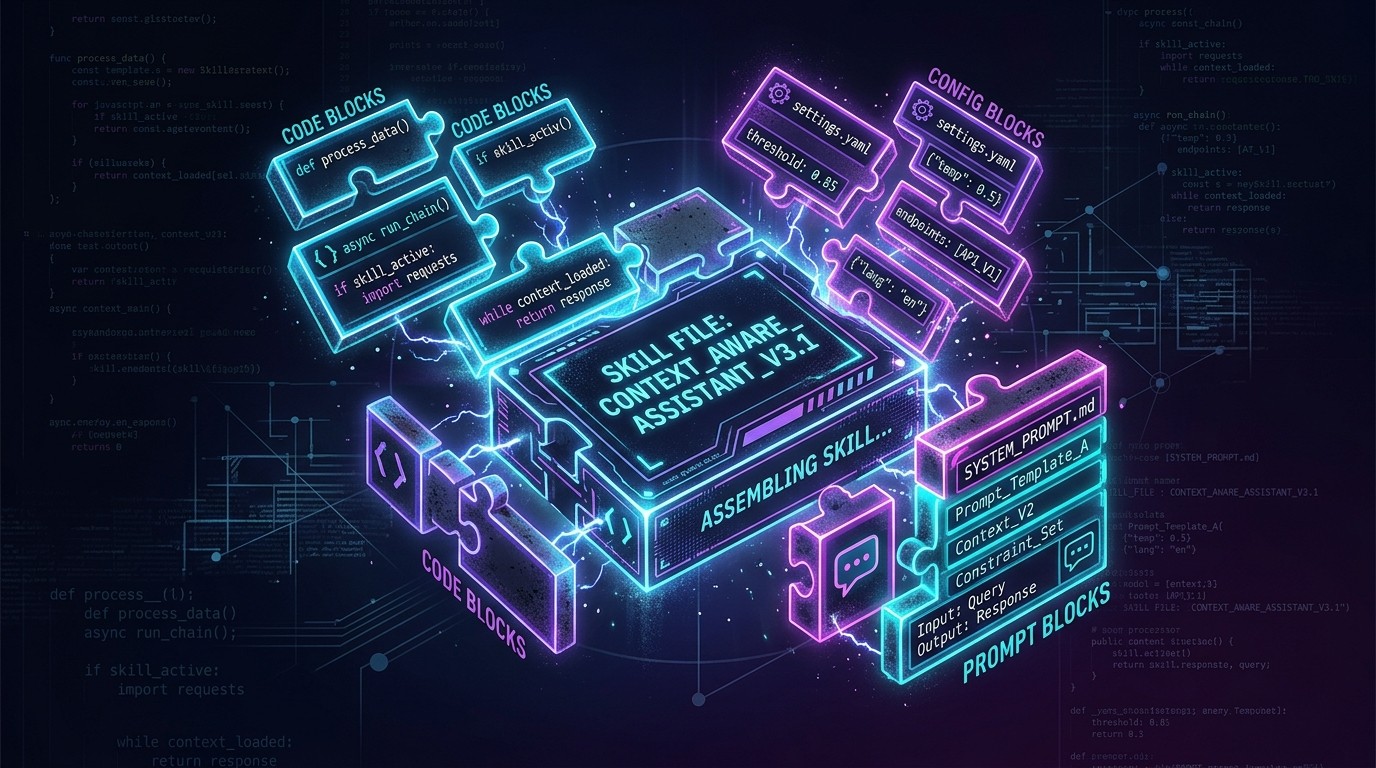
.claude/skills/ that extend NanoClaw's capabilities with custom automation, workflows, and integrations. This guide walks through building a complete Notification Skill from scratch, covers the self-extension pattern where NanoClaw writes its own skills, and includes five ready-to-use skill examples. Total build time for a first skill: under 20 minutes. Skills can be published to ClawHub for community discovery. Prerequisites: NanoClaw CLI installed, a text editor, and a ClawHub account for publishing.Table of Contents
- Why Build Custom NanoClaw Skills?
- Understanding NanoClaw's Skill Architecture
- Tutorial: Build a Custom Notification Skill
- Self-Extension Pattern
- 5 Skill Examples (Complete Code)
- Publishing to ClawHub
- Skill Development Best Practices
- Advanced Patterns
- Frequently Asked Questions
Why Build Custom NanoClaw Skills?
NanoClaw ships with a capable set of built-in behaviors, but every developer's workflow is different. Custom skills bridge the gap between what NanoClaw does out of the box and what a specific project, team, or individual actually needs. There are three compelling reasons to invest the 15-20 minutes it takes to build one.
Extend Your AI Beyond Defaults
NanoClaw's core functionality covers code generation, file manipulation, and terminal operations. Custom skills push those boundaries into domain-specific territory. A DevOps engineer can build a skill that monitors deployment pipelines and sends alerts. A data scientist can create one that validates dataset schemas before training runs. A technical writer can automate documentation generation from code comments. Each skill transforms NanoClaw from a general-purpose assistant into a specialized tool for a specific workflow.
Automate Repetitive Workflows
Every developer has sequences they repeat daily: checking build status, formatting logs, generating boilerplate, running pre-commit validations. A skill encapsulates that entire sequence into a single invocation. Instead of typing multi-paragraph instructions every morning, a /daily-standup skill gathers git logs, open PRs, and failing tests in one pass. The time savings compound — a skill that saves three minutes per invocation across a five-person team saves over 60 hours per year.
Share with the Community
ClawHub, NanoClaw's skill marketplace, hosts thousands of community-contributed skills. Publishing a well-built skill that solves a common problem — monitoring API uptime, generating changelogs, auditing dependencies — earns community ratings and helps other developers. High-rated skills surface in NanoClaw's recommendation engine, meaning the best contributions get organic distribution. Several skill authors have built significant followings through consistently publishing useful automation.
Understanding NanoClaw's Skill Architecture
Before writing code, understanding how NanoClaw discovers, loads, and executes skills prevents debugging headaches later.
The .claude/skills/ Directory
NanoClaw looks for skills in a specific location within any project:
project-root/
  .claude/
    skills/
      notification-alerts.md
      daily-digest.md
      expense-tracker.md
    settings.json
  src/
  package.json
Every .md file inside .claude/skills/ is treated as a potential skill. NanoClaw scans this directory at startup and whenever a user invokes a skill command. The filenames are kebab-case by convention, matching the skill's invocation name. A file named notification-alerts.md becomes available as the notification-alerts skill.
The SKILL.md Format
Each skill file follows a structured Markdown format that NanoClaw parses into executable instructions. The file contains three core sections:
Metadata block — A YAML-style description at the top wrapped in a blockquote or heading that tells NanoClaw what the skill does, when to activate it, and what permissions it requires.
Instructions block — The main body of Markdown that defines the skill's behavior. This is what NanoClaw follows when the skill is invoked. Instructions are written in natural language with specific, actionable directives.
Tool permissions block — An explicit list of tools and MCP servers the skill is allowed to use. NanoClaw enforces these permissions at runtime, preventing skills from accessing resources outside their declared scope.
How NanoClaw Loads Skills
The loading sequence matters for debugging:
- Discovery — NanoClaw scans
.claude/skills/for all.mdfiles on session start. - Parsing — Each file is parsed for its name, description, and trigger conditions.
- Registration — Valid skills are registered in NanoClaw's skill index, making them available for invocation.
- Invocation — When a user triggers a skill (via slash command, keyword match, or programmatic call), NanoClaw loads the full instruction set into context.
- Execution — NanoClaw follows the instructions, using only the tools specified in the permissions block.
Skills do not persist between sessions by default. Each invocation loads the skill fresh from disk, meaning edits to a SKILL.md file take effect immediately without restarting NanoClaw.
Skill Scope: Project vs. Global
Skills placed in a project's .claude/skills/ directory are scoped to that project. For skills that should be available everywhere — personal utilities, system monitoring, cross-project automation — NanoClaw supports a global skills directory at ~/.claude/skills/. Global skills load alongside project skills, with project skills taking precedence when names conflict.
Tutorial: Build a Custom Notification Skill
This tutorial builds a Notification Alerts skill from scratch. The skill monitors a project's error logs and sends formatted notifications when critical issues appear. Each step includes the exact code to write.
Step 1: Plan the Skill
Before touching a file, define what the skill does in plain language:
- Purpose: Monitor application logs for error patterns and generate formatted alert summaries.
- Trigger: Manual invocation via
/notification-alertsor when the user asks about recent errors. - Input: A log file path or directory to scan.
- Output: A formatted summary of critical errors with timestamps, severity levels, and suggested actions.
- Tools needed: File system read access, Bash for log parsing.
Writing this plan first prevents scope creep. A skill should do one thing well.
Step 2: Create SKILL.md
Create the file in the project's skill directory:
mkdir -p .claude/skills
touch .claude/skills/notification-alerts.md
Add the skill header and description:
# Notification Alerts

Monitors application logs for critical errors and generates formatted
alert summaries with timestamps, severity levels, and suggested next steps.

## When to Use

- User asks about recent errors or issues
- User invokes `/notification-alerts`
- User asks to check logs or monitor for problems
The header section serves double duty: it tells NanoClaw when to activate the skill, and it gives human readers a quick summary of what the skill does.
Step 3: Define Triggers and Behavior
Add the core instruction block that defines exactly how the skill operates:
## Instructions

When this skill is invoked:

1. **Identify the log source.** Ask the user for the log file path if not
   provided. Default to `./logs/` directory if it exists. Check for common
   log locations: `./logs/`, `./output/`, `/var/log/`, and any path
   specified in the project's config files.

2. **Scan for critical patterns.** Search log files for these severity
   markers (case-insensitive):
   - `ERROR` — High severity
   - `FATAL` — Critical severity
   - `CRITICAL` — Critical severity
   - `WARN` with `timeout` or `connection refused` — Medium severity
   - Stack traces (lines starting with `at ` or `Traceback`) — High severity

3. **Extract context.** For each matched error, capture:
   - Timestamp (parse from log format)
   - Full error message
   - 3 lines of context before and after
   - File and line number if present in stack trace

4. **Deduplicate.** Group identical errors by message signature. Count
   occurrences. Show the most recent timestamp for each unique error.

5. **Generate the alert summary.** Format output as:
## Alert Summary — [Date/Time]
Critical: [count] | High: [count] | Medium: [count]
### Critical Issues
- [timestamp] — [error message] (seen [X] times)
→ Suggested action: [specific recommendation]
### High Severity
- [timestamp] — [error message] (seen [X] times)
→ Suggested action: [specific recommendation]
### Medium Severity
- [timestamp] — [error message] (seen [X] times)
→ Suggested action: [specific recommendation] ```
- Provide actionable suggestions. For each error type, include a
concrete next step:
- Connection errors → "Check service health at [endpoint]"
- Null reference → "Review [file]:[line] for missing null checks"
- Timeout → "Current timeout is [X]ms, consider increasing or checking
upstream latency"
- Out of memory → "Current heap usage may need profiling. Check for
memory leaks in [module]"
The key to effective skill instructions: be specific about formats, thresholds, and output structure. Vague instructions like "summarize the errors" produce inconsistent results. Explicit formatting templates ensure every invocation produces the same structured output.

### Step 4: Add Tool Permissions

Define exactly which tools the skill can access:
Tool Permissions
This skill requires:
- Read — To access log files and configuration files
- Bash — To run grep, awk, and tail commands for log parsing
- Glob — To discover log files across directories
This skill does NOT need:
- Write access (it only reads and reports)
- Network access (all log files are local)
- MCP server connections
Explicit permission boundaries serve two purposes. They tell NanoClaw what to allow at runtime, and they signal to users reviewing the skill that it cannot modify files or make network calls. This transparency builds trust, especially for skills downloaded from ClawHub.

### Step 5: Test Locally

Test the skill with a sample log file. Create a test log:
mkdir -p logs cat > logs/app.log << 'EOF' 2026-03-21T08:15:32Z INFO Server started on port 3000 2026-03-21T08:16:45Z INFO Database connection established 2026-03-21T08:22:11Z ERROR ConnectionRefusedError: Redis at 127.0.0.1:6379 at RedisClient.connect (src/cache/redis.ts:45) at CacheManager.init (src/cache/manager.ts:12) 2026-03-21T08:22:12Z WARN Falling back to in-memory cache 2026-03-21T08:45:03Z ERROR TypeError: Cannot read property 'id' of null at UserService.getProfile (src/services/user.ts:89) at Router.handleRequest (src/routes/api.ts:156) 2026-03-21T08:45:03Z ERROR TypeError: Cannot read property 'id' of null at UserService.getProfile (src/services/user.ts:89) at Router.handleRequest (src/routes/api.ts:156) 2026-03-21T09:01:17Z FATAL OutOfMemoryError: JavaScript heap out of memory at processLargeDataset (src/workers/etl.ts:234) EOF
Invoke the skill within NanoClaw:
/notification-alerts logs/app.log
The skill should produce a formatted alert summary matching the template defined in Step 3. Verify that deduplication works (the two identical TypeError entries should be grouped), severity levels are assigned correctly, and suggested actions are relevant to each error type.

### Step 6: Iterate with AI Assistance

Here is where NanoClaw's self-extension capability becomes powerful. After testing, ask NanoClaw to improve the skill:
Look at .claude/skills/notification-alerts.md and improve it.
Add support for JSON-formatted logs and multi-line stack traces. Make the severity thresholds configurable.
NanoClaw reads the existing skill file, understands its structure, and edits it in place. This iterative pattern — build a rough version manually, then refine with AI assistance — produces better skills faster than either approach alone. The human provides domain knowledge and requirements; NanoClaw handles the verbose instruction writing and edge case handling.

### Step 7: Package for Distribution

To share this skill, ensure the file is self-contained. Add a metadata header that ClawHub uses for discovery:
name: notification-alerts version: 1.0.0 author: your-clawhub-username description: Monitor application logs for critical errors with formatted alert summaries tags:
- monitoring
- logs
- alerts
- devops
requires:
- Bash
- Read
- Glob
Place this YAML front matter at the very top of the file, before the `# Notification Alerts` heading. ClawHub parses this metadata for search indexing, version tracking, and dependency display.

---

## Self-Extension Pattern

NanoClaw's most distinctive capability is self-extension — the AI can write, modify, and manage its own skills. This is not a theoretical feature. It is the recommended workflow for skill development in 2026.

### How It Works

When a user asks NanoClaw to "create a skill that does X," NanoClaw follows a predictable sequence:

1. **Interprets the request** — Understands what the skill should do, what tools it needs, and when it should activate.
2. **Creates the file** — Writes a complete SKILL.md file to `.claude/skills/` with proper structure, instructions, and permissions.
3. **Self-validates** — Reads back the file to verify the instructions are coherent and the formatting is correct.
4. **Reports completion** — Tells the user what was created, how to invoke it, and suggests testing steps.

### Practical Example: Auto-Generated Git Workflow Skill
User: Create a skill that enforces our git workflow. Before every commit, it should check that the branch name matches our pattern (feature/, fix/, chore/*), the commit message starts with a conventional commit prefix, and all tests pass. If anything fails, explain what's wrong and how to fix it.
NanoClaw generates the skill file automatically, placing it in `.claude/skills/git-workflow-enforcer.md` with full instructions, pattern matching rules, and error messaging. The user can then invoke it immediately.

### Practical Example: Project Onboarding Skill
User: Read through this entire repository and create a skill that helps new developers get onboarded. It should explain the architecture, list key files, describe the deployment process, and answer common questions.
NanoClaw scans the project, builds a mental model of the codebase, and generates an onboarding skill that encapsulates that knowledge. New team members invoke the skill and get project-specific guidance without requiring a senior developer's time.

### The Feedback Loop: Skill Refinement Through Conversation

Self-extension is not a one-shot process. The most effective pattern is iterative: generate a skill, test it, observe the output, then ask NanoClaw to refine. Each iteration sharpens the instructions. A first-generation skill might produce overly verbose output. Asking "make the output more concise, use tables instead of paragraphs" produces a tighter second version. Asking "add error handling for when the git remote is unreachable" adds resilience. After three or four iterations, the skill typically reaches production quality.

This feedback loop is faster than writing by hand because NanoClaw handles the tedious parts — maintaining proper Markdown structure, ensuring instruction consistency, updating permissions declarations — while the developer focuses on the high-level requirements. The developer becomes a product manager for the skill, describing what it should do rather than how to format it.

### When to Self-Extend vs. Write Manually

Self-extension works best for skills that encode project-specific knowledge NanoClaw already has access to (file structures, code patterns, configuration). Write skills manually when the requirements involve external domain knowledge NanoClaw cannot observe from the codebase — such as business rules, regulatory requirements, or team preferences that are not documented anywhere in the project.

A practical rule of thumb: if the skill needs to understand the current project's structure, let NanoClaw self-extend. If the skill encodes institutional knowledge that lives in people's heads rather than in files, write the first draft manually and then let NanoClaw refine the formatting and edge case handling.

---

## 5 Skill Examples (Complete Code)

Each example below is a complete, copy-paste-ready SKILL.md file.

### 1. Weather Alerts Skill
name: weather-alerts version: 1.0.0 description: Fetch weather data and generate alerts for severe conditions tags: [weather, alerts, notifications, api] requires: [Bash, WebFetch]
Weather Alerts
Fetches current weather data for a specified location and generates formatted alerts when severe conditions are detected.
When to Use
- User asks about weather conditions or forecasts
- User invokes
/weather-alerts - User asks to set up weather monitoring for a location
Instructions
When invoked:
- Get the location. Ask the user for a city name or coordinates
if not provided. Default to the location in .claude/settings.json if configured.
- Fetch weather data. Use the WebFetch tool to call the
Open-Meteo API (no API key required): `` https://api.open-meteo.com/v1/forecast?latitude={lat}&longitude={lon}¤t=temperature_2m,wind_speed_10m,precipitation,weather_code&daily=temperature_2m_max,temperature_2m_min,precipitation_sum,wind_speed_10m_max&timezone=auto ``
- Evaluate severity. Apply these thresholds:
- Extreme heat: Temperature > 38C / 100F
- Extreme cold: Temperature < -15C / 5F
- High wind: Wind speed > 60 km/h / 37 mph
- Heavy precipitation: Daily total > 50mm / 2in
- Storm codes: Weather code 95-99
- Generate alert summary:
   ## Weather Alert — [Location] — [Date]

   **Current:** [temp] | Wind: [speed] | Conditions: [description]

   ### Active Alerts
   - [SEVERITY] — [condition description]
     → Recommendation: [actionable advice]

   ### 3-Day Outlook
   | Day | High | Low | Precip | Wind |
|-----|------|-----|--------|------|- No alerts scenario. If all conditions are within normal ranges,
report "No active weather alerts" with the current conditions summary.
Tool Permissions
- WebFetch — To call the Open-Meteo weather API
- Bash — To parse JSON responses and format output
- Read — To check for saved location preferences
### 2. Daily Digest Skill
name: daily-digest version: 1.0.0 description: Generate a morning project digest with git activity, open issues, and build status tags: [productivity, digest, git, daily-standup] requires: [Bash, Read, Glob]
Daily Digest
Compiles a morning digest summarizing overnight git activity, open issues, build status, and pending tasks for the current project.
When to Use
- User asks for a project summary or daily update
- User invokes
/daily-digest - Start of a new working session
Instructions
When invoked:
- Gather git activity. Run these commands:
git log --since="yesterday" --oneline --allfor recent commitsgit branch -a --sort=-committerdate | head -10for active branchesgit stash listfor any stashed workgit status --shortfor uncommitted changes
- Check for open tasks. Scan for:
- TODO/FIXME/HACK comments:
grep -rn "TODO\|FIXME\|HACK" src/ --include="*.{ts,js,py}" | tail -20 - Files modified but not committed
- Any
.todoorTODO.mdfiles in the project root
- Assess build health. Look for:
- Last CI run status if
.github/workflows/exists - Package audit:
npm audit --json 2>/dev/null | head -5or equivalent - Outdated dependencies: check
package.jsonorrequirements.txttimestamps
- Compile the digest:
   ## Daily Digest — [Date]

   ### Overnight Activity
   - [X] commits across [Y] branches since yesterday
   - Most active: [branch name] ([Z] commits)
   - [List top 5 commit messages]

   ### Current State
   - Uncommitted changes: [count] files
   - Stashed work: [count] entries
   - Active branches: [list top 5]

   ### Attention Needed
   - [count] TODO/FIXME items in codebase
   - [Dependency issues if any]
   - [Failing checks if any]

   ### Suggested Focus
   Based on recent activity, consider:
   1. [Most relevant next step]
   2. [Second priority]
3. [Third priority]- Keep it concise. The entire digest should fit in one screen.
Prioritize actionable information over comprehensive reporting.
Tool Permissions
- Bash — To run git commands and grep for TODOs
- Read — To check config files and TODO lists
- Glob — To discover workflow and config files
### 3. Smart Home Controller Skill
name: smart-home-controller version: 1.0.0 description: Control smart home devices through Home Assistant API tags: [smart-home, home-assistant, iot, automation] requires: [Bash, WebFetch, Read]
Smart Home Controller
Interfaces with a Home Assistant instance to control smart home devices, check statuses, and create automation routines.
When to Use
- User asks to control a light, thermostat, lock, or other device
- User invokes
/smart-home - User asks about home device status or wants to create a routine
Instructions
When invoked:
- Load configuration. Read Home Assistant connection details from
.claude/config/home-assistant.json: ``json { "url": "http://homeassistant.local:8123", "token": "${HA_TOKEN}" } `` The token should reference an environment variable, never be hardcoded.
- Parse the user's intent. Categorize the request:
- Status check — "What's the temperature?" / "Are the lights on?"
- Device control — "Turn off the living room lights"
- Scene activation — "Set movie mode" / "Goodnight routine"
- Automation creation — "Turn on porch lights at sunset"
- For status checks, call:
   GET {url}/api/states
   Authorization: Bearer {token}
Filter results to relevant entities and format as a readable summary.
- For device control, call:
   POST {url}/api/services/{domain}/{service}
   Authorization: Bearer {token}
   Body: { "entity_id": "{entity}" }
Map natural language to Home Assistant domains:
- "lights" →
light/turn_on,light/turn_off,light/toggle - "thermostat" →
climate/set_temperature - "locks" →
lock/lock,lock/unlock - "switches" →
switch/turn_on,switch/turn_off
- For automation creation, generate a Home Assistant automation
YAML config and display it for user approval before applying.
- Always confirm destructive actions. Unlocking doors, disabling
alarms, or opening garage doors require explicit user confirmation before execution.
Tool Permissions
- WebFetch — To call the Home Assistant REST API
- Read — To load configuration files
- Bash — To parse JSON responses and format output
Security Notes
- Never log or display the API token
- Always confirm lock/alarm/garage operations before executing
- Reject requests to disable security systems without multi-step confirmation
### 4. Expense Tracker Skill
name: expense-tracker version: 1.0.0 description: Track expenses via natural language, categorize, and generate spending reports tags: [finance, expenses, tracking, productivity] requires: [Read, Bash, Write]
Expense Tracker
Records expenses from natural language input, auto-categorizes spending, and generates formatted reports and budgeting insights.
When to Use
- User mentions spending money or making a purchase
- User invokes
/expense-tracker - User asks for a spending summary or budget report
Instructions
When invoked:
- Initialize storage. Check for
.claude/data/expenses.csv. Create
it with headers if it does not exist: `` date,amount,currency,category,description,payment_method ``
- Parse expense input. Extract from natural language:
- Amount and currency ("$45.50", "45 euros", "120 USD")
- Category (auto-detect from description):
- Food & Dining: restaurant, coffee, grocery, lunch, dinner
- Transport: uber, lyft, gas, parking, metro, taxi
- Software: subscription, saas, license, hosting, domain
- Hardware: laptop, monitor, keyboard, phone, cable
- Office: supplies, printing, postage, coworking
- Entertainment: movie, game, music, streaming
- Utilities: electric, water, internet, phone bill
- Other: anything that does not match above
- Description (the raw input, cleaned up)
- Date (today if not specified)
- Payment method if mentioned
- Record the expense. Append a new row to
expenses.csv.
Confirm to the user: `` Recorded: $[amount] — [category] — "[description]" on [date] ``
- For report requests, read
expenses.csvand generate:
   ## Expense Report — [Period]

   **Total Spent:** $[total]

   ### By Category
   | Category | Amount | % of Total | Transactions |
   |----------|--------|------------|--------------|

   ### Top 5 Expenses
   1. $[amount] — [description] ([date])

   ### Daily Average: $[avg]
### Trend: [up/down X%] vs previous period- Budget alerts. If the user has set a monthly budget in
.claude/config/budget.json, compare current spending and warn when approaching 80% or exceeding the limit.
Tool Permissions
- Read — To access expense data and budget configuration
- Write — To append new expenses to the CSV file
- Bash — To calculate totals, averages, and generate reports
### 5. Meeting Scheduler Skill
name: meeting-scheduler version: 1.0.0 description: Draft meeting invites, find time slots, and prepare agendas from context tags: [meetings, scheduling, calendar, productivity] requires: [Read, Bash, Glob]
Meeting Scheduler
Drafts meeting invitations, generates agendas from project context, and helps find optimal time slots based on team availability patterns.
When to Use
- User asks to schedule or plan a meeting
- User invokes
/meeting-scheduler - User asks to prepare a meeting agenda or draft an invite
Instructions
When invoked:
- Determine meeting type. Ask if not clear:
- Standup — 15 min, status updates, no agenda prep needed
- Sprint planning — 60 min, requires backlog review
- Design review — 45 min, requires recent PR/design doc summary
- Retrospective — 60 min, requires sprint metrics
- 1:1 — 30 min, requires recent activity summary for the person
- Custom — User-defined duration and format
- Generate agenda. Based on meeting type, scan the project for
relevant context:
- For sprint planning:
git log --since="2 weeks ago", open issues,
TODO items
- For design review: recently modified files in
src/, open PRs - For retrospective: commit frequency, PR merge times, closed issues
- For 1:1: that person's recent commits and PR activity
- Format the agenda:
   ## [Meeting Type] — [Date] [Time] ([Duration])

   ### Attendees
   - [Name] — [Role/Context]

   ### Agenda
   1. [Topic] — [Time allocation] — [Owner]
   2. [Topic] — [Time allocation] — [Owner]
   3. [Topic] — [Time allocation] — [Owner]

   ### Pre-Read Materials
   - [Link or file reference]

   ### Context
   [Auto-generated summary of relevant project activity]

   ### Action Items from Last Meeting
- [ ] [Item] — [Owner] — [Status]- Draft the invite. Generate a calendar-ready text block:
   Subject: [Meeting Type]: [Brief Topic]
   Duration: [X] minutes
   Proposed times: [Suggest 3 slots based on common business hours]

[Agenda pasted below]- Track action items. After the meeting, if the user provides
notes, extract action items and save to .claude/data/action-items.md for follow-up in the next meeting's agenda.
Tool Permissions
- Read — To access project files, git history, and past meeting notes
- Bash — To run git commands and gather project metrics
- Glob — To discover relevant files and past meeting records
---

## Publishing to ClawHub

ClawHub is NanoClaw's official skill marketplace. Publishing makes a skill discoverable by the entire NanoClaw user community.

### Submission Process

1. **Prepare the skill file.** Ensure the YAML front matter includes all required fields: `name`, `version`, `author`, `description`, `tags`, and `requires`. The name must be unique on ClawHub — check for conflicts at `clawhub.dev/search` before submitting.

2. **Create a ClawHub account.** Sign up at `clawhub.dev` with a GitHub account. ClawHub uses GitHub authentication for identity verification and links published skills to their author's profile.

3. **Submit via CLI.** NanoClaw includes a built-in publish command:
nanoclaw skill publish .claude/skills/notification-alerts.md ``` This validates the skill file format, uploads it to ClawHub, and returns a public URL. The first publish creates the skill listing; subsequent publishes update the version.
- Add a README. ClawHub displays a skill's README on its listing page. Add usage examples, screenshots of output, and configuration instructions. Skills with thorough READMEs receive significantly higher install rates.
Tagging Strategy
ClawHub's search relies heavily on tags. Use 4-6 tags per skill, mixing broad categories and specific use cases:
- Broad:
monitoring,productivity,devops,automation - Specific:
log-parsing,git-workflow,api-testing,home-assistant - Audience:
frontend,backend,data-science,technical-writing
Skills with well-chosen tags appear in more search results. Avoid generic tags like useful or tool — they add no discovery value.
Getting Discovered
Three factors determine a skill's visibility on ClawHub:
- Install count — The primary ranking signal. Skills that solve real problems accumulate installs organically.
- Rating — Users rate skills 1-5 stars after installing. Skills below 3.5 stars drop in search rankings.
- Freshness — Recently updated skills rank higher than stale ones. Update the version when fixing bugs or adding features.
Promote new skills by sharing them in NanoClaw community channels (Discord, GitHub Discussions, Reddit r/nanoclaw) and writing a brief blog post explaining the problem the skill solves.
Versioning and Updates
ClawHub tracks version history for every published skill. When pushing an update, increment the version number in the YAML front matter and include a brief changelog entry. Users who have installed a skill receive a notification when a new version is available, along with the changelog summary. This mechanism builds an ongoing relationship between skill authors and their users.
Breaking changes deserve special attention. If a new version changes the skill's output format, required permissions, or input expectations, bump the major version number and document the migration path clearly. ClawHub displays a "breaking change" badge on major version updates, warning users to review the changelog before upgrading. Skills that break without warning accumulate negative ratings quickly.
Skill Development Best Practices
Eight principles that separate robust skills from fragile ones.
1. One Skill, One Job
A skill that monitors logs, sends emails, updates dashboards, and generates reports is four skills pretending to be one. Split complex workflows into composable units. A log-monitor skill feeds its output to a notify skill, which triggers a dashboard-update skill. Each piece is testable and reusable independently.
2. Explicit Over Implicit
Never assume NanoClaw will infer the correct behavior from vague instructions. "Analyze the code" is ambiguous. "Run ESLint with the project's .eslintrc config, report violations grouped by severity, and suggest auto-fixable changes first" is explicit. Every instruction should produce the same output regardless of which NanoClaw model version executes it.
3. Fail Gracefully
Skills should handle missing files, empty directories, network timeouts, and malformed input without crashing silently. Include fallback instructions: "If the log directory does not exist, inform the user and suggest common log locations to check." Defensive instructions prevent confusing error states.
4. Declare Minimal Permissions
Request only the tools the skill actually needs. A skill that only reads files should not have Write permissions. A skill that does not need network access should not declare WebFetch. Minimal permissions reduce the attack surface and build user trust — especially important for skills published on ClawHub.
5. Use Structured Output Formats
Markdown tables, code blocks, and consistent heading hierarchies make skill output scannable and parseable. If another skill or script might consume the output, use a structured format like JSON or CSV inside a code block. Unstructured prose output is harder to act on programmatically.
6. Version Intentionally
Use semantic versioning in the YAML front matter. Bump the patch version (1.0.1) for bug fixes, the minor version (1.1.0) for new features, and the major version (2.0.0) for breaking changes to the skill's interface. ClawHub tracks version history, and users can pin specific versions.
7. Document Edge Cases
Add a "Notes" or "Limitations" section to the skill that documents known constraints: "This skill does not support gzipped log files," "Requires Node.js 18+ for the date parsing commands," "Maximum file size: 50MB per scan." Users who understand a skill's boundaries trust it more than users who discover limitations through failures.
8. Test with Adversarial Inputs
Feed the skill empty files, 500MB log files, binary files, files with unusual encodings, and directories with thousands of files. Skills that handle edge cases gracefully earn higher ClawHub ratings. Build a simple test script that runs the skill against a variety of inputs and checks for reasonable output or clean error messages.
Advanced Patterns
Once the basics are solid, three advanced patterns unlock significantly more powerful skills.
Skills That Use MCP Servers
MCP (Model Context Protocol) servers extend NanoClaw's reach to external systems — databases, APIs, cloud services, hardware interfaces. A skill can declare MCP server dependencies in its permissions block:
## Tool Permissions

- **mcp__supabase__execute_sql** — To query the project database
- **mcp__vercel__list_deployments** — To check deployment status
- **Bash** — For local processing
When the skill is invoked, NanoClaw connects to the declared MCP servers and makes their tools available within the skill's execution context. This pattern enables skills that query production databases, manage cloud infrastructure, or interact with third-party APIs — all through natural language instructions.
Example use case: A "deployment health" skill that queries Vercel for recent deployment status, checks Supabase for database migration state, and combines both into a unified health report. The skill declares both MCP servers in its permissions, runs the queries in sequence, and formats a single output.
Multi-Skill Orchestration
Complex workflows often require multiple skills executing in sequence, with the output of one feeding into the next. NanoClaw supports this through explicit skill chaining in instructions:
## Instructions

1. First, run the `daily-digest` skill to gather project context.
2. Using the digest output, run the `meeting-scheduler` skill to
   generate a standup agenda.
3. Finally, run the `notification-alerts` skill to append any
   critical issues to the agenda.
4. Combine all outputs into a single morning briefing document.
The orchestrating skill acts as a coordinator, calling other skills and merging their outputs. This pattern avoids duplicating instructions across skills and keeps each individual skill focused on its single responsibility.
Scheduled Skills
While NanoClaw does not have a built-in cron scheduler, skills can be triggered programmatically through shell scripts and system schedulers:
#!/bin/bash
# Run daily digest every morning at 8:00 AM
# Add to crontab: 0 8 * * * /path/to/run-daily-digest.sh

cd /path/to/project
echo "/daily-digest" | nanoclaw --non-interactive --skill daily-digest
This pattern enables automated workflows: morning digest emails, nightly build reports, weekly dependency audits, and monthly expense summaries. The skill executes the same way it would interactively, but the trigger comes from the system scheduler rather than a human command.
Combine scheduled skills with MCP servers for powerful automation. A nightly skill that queries a database for anomalies, generates a report, and posts it to a Slack channel via webhook runs entirely without human intervention once configured.
Environment-Aware Skills
Advanced skills can adapt their behavior based on the environment they detect. A deployment skill might check whether it is running in a staging or production context and adjust its safety checks accordingly. An environment-aware pattern looks like this in the instructions:
Check the current git branch name. If on
mainorproduction, require explicit user confirmation before any destructive operation and log all actions to.claude/data/audit-log.csv. If on a feature branch, proceed with standard confirmation prompts. If on a branch prefixed withhotfix/, skip non-critical validations and prioritize speed.
This pattern eliminates the need for separate skills per environment. One skill handles all contexts, with graduated safety rails that match the risk level of each environment. Production gets maximum guardrails; development gets streamlined workflows. The skill reads its context from the project state rather than requiring the user to specify the environment manually.
Skill Composition with Shared Data
When multiple skills need to share state — an expense tracker and a budget reporter, a log monitor and an alert notifier — use a shared data directory as the interchange format. The convention is .claude/data/ for persistent files that skills both read and write.
This approach keeps skills decoupled while allowing data flow between them. The expense tracker writes to .claude/data/expenses.csv. The budget reporter reads that same file. Neither skill needs to know about the other's existence. If the expense tracker is replaced with a different implementation that writes the same CSV format, the budget reporter continues working without modification. This loose coupling through shared file formats is more resilient than direct skill-to-skill calls for data exchange.
Frequently Asked Questions
How long does it take to build a NanoClaw skill?
A basic skill takes 10-20 minutes to write and test. The SKILL.md format is straightforward Markdown — there is no compilation step, no build tooling, and no boilerplate code. The majority of the time goes into writing precise instructions rather than fighting syntax. Complex skills with MCP integrations and multi-step workflows may take an hour, including testing.
Can NanoClaw skills call external APIs?
Skills can call external APIs through two mechanisms. The WebFetch tool makes HTTP requests directly, suitable for simple REST APIs with public endpoints. For complex API interactions requiring authentication, session management, or websocket connections, skills declare MCP server dependencies that handle the protocol layer. The skill's instructions describe what data to fetch; the MCP server handles the transport.
Do skills work across different NanoClaw versions?
Skills are written in natural language Markdown, not compiled code, so they are inherently forward-compatible. A skill written for NanoClaw 1.x continues to work in 2.x because the instructions are interpreted, not executed. That said, skills that depend on specific tools (like a particular MCP server) may need updates if those tools change their interfaces. Pin tool versions in the YAML front matter to signal compatibility.
What is the difference between project skills and global skills?
Project skills live in .claude/skills/ within a specific project directory and are only available when NanoClaw runs in that project. Global skills live in ~/.claude/skills/ and are available in every project. Use project skills for project-specific workflows (deployment scripts, code review standards) and global skills for personal utilities (expense tracking, weather alerts, daily digest).
Can a skill modify other skills?
A skill with Write permissions to the .claude/skills/ directory can create, modify, or delete other skills. This is the foundation of the self-extension pattern — NanoClaw can write new skills on request. However, published ClawHub skills should not modify other skills without explicit user consent. Skills that silently alter other skills violate ClawHub's trust guidelines and are flagged for review.
How do I debug a skill that produces unexpected output?
Start by invoking the skill and asking NanoClaw to explain its reasoning step by step. Add a "Debug Mode" section to the skill's instructions: "When the user includes --debug, print each step's intermediate output before proceeding to the next step." This surfaces where the skill's logic diverges from expectations. For tool permission issues, check that the required tools are listed in the permissions block and that the MCP servers are properly configured in the project's settings.